Инструкция для Samsung UE37C5100QW, UE32C5100QW, UE37C5000QW, UE32C5000QW, UE40C6540SW
 1
 2
 3
 4
 5
 6
 7
 8
 9
 10
 11
 12
 13
 14
 15
 16
 17
 18
 19
 20
 21
 22
 23
 24
 25
 26
 27
 28
 29
 30
 31
 32
 33
 34
 35
 36
 37
 38
 39
 40
 41
 42
 43
 44
 45
 46
 47
 48
 49
 50
 51
 52
 53
 54
 55
 56
 57
 58
 59
 60
 61
 62
 63
 64
 65
 66
 67
 68
 69
 70
 71
 72
 73
 74
 75
 76
 77
 78
 79
 80
 81
 82
 83
 84
 85
 86
 87
 88
 89
 90
 91
 92
 93
 94
 95
 96
 97
 98
 99
 100
 101
 102
 103
 104
 105
 106
 107
 108
 109
 110
 111
 112
 113
 114
 115
 116
 117
 118
 119
 120
 121
 122
 123
 124
 125
 126
 127
 128
 129
 130
 131
 132
 133
 134
 135
 136
 137
 138
 139
 140
 141
 142
 143
 144
 145
 146
 147
 148
 149
 150
 151
 152
 153
 154
 155
 156
 157
 158
 159
 160
 161
 162
 163
 164
 165
 166
 167
 168
 169
 170
 171
 172
 173
 174
 175
 176
 177
 178
 179
 180
 181
 182
 183
 184
 185
 186
 187
 188
 189
 190
 191
 192
 193
 194
 195
 196
 197
 198
 199
 200
 201
41
English
04
Advanced Featur
es
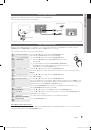
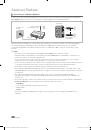
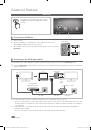
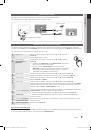
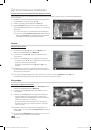
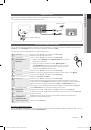
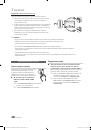
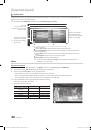
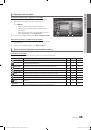
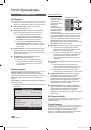
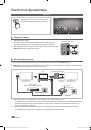
Call Arrival Alarm
If a call arrives while you are watching TV, the alarm
window appears.
Schedule Alarm
While you are watching TV, the alarm window appears to
display the registered event.
✎
You can configure viewing settings for schedule
contents on your mobile phones. For the
procedures, refer to the mobile phone manual.
✎
Some special characters may be displayed as
blank or broken characters.
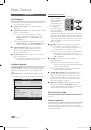
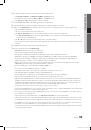
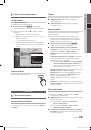
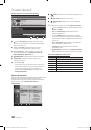
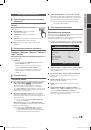
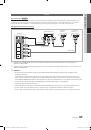
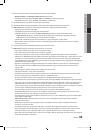
Using the Media Function
An alarm window appears informing the user that the media
contents (videos, photos, music) sent from a mobile phone
will be displayed on your TV. The contents are played
automatically 3 seconds after the alarm window appears.
If you press the
RETURN
or
EXIT
button when the alarm
window appears, the media contents are not played.
✎
NOTE
x
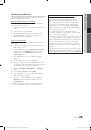
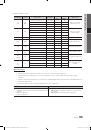
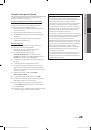
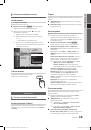
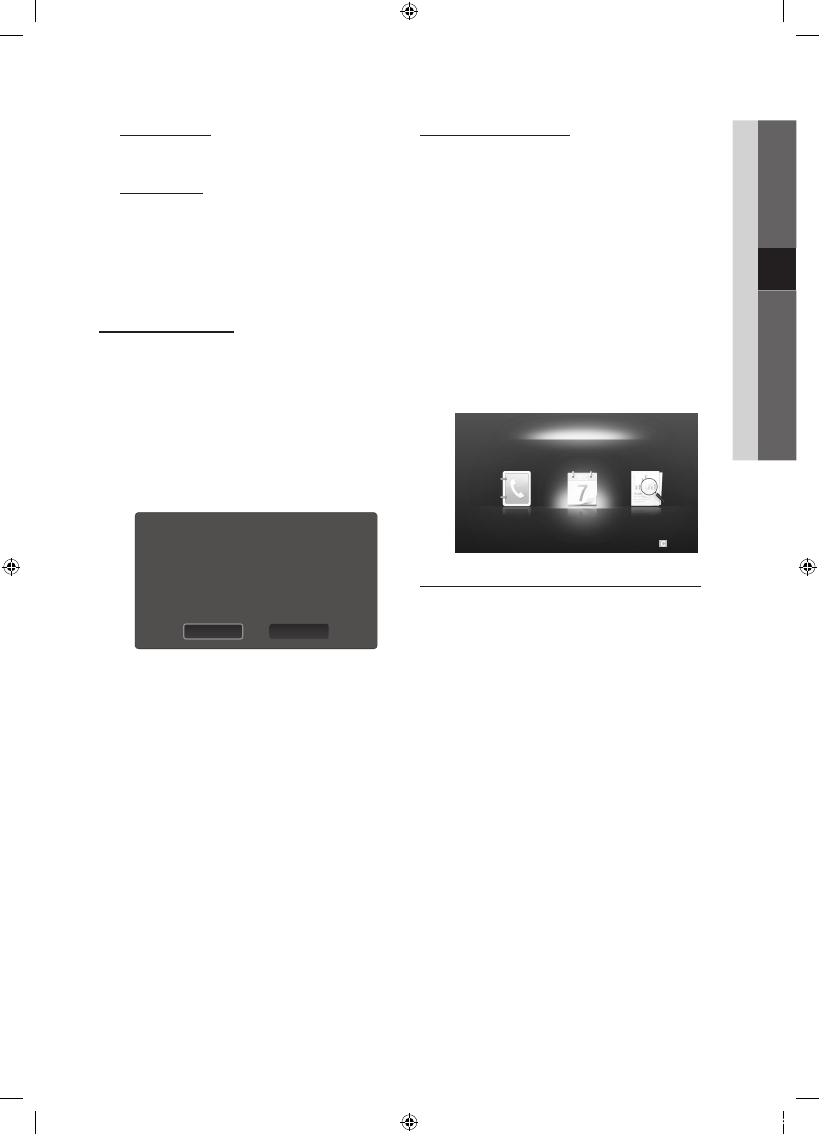
If the media function executes for the first time,
the warning popup windows appears. Press the
ENTER
E
button to select
Allow
, then you can use
Media function on that device.
x
To turn off the media contents transmission from
the mobile phone, set
Media
to
Off
in the
AllShare
setup.
x
Contents may not be played on your TV depending
on their resolution and format.
x
The
ENTER
E
and
◄
/
►
buttons may not work
depending on the type of media content.
x
Using the mobile device, you can control the media
playing. For details, refer to each mobile’s user’s
guide.
x
When you want to play media contents from
your PC, select the PC icon on the main display
of
AllShare
. Then the TV’s
Media Play
menu
automatically changes. For more detail information,
refer to “Media Play” (p. 30).
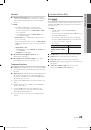
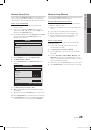
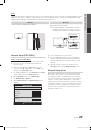
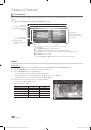
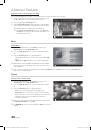
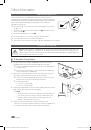
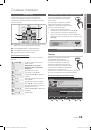
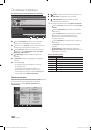
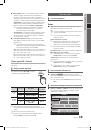
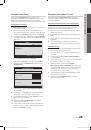
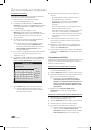
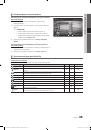
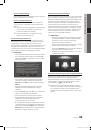
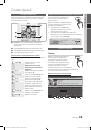
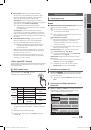
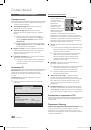
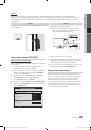
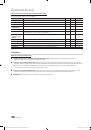
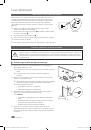
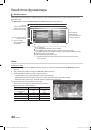
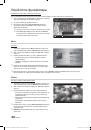
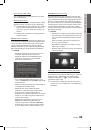
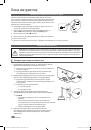
Using ScreenShare Function
Screenshare displays the same web page as provide in
mobile. Using ScreenShare, you can open the various
contents saved in a mobile phone. For example, the image
below displays an access page for contents from a mobile.
You can read the mobile’s various files and view the phone
book and calendar on the TV. Also, in phone book, you can
make a call to other person, or can send to SMS.
✎
NOTE
x
In Samsung mobile, ScreenShare must be installed
and the supporting application must be executed;
then you can use the ScreenShare function.
x
Available buttons on your remote control may vary
for each page.
x
Doc Viewer
can read files in doc format, but cannot
modify them.
x
The screen display may differ depending on the
connected device.
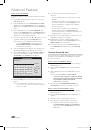
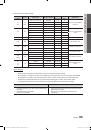
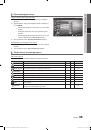
Using your Samsung phone to control your TV Simply
Before you can use this feature, you must connect to
a Samsung mobile phone that supports ScreenShare
functions. When operating the TV with your mobile phone,
only the
POWER
,
Y
,
P
<
/
>
and
MUTE
buttons are
supported.
✎
Even if you keep pressing down on a control button
(channel or volume) on the mobile phone, the value will
only go up or down by one unit.
E
Select Return
My Mobile
Contacts
Calendar
Doc Viewer
Deny
Allow
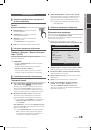
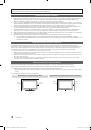
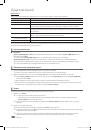
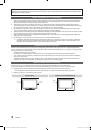
“Unknown Device 0” is requesting that the media file be allowed to play.
If you wish to allow the media file to be played at your device, please press
“Allow”, otherwise press “Deny”.
You can also change the setting (or resetting) of this feature at “AllShare
Setup”.
Warning: Please note that if your device is connected to unsecured or
unfamiliar network, unwanted or inappropriate contents might be played.
If you are not sure about the network's identity or content’s appropriateness,
we strongly recommend that you do not “Allow” the request to play.
[UC5100_Rus]BN68-02656H-00L04.indb 41
2010-03-24 오전 10:37:17