Инструкция для Samsung UE37C5100QW, UE32C5100QW, UE37C5000QW, UE32C5000QW, UE40C6540SW
 1
 2
 3
 4
 5
 6
 7
 8
 9
 10
 11
 12
 13
 14
 15
 16
 17
 18
 19
 20
 21
 22
 23
 24
 25
 26
 27
 28
 29
 30
 31
 32
 33
 34
 35
 36
 37
 38
 39
 40
 41
 42
 43
 44
 45
 46
 47
 48
 49
 50
 51
 52
 53
 54
 55
 56
 57
 58
 59
 60
 61
 62
 63
 64
 65
 66
 67
 68
 69
 70
 71
 72
 73
 74
 75
 76
 77
 78
 79
 80
 81
 82
 83
 84
 85
 86
 87
 88
 89
 90
 91
 92
 93
 94
 95
 96
 97
 98
 99
 100
 101
 102
 103
 104
 105
 106
 107
 108
 109
 110
 111
 112
 113
 114
 115
 116
 117
 118
 119
 120
 121
 122
 123
 124
 125
 126
 127
 128
 129
 130
 131
 132
 133
 134
 135
 136
 137
 138
 139
 140
 141
 142
 143
 144
 145
 146
 147
 148
 149
 150
 151
 152
 153
 154
 155
 156
 157
 158
 159
 160
 161
 162
 163
 164
 165
 166
 167
 168
 169
 170
 171
 172
 173
 174
 175
 176
 177
 178
 179
 180
 181
 182
 183
 184
 185
 186
 187
 188
 189
 190
 191
 192
 193
 194
 195
 196
 197
 198
 199
 200
 201
28
English
Advanced Features
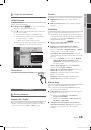
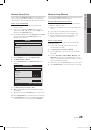
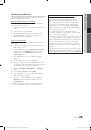
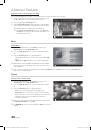
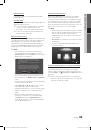
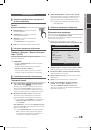
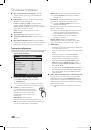
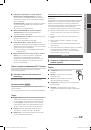
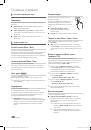
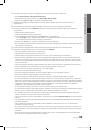
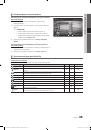
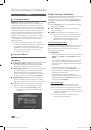
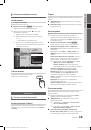
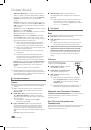
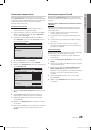
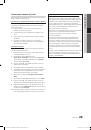
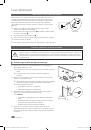
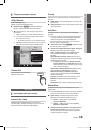
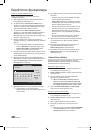
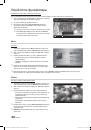
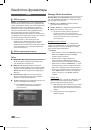
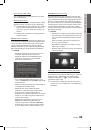
How to set up automatically
To set up the wireless connection automatically, follow these
steps:
1.
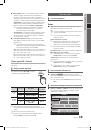
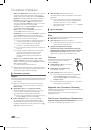
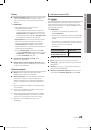
Follow Steps 1 through 6 in the “How to set up using
PBC (WPS)” (p. 27).
2.
Press the
▼
button to select
Internet Protocol Setup
,
and then press the
ENTER
E
button. Press the
▲
or
▼
button to select
Auto
, and then press the
ENTER
E
button.
3.
Press the
▲
button to go to
Select a Network
, and
then press the
ENTER
E
button. The
Network
function
searches for available wireless networks. When done, it
displays a list of the available networks.
4.
In the list of networks, press the
▲
or
▼
button to select
a network, and then press the
ENTER
E
button.
✎
If the AP is set to Hidden (Invisible), you have
to select
Add Network
and enter the correct
Network Name (SSID)
and
Security Key
to
establish the connection.
5.
If the Security/PIN pop-up appears, go to Step 6. If the
Network Connecting Screen appears, go to Step 10.
6.
Press the
▲
or
▼
button to select
Security
or
PIN
. For
most home networks, you would select Security (for
Security Key
). The
Security
Screen appears.
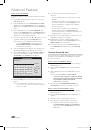
7.
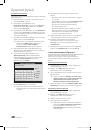
On the
Security
screen, enter your network’s Pass
Phrase.
✎
You should be able to find the Pass Phrase on
one of the set up screens you used to set up your
router or modem.
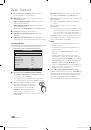
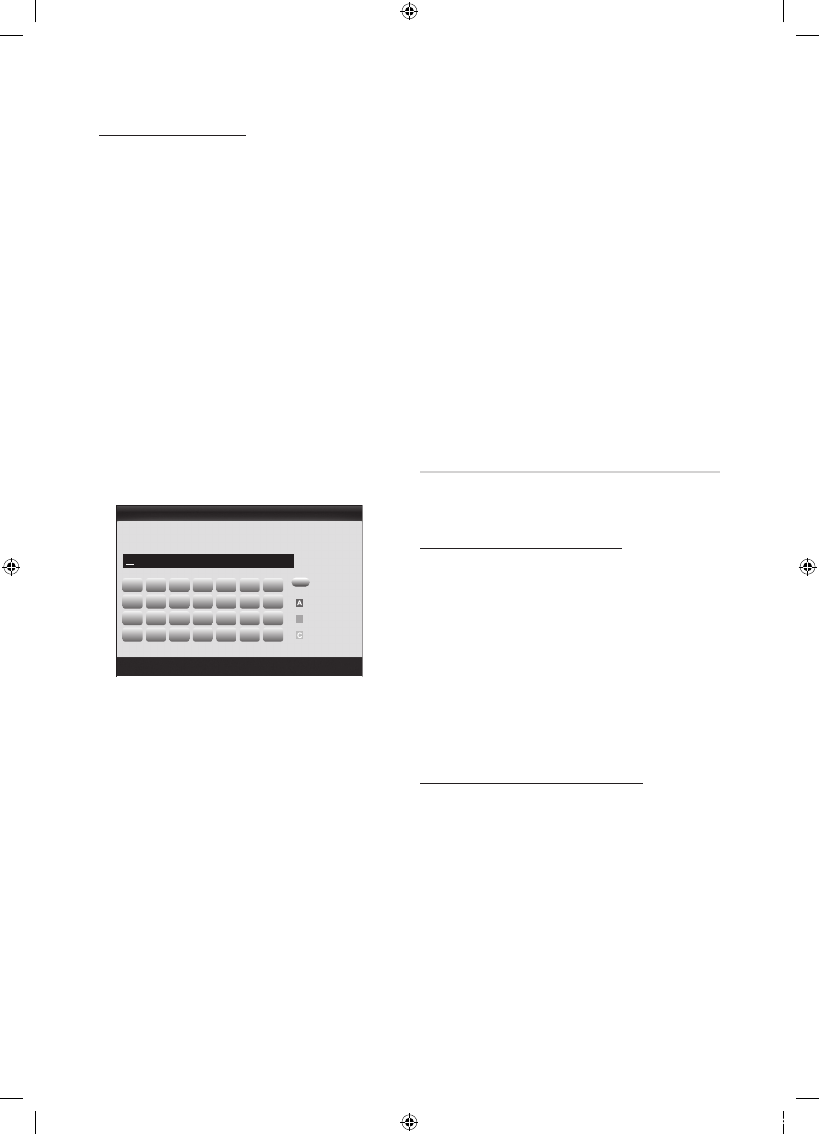
8.
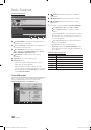
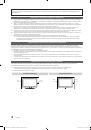
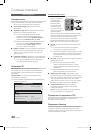
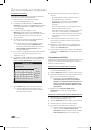
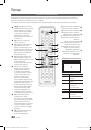
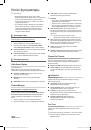
To enter the Pass Phrase, follow these general
directions:
– Press the number buttons on your remote to enter
numbers.
– Use the direction buttons on your remote to move
from button to button on the
Security Key
screen.
– Press the Red button to change case or display
symbols/characters.
– To a enter letter or symbol, move to the letter or
symbol, and then press the
ENTER
E
button.
– To delete the last letter or number you entered, press
the Green button on your remote.
9.
When done, press the Blue button on your remote. The
Network Connecting screen appears.
10.
Wait until the connection confirmation message is
displayed, and then press the
ENTER
E
button. The
Network Setup
screen re-appears.
11.
To test the connection, press the
RETURN
button to
select
Network Test
, and then press the
ENTER
E
button.
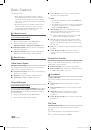
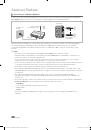
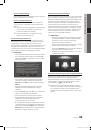
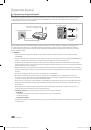
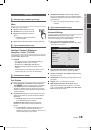
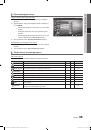
Network Setup (Ad-Hoc)
You can connect to a mobile device without an access point
through the “Samsung Wireless LAN Adapter” by using a
peer to peer network.
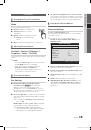
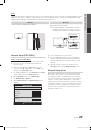
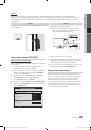
How to connect to new Ad-hoc device
1.
Follow Steps 1 through 6 in the “How to set up using
PBC (WPS)” (p. 27).
2.
Choose
Select a network
. A list of devices/networks
appears.
3.
While in the device list, press the Blue button on the
remote.
✎
The message
Ad-hoc is a direct Wi-Fi
connection with cell phone or PC. The existing
network system may have limited functionality.
Do you want to change the network
connection?
is displayed.
4.
Input the generated
Network Name (SSID)
and
Security Key
into the device you want to connect.
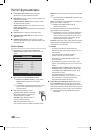
How to connect an existing Ad-hoc device
1.
Follow Steps 1 through 6 in the “How to set up using
PBC (WPS)” (p. 27).
2.
Choose
Select a network
. The Device/Network list
appears.
3.
Select the device you want in the Device list.
4.
If security key is required, input the security key.
✎
If network doesn’t operate normally, check
the
Network Name (SSID)
and
Security Key
again. An incorrect
Security Key
may cause a
malfunction.
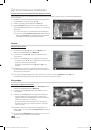
A
B
C
D
E
F
G
H
I
J
K
L
M
N
O
P
Q
R
S
T
U
V
W
X
Y
Z
0~9
Network Setup
n
Move
E
Enter
R
Return
Security Key
0 entered
Number
Lower case
B
Delete
Space
[UC5100_Rus]BN68-02656H-00L04.indb 28
2010-03-24 오전 10:37:09


