Инструкция для Samsung UE37C5100QW, UE32C5100QW, UE37C5000QW, UE32C5000QW, UE40C6540SW
 1
 2
 3
 4
 5
 6
 7
 8
 9
 10
 11
 12
 13
 14
 15
 16
 17
 18
 19
 20
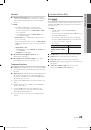 21
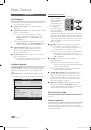 22
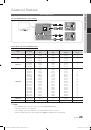 23
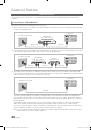 24
 25
 26
 27
 28
 29
 30
 31
 32
 33
 34
 35
 36
 37
 38
 39
 40
 41
 42
 43
 44
 45
 46
 47
 48
 49
 50
 51
 52
 53
 54
 55
 56
 57
 58
 59
 60
 61
 62
 63
 64
 65
 66
 67
 68
 69
 70
 71
 72
 73
 74
 75
 76
 77
 78
 79
 80
 81
 82
 83
 84
 85
 86
 87
 88
 89
 90
 91
 92
 93
 94
 95
 96
 97
 98
 99
 100
 101
 102
 103
 104
 105
 106
 107
 108
 109
 110
 111
 112
 113
 114
 115
 116
 117
 118
 119
 120
 121
 122
 123
 124
 125
 126
 127
 128
 129
 130
 131
 132
 133
 134
 135
 136
 137
 138
 139
 140
 141
 142
 143
 144
 145
 146
 147
 148
 149
 150
 151
 152
 153
 154
 155
 156
 157
 158
 159
 160
 161
 162
 163
 164
 165
 166
 167
 168
 169
 170
 171
 172
 173
 174
 175
 176
 177
 178
 179
 180
 181
 182
 183
 184
 185
 186
 187
 188
 189
 190
 191
 192
 193
 194
 195
 196
 197
 198
 199
 200
 201
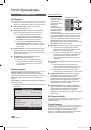
16
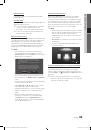
English
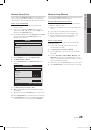
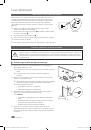
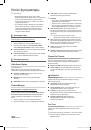
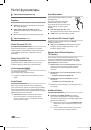
Basic Features
■
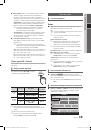
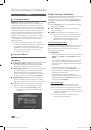
Colour Space (Auto / Native)
: Adjust the range of
colours available to create the image.
■
White Balance
: Adjust the colour temperature for a
more natural picture.
R-Offset / G-Offset / B-Offset
: Adjust each colour’s
(red, green, blue) darkness.
R-Gain / G-Gain / B-Gain
: Adjust each colour’s (red,
green, blue) brightness.
Reset
: Resets the
White Balance
to it’s default settings.
■
Flesh Tone
: Emphasize pink “Flesh Tone.”
■
Edge Enhancement (Off / On)
: Emphasize object
boundaries.
■
LED Motion Plus (Off / On)
: Removes drag from fast
scenes with a lot of movement to provide a clear picture.
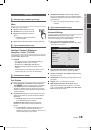
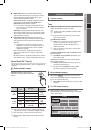
Picture Options
✎
In PC mode, you can only make changes to the
Colour Tone, Size
and
Auto Protection Time
.
■
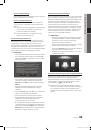
Colour Tone (Cool / Normal / Warm1 / Warm2)
✎
Warm1
or
Warm2
will be deactivated when the
picture mode is
Dynamic
.
✎
Settings can be adjusted and stored for each
external device connected to an input on the TV.
■
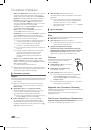
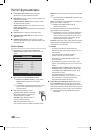
Size
: Your cable box/satellite receiver
may have its own set of screen sizes as
well. However, we highly recommend
you use 16:9 mode most of the time.
Auto Wide
: Automatically adjusts the
picture size to the 16:9 aspect ratio.
16:9
: Adjusts the picture size to 16:9 for DVDs or wide
broadcasting.
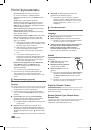
Wide Zoom
: Magnifies the picture size more than 4:3.
✎
Adjusts the
Position
by using
▲
,
▼
buttons.
Zoom
: Magnifies the 16:9 wide pictures vertically to fit
the screen size.
✎
Adjusts the
Position
or
Size
by using
▲
,
▼
button.
4:3
: The default setting for a movie or normal
broadcasting.
✎
Do not watch in 4:3 format for a long time. Traces
of borders displayed on the left, right and centre
of the screen may cause image retention(screen
burn) which are not covered by the warranty.
Screen Fit
: Displays the full image without any cut-off
when HDMI (720p / 1080i / 1080p) or Component
(1080i / 1080p) signals are inputted.
✎
NOTE
x
Depending on the input source, the picture size
options may vary.
x
The available items may differ depending on the
selected mode.
x
In PC mode, only
16:9
and
4:3
modes can be
adjusted.
x
Settings can be adjusted and stored for each
external device connected to an input on the TV.
x
After selecting
Screen Fit
in
HDMI
(1080i / 1080p)
or
Component
(1080i / 1080p) mode: Adjusts the
Position
or
Size
by using
▲
,
▼
,
◄
,
►
button.
x
If you use the
Screen Fit
function with HDMI 720p
input, 1 line will be cut at the top, bottom, left and
right as in the overscan function.
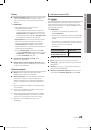
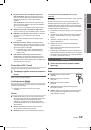
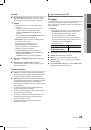
■
Screen Mode (16:9 / Wide Zoom / Zoom / 4:3)
:
Available only when picture size is set to
Auto Wide
. You
can determine the desired picture size at the 4:3 WSS
(Wide Screen Service) size or the original size. Each
European country requires different picture size.
✎
Not available in PC, Component or HDMI mode.
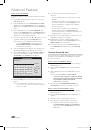
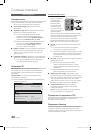
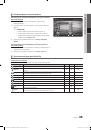
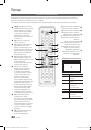
P.SIZE
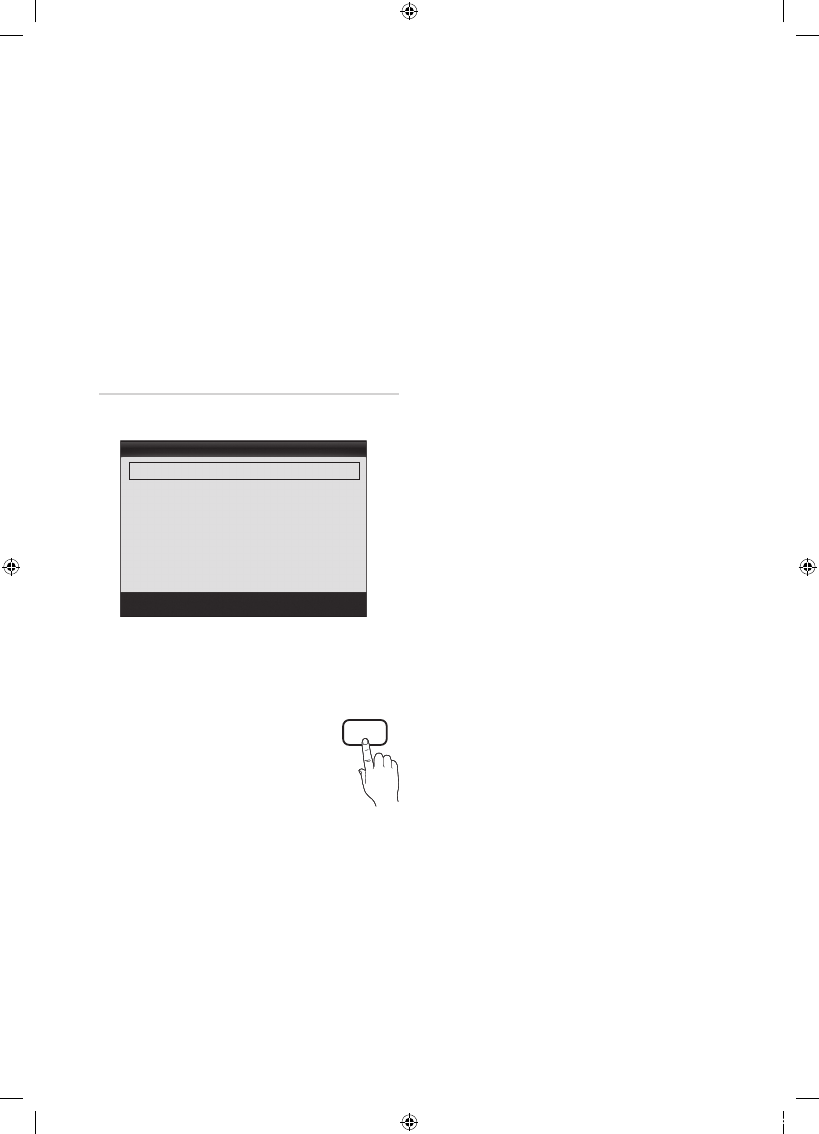
Picture Options
Colour Tone
: Normal
►
Size
: Auto Wide
Screen Mode
: 16:9
Digital Noise Filter
: Auto
MPEG Noise Filter
: Auto
HDMI Black Level
: Normal
Film Mode
: Off
▼
U
Move
E
Enter
R
Return
[UC5100_Rus]BN68-02656H-00L04.indb 16
2010-03-24 오전 10:37:01