Инструкция для Samsung UE37C5100QW, UE32C5100QW, UE37C5000QW, UE32C5000QW, UE40C6540SW
 1
 2
 3
 4
 5
 6
 7
 8
 9
 10
 11
 12
 13
 14
 15
 16
 17
 18
 19
 20
 21
 22
 23
 24
 25
 26
 27
 28
 29
 30
 31
 32
 33
 34
 35
 36
 37
 38
 39
 40
 41
 42
 43
 44
 45
 46
 47
 48
 49
 50
 51
 52
 53
 54
 55
 56
 57
 58
 59
 60
 61
 62
 63
 64
 65
 66
 67
 68
 69
 70
 71
 72
 73
 74
 75
 76
 77
 78
 79
 80
 81
 82
 83
 84
 85
 86
 87
 88
 89
 90
 91
 92
 93
 94
 95
 96
 97
 98
 99
 100
 101
 102
 103
 104
 105
 106
 107
 108
 109
 110
 111
 112
 113
 114
 115
 116
 117
 118
 119
 120
 121
 122
 123
 124
 125
 126
 127
 128
 129
 130
 131
 132
 133
 134
 135
 136
 137
 138
 139
 140
 141
 142
 143
 144
 145
 146
 147
 148
 149
 150
 151
 152
 153
 154
 155
 156
 157
 158
 159
 160
 161
 162
 163
 164
 165
 166
 167
 168
 169
 170
 171
 172
 173
 174
 175
 176
 177
 178
 179
 180
 181
 182
 183
 184
 185
 186
 187
 188
 189
 190
 191
 192
 193
 194
 195
 196
 197
 198
 199
 200
 201

38
English
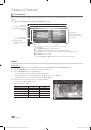
Advanced Features
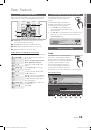
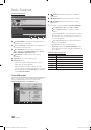
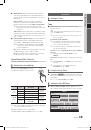
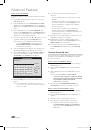
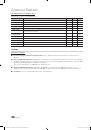
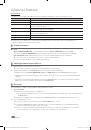
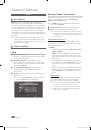
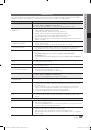
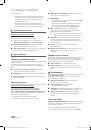
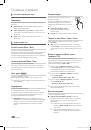
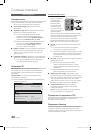
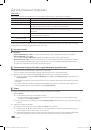
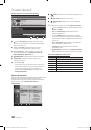
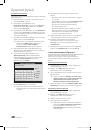
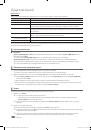
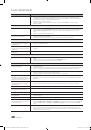
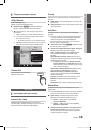
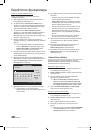
Anynet+ Menu
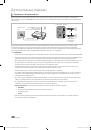
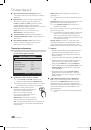
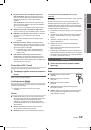
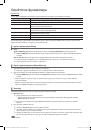
The Anynet+ menu changes depending on the type and status of the Anynet+ devices connected to the TV.
Anynet+ Menu
Description
View TV
Changes Anynet+ mode to TV broadcast mode.
Device List
Shows the Anynet+ device list.
(device_name)
MENU
Shows the connected device menus. E.g. If a DVD recorder is connected, the disc menu of
the DVD recorder will appear.
(device_name)
INFO
Shows the play menu of the connected device. E.g. If a DVD recorder is connected, the
play menu of the DVD recorder will appear.
Recording
: (*recorder)
Starts recording immediately using the recorder. (This is only available for devices that
support the recording function.)
Stop Recording
: (*recorder)
Stops recording.
Receiver
Sound is played through the receiver.
If more than one recording device is connected, they are displayed as (*recorder) and if only one recording device is
connected, it will be represented as (*device_name).
¦
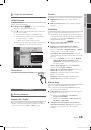
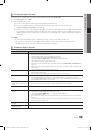
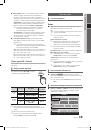
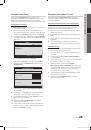
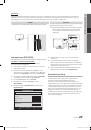
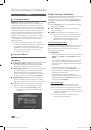
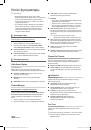
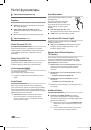
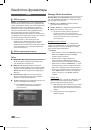
Setting Up Anynet+
■
Setup
Anynet+ (HDMI-CEC) (Off / On)
: To use the Anynet+ Function,
Anynet+ (HDMI-CEC)
must be set to
On
.
✎
When the
Anynet+ (HDMI-CEC)
function is disabled, all the Anynet+ related operations are deactivated.
Auto Turn Off (No / Yes)
: Setting an Anynet+ Device to turn off automatically when the TV is turned off.
✎
The active source on the TV must be set to TV to use the Anynet+ function.
✎
Even if an external device is still recording, it may turn off.
¦
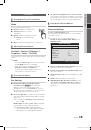
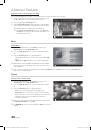
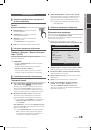
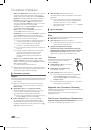
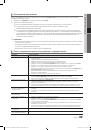
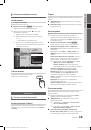
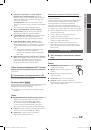
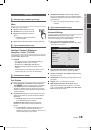
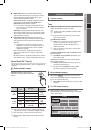
Switching between Anynet+ Devices
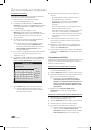
1.
Anynet+ devices connected to the TV are listed.
✎
If you cannot find a device you want, press the Red button to refresh the list.
2.
Select a device and press the
ENTER
E
button. You can switch to the selected device.
✎
Only when you set
Anynet+ (HDMI-CEC)
to
On
in the
Application
menu, the
Device List
menu appears.
x
Switching to the selected device may take up to 2 minutes. You cannot cancel the operation during the switching
operation.
x
If you have selected external input mode by pressing the
SOURCE
button, you cannot use the Anynet+ function.
Make sure to switch to an Anynet+ device by using the
Device List
.
¦
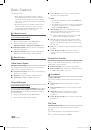
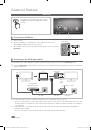
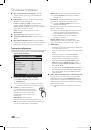
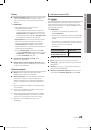
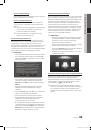
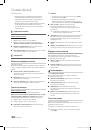
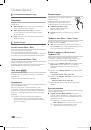
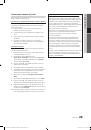
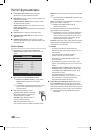
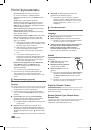
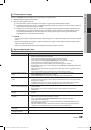
Recording
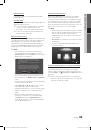
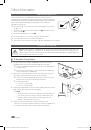
You can make a recording of a TV Programme using a Samsung recorder.
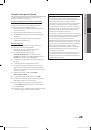
1.
Select
Recording
.
✎
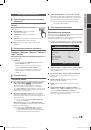
When there are more than two recording devices
x
When multiple recording devices are connected, the recording devices are listed. Select one recording device in
the
Device List
.
✎
When the recording device is not displayed, select
Device List
and press the Red button to search devices.
2.
Press the
EXIT
button to exit.
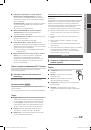
✎
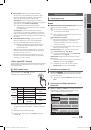
You can record the source streams by selecting
Recording
: (device_name).
✎
Pressing the
�
(REC) button will record whatever you are currently watching. If you are watching video from
another device, the video from the device is recorded.
✎
Before recording, check whether the antenna jack is properly connected to the recording device. To properly
connect an antenna to a recording device, refer to the recording device’s users manual.
[UC5100_Rus]BN68-02656H-00L04.indb 38
2010-03-24 오전 10:37:16