Инструкция для Samsung UE37C5100QW, UE32C5100QW, UE37C5000QW, UE32C5000QW, UE40C6540SW
 1
 2
 3
 4
 5
 6
 7
 8
 9
 10
 11
 12
 13
 14
 15
 16
 17
 18
 19
 20
 21
 22
 23
 24
 25
 26
 27
 28
 29
 30
 31
 32
 33
 34
 35
 36
 37
 38
 39
 40
 41
 42
 43
 44
 45
 46
 47
 48
 49
 50
 51
 52
 53
 54
 55
 56
 57
 58
 59
 60
 61
 62
 63
 64
 65
 66
 67
 68
 69
 70
 71
 72
 73
 74
 75
 76
 77
 78
 79
 80
 81
 82
 83
 84
 85
 86
 87
 88
 89
 90
 91
 92
 93
 94
 95
 96
 97
 98
 99
 100
 101
 102
 103
 104
 105
 106
 107
 108
 109
 110
 111
 112
 113
 114
 115
 116
 117
 118
 119
 120
 121
 122
 123
 124
 125
 126
 127
 128
 129
 130
 131
 132
 133
 134
 135
 136
 137
 138
 139
 140
 141
 142
 143
 144
 145
 146
 147
 148
 149
 150
 151
 152
 153
 154
 155
 156
 157
 158
 159
 160
 161
 162
 163
 164
 165
 166
 167
 168
 169
 170
 171
 172
 173
 174
 175
 176
 177
 178
 179
 180
 181
 182
 183
 184
 185
 186
 187
 188
 189
 190
 191
 192
 193
 194
 195
 196
 197
 198
 199
 200
 201
22
English
Basic Features
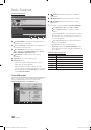
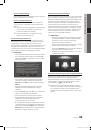
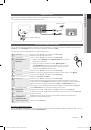
Support Menu
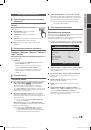
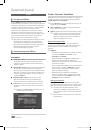
Self Diagnosis
✎
Self Diagnostic might take few seconds, this is part of
the normal operation of the TV.
■
Picture Test (Yes / No)
: Use to check for picture
problems.
■
Sound Test (Yes / No)
: Use the built-in melody sound to
check for sound problems.
✎
If you hear no sound from the TV’s speakers,
before performing the sound test, make sure
Speaker Select
is set to
TV Speaker
in the
Sound
menu.
✎
The melody will be heard during the test even if
Speaker Select
is set to
External Speaker
or the
sound is muted by pressing the
MUTE
button.
■
Signal Information
: (digital channels only) HDTV
channel’s reception quality is either perfect or the
channels are unavailable. Adjust your antenna to
increase signal strength.
■
Troubleshooting
: If the TV seems to have a problem,
refer to this description.
✎
If none of these troubleshooting tips apply, contact
the Samsung customer service centre.
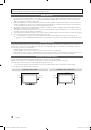
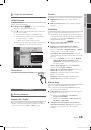
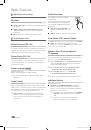
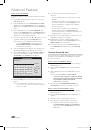
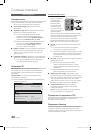
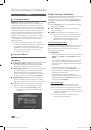
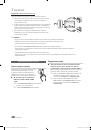
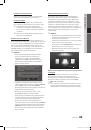
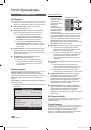
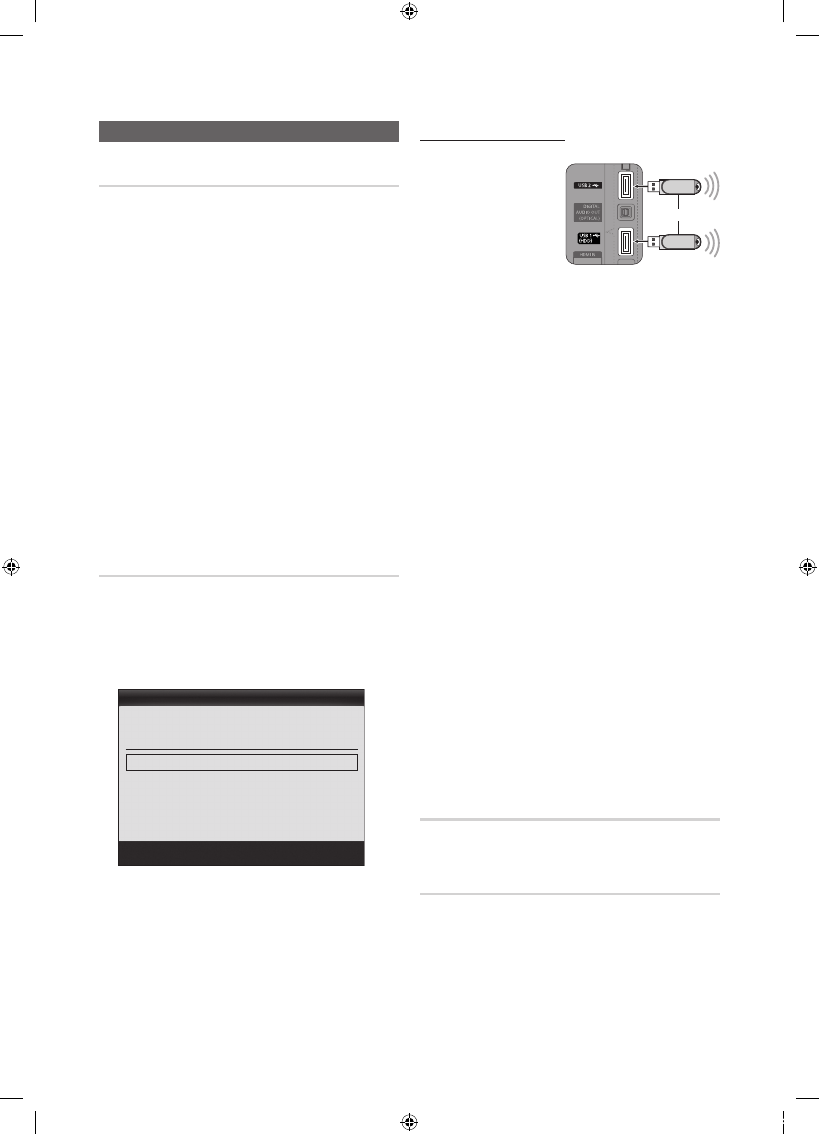
Software Upgrade
Software Upgrade
can be performed via a broadcasting
signal or by network connection or downloading the latest
firmware from “www.samsung.com,” to a USB memory
device.
Current Version
the software already installed in the TV.
✎
Software is represented as “Year/Month/Day_Version”.
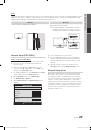
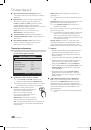
Installing the Latest Version
■
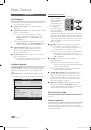
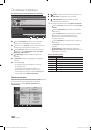
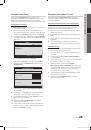
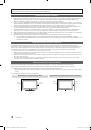
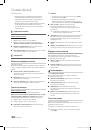
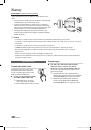
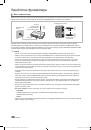
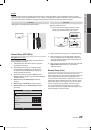
By USB
: Insert a USB
drive containing the
firmware upgrade file,
downloaded from
“www.samsung.com,”
into the TV. Please
be careful not to
disconnect the power
or remove the USB
drive until upgrades are
complete. The TV will be turned off and on automatically
after completing the firmware upgrade. When software is
upgraded, video and audio settings you have made will
return to their default settings. We advise you to to write
down your settings so that you can easily reset them
after the upgrade.
■
By Online
: Upgrade the software using the Internet.
✎
First, configure your network. For detailed
procedures on using the Network Setup, refer to
the “Network Connection” instructions.
✎
If the internet connection doesn’t operate properly,
the connection may be broken. Please retry
downloading. If the problem persists, download by
USB and upgrade.
■
By Channel
: Upgrade the software using the
broadcasting signal.
✎
If the function is selected during the software
transmission period, software will be automatically
searched and downloaded.
✎
The time required to download the software is
determined by the signal status.
■
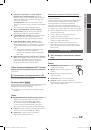
Standby Mode Upgrade
: A manual upgrade will be
automatically performed at selected time. Since the
power of the unit is turned on internally, the screen
may be turned on slightly for the LED product. This
phenomenon may continue for more than 1 hour until
the software upgrade is complete.
■
Alternative Software
(backup): Displays the software
version downloaded through
By Online
. During the
software upgrading, When the Upgrade will discontinue
from last step, this function be activated.
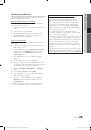
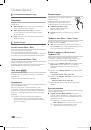
HD Connection Guide
Refer to this information when connecting external devices
to the TV.
Contact Samsung
View this information when your TV does not work properly
or when you want to upgrade the software. You can find
information regarding our call centres, and how to download
products and software.
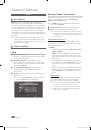
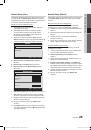
Software Upgrade
By USB
►
By Online
By Channel
Standby Mode Upgrade
: Off
Alternative Software
2010/01/15_00000
U
Move
E
Enter
R
Return
Current Version
2010/01/18_000001
USB Drive
TV Rear Panel
or
[UC5100_Rus]BN68-02656H-00L04.indb 22
2010-03-24 오전 10:37:04