Инструкция для Samsung LE40A454C1, LE40A451C1, LE40A450C2, LE37A451C1, LE37A450C2
 1
 2
 3
 4
 5
 6
 7
 8
 9
 10
 11
 12
 13
 14
 15
 16
 17
 18
 19
 20
 21
 22
 23
 24
 25
 26
 27
 28
 29
 30
 31
 32
 33
 34
 35
 36
 37
 38
 39
 40
 41
 42
 43
 44
 45
 46
 47
 48
 49
 50
 51
 52
 53
 54
 55
 56
 57
 58
 59
 60
 61
 62
 63
 64
 65
 66
 67
 68
 69
 70
 71
 72
 73
 74
 75
 76
 77
 78
 79
 80
 81
 82
 83
 84
 85
 86
 87
 88
 89
 90
 91
English - 1
♦
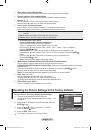
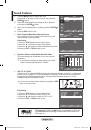
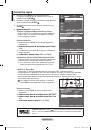
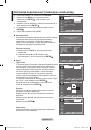
black Adjust: Off/Low/Medium/high
You can directly select the black level on the screen to adjust the screen depth.
♦
Dynamic Contrast: Off/Low/Medium/high
You can adjust the screen contrast so that the optimal contrast is provided.
♦
Gamma: - ~ +
You can adjust the Primary Colour (Red, Green, Blue) Intensity.
Press the ◄ or ► button until you reach the optimal setting.
♦
Colour Space: Auto/Native/Custom
Colour space is a Colour matrix composed of red, green and blue colours.
Select your favourite Colour space to experience the most natural Colour.
♦
Auto:
Auto Color Space automatically adjusts to the most natural color tone based on program
sources.
♦
Native:
Native Color Space offers deep and rich color tone.
♦
Custom:
Adjusts the color range to suit your preference.
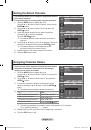
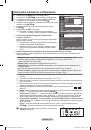
Customizing the Colour Space
Colour: Red/Green/blue/Yellow/Cyan/Magenta
Adjusts the Colour range to suit your preference.
“Colour” is available when “Colour Space” is set to “Custom”.
Press the ▲ or ▼ button to select “Red”, “Green”, “Blue”, “Yellow”, “Cyan” or “Magenta”.
Press the
ENtER
button.
Red/Green/blue
: In "Colour", you can adjust the RGB values for the selected colour.
Press the ▲ or ▼ button to select "Red", "Green" or "Blue" to change it. Press the
ENtER
button.
Press the ◄ or ► button to decrease or increase the value of a particular item.
Press the
ENtER
button.
Reset
: Resets the colour space to the default values.
♦
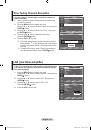
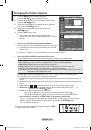
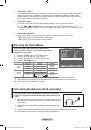
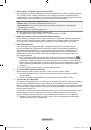
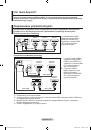
White balance: R-Offset/G-Offset/b-Offset/R-Gain/G-Gain/b-Gain/Reset
You can adjust the colour temperature for more natural picture colours.
R-Offset/G-Offset/b-Offset/R-Gain/G-Gain/b-Gain:
Changing the adjustment value will refresh the
adjusted screen.
Select the required option by pressing the ▲ or ▼ button, then press the
ENtER
button.
Press the ◄ or ► button until you reach the optimal setting.
Reset:
The previously adjusted white balance will be reset to the factory defaults.
♦
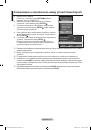
Flesh tone: -15 ~ +15
You can emphasize the pink 'flesh tone' in the picture.
Press the ◄ or ► button until you reach the optimal setting.
Changing the adjustment value will refresh the adjusted screen.
♦
Edge Enhancement: Off/On
You can emphasize object boundaries in the picture.
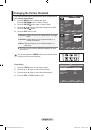
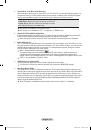
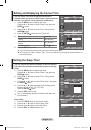
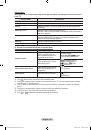
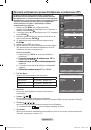
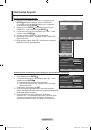
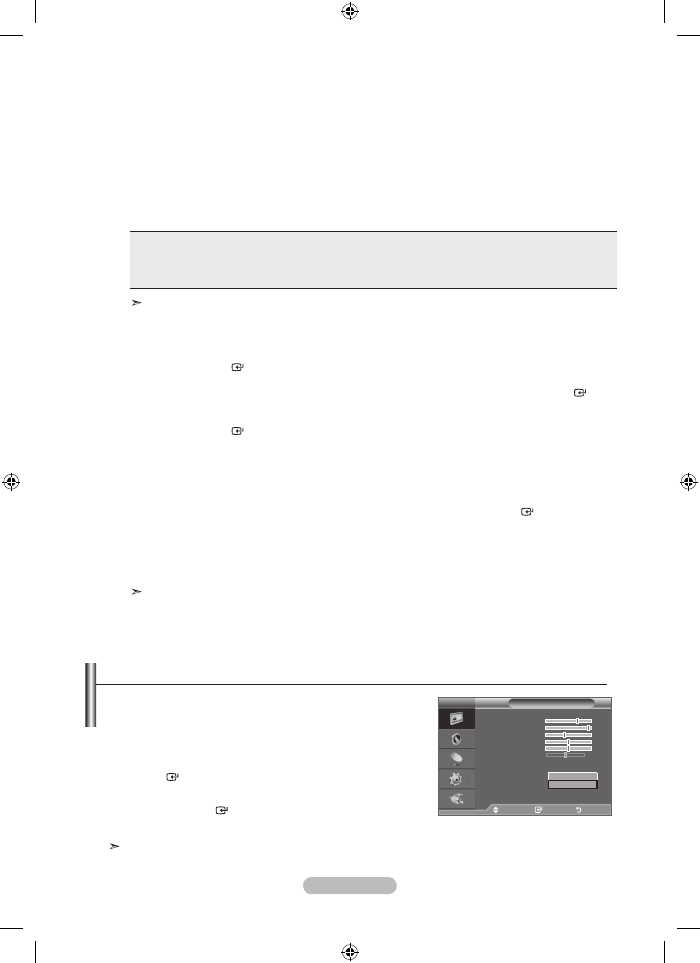
Resetting the Picture Settings to the Factory Defaults
You can return to the factory defaults picture settings.
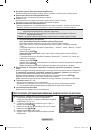
1.
To select the desired picture effect, follow the
"Changing the Picture Standard" instructions number 1 to 3
on page 16.
.
Press the
▲
or
▼
button to select "Reset", then press the
ENtER
button.
.
Press the
▲
or
▼
button to select "OK" or "Cancel".
Press the
ENtER
button.
.
Press the
EXIt
button to exit.
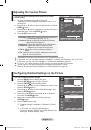
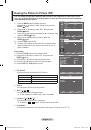
The "Reset" will be set for each Picture mode.
Picture
Mode
: Standard
backlight
7
Contrast
95
brightness
5
Sharpness
50
Colour
50
tint G 50
R 50
Detailed Settings
Picture Options
Reset
: OK
tV
Move
Enter
Return
OK
Cancel
BN68-01425D-Eng-0227.indd 18
2008-03-18 ¿ÀÈÄ 7:42:13
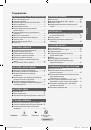
Оглавление инструкции
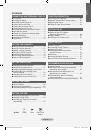
- Cover
- Eng
- Connecting and Preparing Your TV
- List of Parts
- Installing the Stand
- Installing the Wall Mount Kit
- Viewing the Control Panel
- Viewing the Connection Panel
- Viewing the Remote Control
- Installing Batteries in the Remote Control
- Switching On and Off
- Placing Your Television in Standby Mode
- Viewing the Menus
- Using the TOOLS Button
- Plug & Play
- Setting the Channels
- Setting the Picture
- Setting the Sound
- Setting the Time
- Function Description
- Setting the PC
- About Anynet+
- Recommendations For Use
- Connecting and Preparing Your TV
- Rus