Инструкция для Samsung LE40A454C1, LE40A451C1, LE40A450C2, LE37A451C1, LE37A450C2
 1
 2
 3
 4
 5
 6
 7
 8
 9
 10
 11
 12
 13
 14
 15
 16
 17
 18
 19
 20
 21
 22
 23
 24
 25
 26
 27
 28
 29
 30
 31
 32
 33
 34
 35
 36
 37
 38
 39
 40
 41
 42
 43
 44
 45
 46
 47
 48
 49
 50
 51
 52
 53
 54
 55
 56
 57
 58
 59
 60
 61
 62
 63
 64
 65
 66
 67
 68
 69
 70
 71
 72
 73
 74
 75
 76
 77
 78
 79
 80
 81
 82
 83
 84
 85
 86
 87
 88
 89
 90
 91
English - 17
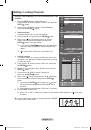
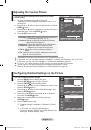
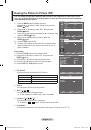
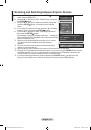
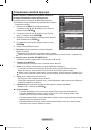
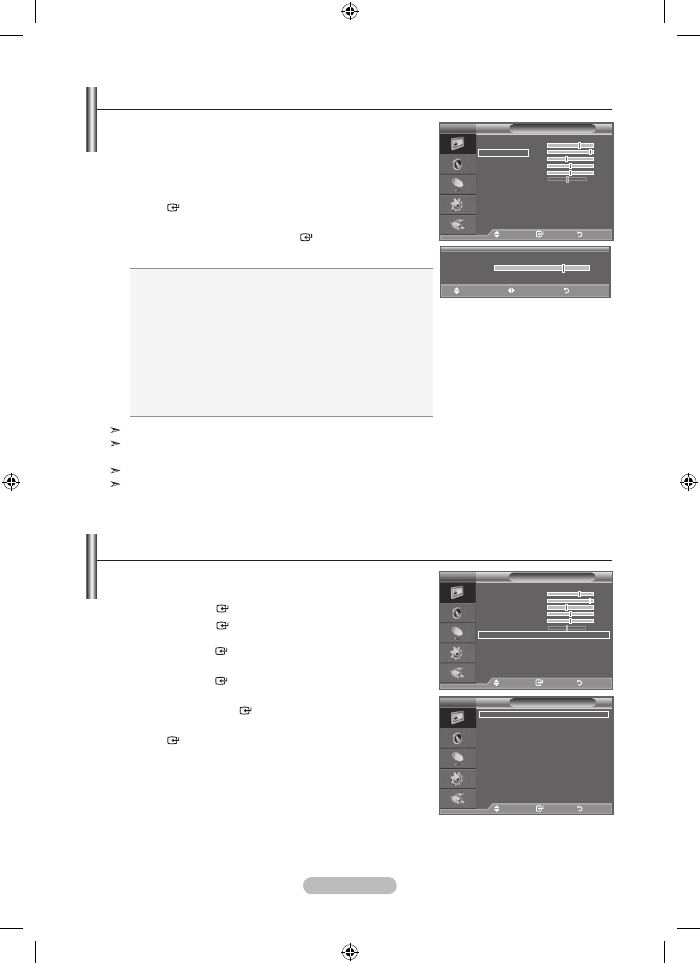
Your set has several settings which allow you to control
picture quality.
1.
To select the desired picture effect, follow the
"Changing the Picture Standard" instructions number 1 to 3.
(On page 16)
.
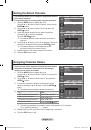
Press the
▲
or
▼
button to select a particular item. Press the
ENtER
button.
.
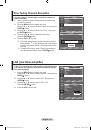
Press the
◄
or
►
button to decrease or increase the value of
a particular item. Press the
ENtER
button.
.
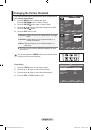
Press the
EXIt
button to exit.
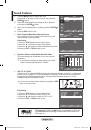
♦
backlight:
Adjusts the screen brightness by adjusting the
LCD backlight brightness. (0~10)
♦
Contrast:
Adjusts the lightness and darkness between
objects and the background.
♦
brightness:
Adjusts the brightness of the whole screen.
♦
Sharpness:
Adjusts the outline of objects to either
sharpen them or make them more dull.
♦
Colour:
Adjusts the colours, making them lighter or
darker.
♦
tint:
Adjusts the colour of objects, making them more red or
green for a more natural look.
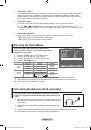
The adjusted values are stored according to the selected Picture mode.
In PC mode, you can only make changes to “Backlight”, “Contrast” and “Brightness”. (26, 32, 37 inch)
In PC mode, you can only make changes to “Contrast” and “Brightness”. (40 inch)
In TV, Ext., AV, S-Video modes of the PAL system, you cannot use the "Tint" Function.
You can return to the factory defaults picture settings by selecting the "Reset".
(Refer to "Resetting the Picture Settings to the Factory Defaults" on page 18)
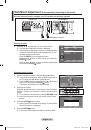
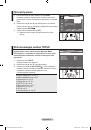
Adjusting the Custom Picture
Picture
Mode
: Standard
backlight
7
Contrast
95
brightness
5
Sharpness
50
Colour
50
tint G 50
R 50
Detailed Settings
Picture Options
Reset
: OK
tV
Move
Enter
Return
7
▲
backlight
▼
Move
Adjust
Return
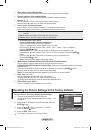
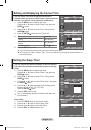
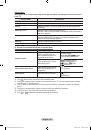
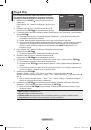
You can set detailed picture settings.
1.
Press the
MENU
button to display the menu.
Press the
ENtER
button, to select "Picture".
.
Press the
ENtER
button to select “Mode”.
Press the ▲ or ▼ button to select “Standard” or “Movie”, then
press the
ENtER
button.
.
Press the ▲ or ▼ button to select "Detailed Settings", then
press the
ENtER
button.
.
Select the required option by pressing the ▲ or ▼ button,
then press the
ENtER
button.
5.
When you are satisfied with your setting, press the
ENtER
button.
6.
Press the
EXIt
button to exit.
"Detailed Settings" is available in "Standard" or "Movie"
mode.
In PC mode, you can only make changes to
“Dynamic Contrast”, “Gamma” and “White Balance” from
among the “Detailed Settings” items.
➣
➣
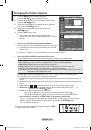
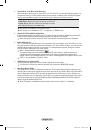
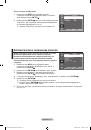
Configuring Detailed Settings on the Picture
Detailed Settings
black Adjust
: Off
Dynamic Contrast
: Medium
Gamma
: 0
Colour Space
: Native
White balance
Flesh tone
: 0
Edge Enhancement : On
Move
Enter
Return
tV
Picture
Mode
: Standard
backlight
7
Contrast
95
brightness
5
Sharpness
50
Colour
50
tint G 50
R 50
Detailed Settings
Picture Options
Reset
: OK
tV
Move
Enter
Return
BN68-01425D-Eng-0227.indd 17
2008-03-18 ¿ÀÈÄ 7:42:13
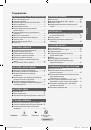
Оглавление инструкции
- Cover
- Eng
- Connecting and Preparing Your TV
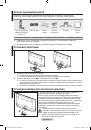
- List of Parts
- Installing the Stand
- Installing the Wall Mount Kit
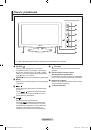
- Viewing the Control Panel
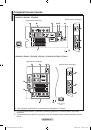
- Viewing the Connection Panel
- Viewing the Remote Control
- Installing Batteries in the Remote Control
- Switching On and Off
- Placing Your Television in Standby Mode
- Viewing the Menus
- Using the TOOLS Button
- Plug & Play
- Setting the Channels
- Setting the Picture
- Setting the Sound
- Setting the Time
- Function Description
- Setting the PC
- About Anynet+
- Recommendations For Use
- Connecting and Preparing Your TV
- Rus