Инструкция для Clavia NORD Lead 2X
 1
 2
 3
 4
 5
 6
 7
 8
 9
 10
 11
 12
 13
 14
 15
 16
 17
 18
 19
 20
 21
 22
 23
 24
 25
 26
 27
 28
 29
 30
 31
 32
 33
 34
 35
 36
 37
 38
 39
 40
 41
 42
 43
 44
 45
 46
 47
 48
 49
 50
 51
 52
 53
 54
 55
 56
 57
 58
 59
 60
 61
 62
 63
 64
 65
 66
 67
 68
 69
 70
 71
 72
 73
 74
 75
 76
 77
 78
 79
 80
 81
 82
 83
 84
 85
 86
 87
 88
 89
 90
 91
 92
 93
 94
 95
 96
 97
 98
 99
 100
 101
 102
 103
 104
 105
 106
 107
 108
 109
 110
 111
 112
 113
 114
 115
 116
 117
 118
 119

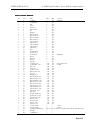
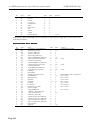
10. MIDI: MIDI SysEx bulk dump
NORD LEAD 2X V1.0x
Page 78
S
S
S
S
O
O
O
OM
M
M
ME
E
E
E
N
N
N
NO
O
O
OT
T
T
TE
E
E
ES
S
S
S
A
A
A
AB
B
B
BO
O
O
OU
U
U
UT
T
T
T
C
C
C
C
O
O
O
ON
N
N
NT
T
T
TR
R
R
RO
O
O
OL
L
L
LL
L
L
LE
E
E
ER
R
R
RS
S
S
S
A
A
A
AN
N
N
ND
D
D
D
“C
“C
“C
“C
H
H
H
HA
A
A
AS
S
S
SIIIIN
N
N
NG
G
G
G
”
”
”
”
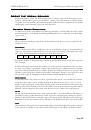
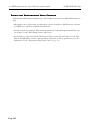
Consider a situation in which you record a Controller message, e.g. a filter opening, in the middle of your
sequencer song. Then you “rewind” the sequencer, to a position before the recorded filter opening. The
problem is, that the Nord Lead’s filter will remain opened, although it really should be as it was before
you recorded the filter opening. To solve such problems, several sequencers include a function called
“chasing”, which keeps track of Controller changes and tries to adjust the settings on the instrument ac-
cording to the current position in the sequencer song.
However, in our case, this wouldn’t help much, because the filter opening was the
first
Controller message
recorded in the song. The sequencer has no information about the filter setting before the recorded
change, and therefore cannot “chase” the settings properly. To solve this, you could record a “snapshot”
of all Controller settings on the Nord Lead 2X panel, at the beginning of your sequencer song. This is
best done by sending an “All Controllers Request” SysEx message from the sequencer to the Nord Lead
2X, which will respond by dumping all its Controller values into the sequencer for recording. The “All
Controllers Request” message is described in the MIDI Implementation section.
MIDI S
MIDI S
MIDI S
MIDI S
Y
Y
Y
YS
S
S
S
E
E
E
E
X
X
X
X
B
B
B
BU
U
U
UL
L
L
LK
K
K
K
D
D
D
DU
U
U
UM
M
M
MP
P
P
P
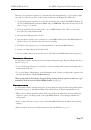
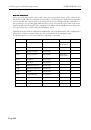
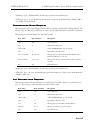
To dump one or more Programs or Performances via MIDI as System Exclusive data, for reprogramming
of another Nord Lead 2X or for recording the data into another MIDI device, do like this:
1. Connect a cable from
MIDI O
UT
on the Nord Lead 2X to MIDI In on the other device.
2. Set up the receiving device so that it accepts MIDI System Exclusive data.
3. To Dump
Performances
, enter “Performance Mode” (see
). To Dump
Programs
or
Percussion
Kits
, make sure you are in Program mode.
4. If you want to transmit one Program/Performance only, select it with the
U
P
/D
OWN
buttons.
5. If needed, set the other device to its “recording mode”. Hold down the
S
HIFT
button and press
“Dump One” (
O
CT
S
HIFT
+
) to transmit the current Program/Performance only or “Dump All”
(
O
CT
S
HIFT
–
) to transmit all Programs/Performances of the current Bank.
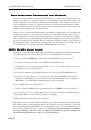
To receive a Bulk Dump, proceed as follows:
1. Connect a cable from MIDI Out on the transmitting device to
MIDI I
N
on the Nord Lead 2X.
2. If you are about to receive a complete Bank, you need to scroll to a number in the Bank (Program or
Performance Bank) you want to replace with the received Bank.
3. Initiate the transmission on the transmitting device.
If the dump contained a complete Bank, it will take the place of the selected Bank in the Nord Lead 2X.
If the dump contained one Program/Performance only, this will be put in the “edit buffer” of the active
Slot, instead of the Program/Performance you were playing. However, it is not saved permanently. To
save it, use Store as described on
.
Note that any Percussion Kits in a Performance,
will only be included as “references” when you dump the Performance. If you want to dump Percus-
sion Kits including all parameters, you have to be in Program mode!
Оглавление инструкции
- 1. Introduction
- 2. Connections
- 3. Basic operation
- Demo play function
- Basic MIDI Settings for the Nord Rack 2X
- Selecting Programs
- Selecting Percussion Kits
- Using the Slots to switch Programs
- Layering
- Splitting the Keyboard
- Performances
- Monophonic and polyphonic operation
- Stereo/Mono
- Pitch Stick and Modulation Wheel
- Master Tune
- Using a sustain pedal
- Using a control (expression) pedal
- The “Panic” button
- 4. Editing Programs
- 5. Programming Velocity Sensitivity
- 6. Percussion Kits
- 7. Performances
- 8. Panel Reference
- 9. Shift functions
- Accessing the Shift functions
- Shift function list
- Tune (Master Tune)
- Out Mode
- Local
- Prog/Ctrl
- MIDI Channel
- Special
- Accessing the Special functions
- Function “1” – Synchronizing LFO 1 to MIDI Clock
- Function “2” – Synchronizing LFO2/Arpeggio to MIDI Clock
- Function “F” – External triggering of Filter envelope
- Function “A” – External triggering of Amplifier Envelope
- Function “S” – External Velocity Morph
- Aftertouch and Expression Pedal Settings
- System
- 10. MIDI
- 11. Synthesis basics
- 12. Factory presets
- 13. MIDI implementation
- Index