Инструкция для Clavia NORD Lead 2X
 1
 2
 3
 4
 5
 6
 7
 8
 9
 10
 11
 12
 13
 14
 15
 16
 17
 18
 19
 20
 21
 22
 23
 24
 25
 26
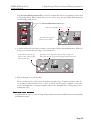 27
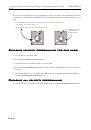 28
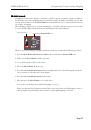 29
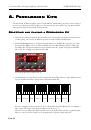 30
 31
 32
 33
 34
 35
 36
 37
 38
 39
 40
 41
 42
 43
 44
 45
 46
 47
 48
 49
 50
 51
 52
 53
 54
 55
 56
 57
 58
 59
 60
 61
 62
 63
 64
 65
 66
 67
 68
 69
 70
 71
 72
 73
 74
 75
 76
 77
 78
 79
 80
 81
 82
 83
 84
 85
 86
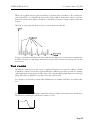 87
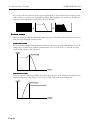 88
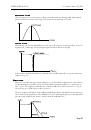 89
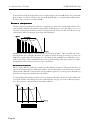 90
 91
 92
 93
 94
 95
 96
 97
 98
 99
 100
 101
 102
 103
 104
 105
 106
 107
 108
 109
 110
 111
 112
 113
 114
 115
 116
 117
 118
 119

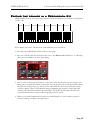
6. Percussion Kits: Saving Percussion Kits
NORD LEAD 2X V1.0x
Page 30
S
S
S
S
A
A
A
AV
V
V
VIIIIN
N
N
NG
G
G
G
P
P
P
P
E
E
E
ER
R
R
RC
C
C
CU
U
U
US
S
S
SS
S
S
SIIIIO
O
O
ON
N
N
N
K
K
K
K
IIIIT
T
T
TS
S
S
S
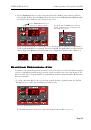
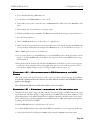
1. After editing the percussion sounds, press
S
TORE
. The
D
ISPLAY
flashes.
2. Use the
U
P
/D
OWN
buttons to select a Percussion Kit location in any of the first four Percussion Kit
banks.
3. Press
S
TORE
. The edited Percussion Kit is saved to the selected location.
C
C
C
C
O
O
O
OP
P
P
PY
Y
Y
YIIIIN
N
N
NG
G
G
G
,
,
,
,
E
E
E
EX
X
X
XT
T
T
TR
R
R
RA
A
A
AC
C
C
CT
T
T
TIIIIN
N
N
NG
G
G
G
A
A
A
AN
N
N
ND
D
D
D
IIIIM
M
M
MP
P
P
PO
O
O
OR
R
R
RT
T
T
TIIIIN
N
N
NG
G
G
G
IIIIN
N
N
ND
D
D
DIIIIV
V
V
VIIIID
D
D
DU
U
U
UA
A
A
AL
L
L
L
P
P
P
PE
E
E
ER
R
R
RC
C
C
CU
U
U
US
S
S
SS
S
S
SIIIIO
O
O
ON
N
N
N
S
S
S
SO
O
O
OU
U
U
UN
N
N
ND
D
D
DS
S
S
S
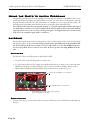
You can easily copy a percussion sound for use in another zone. This zone can be in the same Percussion
Kit or in another one. You can also “extract” the percussion sound and save it as a regular Program.
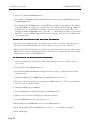
1. Locate the zone of the percussion sound you want to copy/extract. Hold down a black key in this
zone and press
S
TORE
. The
D
ISPLAY
flashes.
2. Scroll to the Program or Percussion Kit location to which you want to copy the percussion sound.
3. If you have selected a regular Program to save the sound in, just press
S
TORE
again.
4. If you want to save the sound in a zone in a Percussion Kit, hold down a black key in the destination
zone and press
S
TORE
.
You may also want to “import” a sound that is currently a regular Program, and use it as a part of a Per-
cussion Kit. Proceed as follows:
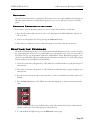
1. Select the Program and press
S
TORE
.
2. Scroll to the Percussion Kit location to which you want to copy the sound.
3. Hold down a black key in the zone to which you want to copy the sound, and press
S
TORE
again.
S
S
S
S
Y
Y
Y
YS
S
S
S
E
E
E
E
X
X
X
X
D
D
D
DU
U
U
UM
M
M
MP
P
P
PS
S
S
S
O
O
O
OF
F
F
F
P
P
P
P
E
E
E
ER
R
R
RC
C
C
CU
U
U
US
S
S
SS
S
S
SIIIIO
O
O
ON
N
N
N
K
K
K
K
IIIIT
T
T
TS
S
S
S
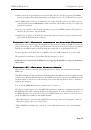
You can transmit and receive SysEx data that contains all settings for a single Percussion Kit, just as for a
regular Program. However, there are a couple of things to note:
• You’ve got to initiate the dump from Program Mode, not from Performance mode! If you make a
SysEx dump from Performance mode, the actual parameters of the Percussion Kit will not be
included in the dump, only a reference to which Percussion Kit is used in the Performance.
• Before receiving a Percussion Kit SysEx data dump, you must select a Percussion Kit for the “receiv-
ing” Slot. If you attempt to receive a Percussion Kit into a Slot which plays a regular Program,
nothing will happen. Likewise, you cannot receive regular Program SysEx data into a Slot which
currently plays a Percussion Kit.
Оглавление инструкции
- 1. Introduction
- 2. Connections
- 3. Basic operation
- Demo play function
- Basic MIDI Settings for the Nord Rack 2X
- Selecting Programs
- Selecting Percussion Kits
- Using the Slots to switch Programs
- Layering
- Splitting the Keyboard
- Performances
- Monophonic and polyphonic operation
- Stereo/Mono
- Pitch Stick and Modulation Wheel
- Master Tune
- Using a sustain pedal
- Using a control (expression) pedal
- The “Panic” button
- 4. Editing Programs
- 5. Programming Velocity Sensitivity
- 6. Percussion Kits
- 7. Performances
- 8. Panel Reference
- 9. Shift functions
- Accessing the Shift functions
- Shift function list
- Tune (Master Tune)
- Out Mode
- Local
- Prog/Ctrl
- MIDI Channel
- Special
- Accessing the Special functions
- Function “1” – Synchronizing LFO 1 to MIDI Clock
- Function “2” – Synchronizing LFO2/Arpeggio to MIDI Clock
- Function “F” – External triggering of Filter envelope
- Function “A” – External triggering of Amplifier Envelope
- Function “S” – External Velocity Morph
- Aftertouch and Expression Pedal Settings
- System
- 10. MIDI
- 11. Synthesis basics
- 12. Factory presets
- 13. MIDI implementation
- Index