Инструкция для Samsung PS42C450B1W, PS50C450B1W
 1
 2
 3
 4
 5
 6
 7
 8
 9
 10
 11
 12
 13
 14
 15
 16
 17
 18
 19
 20
 21
 22
 23
 24
 25
 26
 27
 28
 29
 30
 31
 32
 33
 34
 35
 36
 37
 38
 39
 40
 41
 42
 43
 44
 45
 46
 47
 48
 49
 50
 51
 52
 53
 54
 55
 56
 57
 58
 59
 60
 61
 62
 63
 64
 65
 66
 67
 68
 69
 70
 71
 72
 73
 74
 75
 76
 77
 78
 79
 80
 81
 82
 83
 84
 85
 86
 87
 88
 89
 90
 91
 92
 93
 94
 95
 96
 97
 98
 99
 100
 101
 102
 103
 104
 105
 106
 107
 108
 109
 110
 111
 112
 113
 114
 115
 116
 117
 118
 119
 120
 121
 122
 123
 124
 125
 126
 127
 128
 129
 130
 131
 132
 133
 134
 135
 136
 137
 138
 139
 140
 141
 142
 143
 144
 145
 146
 147
 148
 149
 150
 151
 152
 153
 154
 155
 156
 157
 158
 159
 160
 161
27
English
04
Advanced
Featur
es
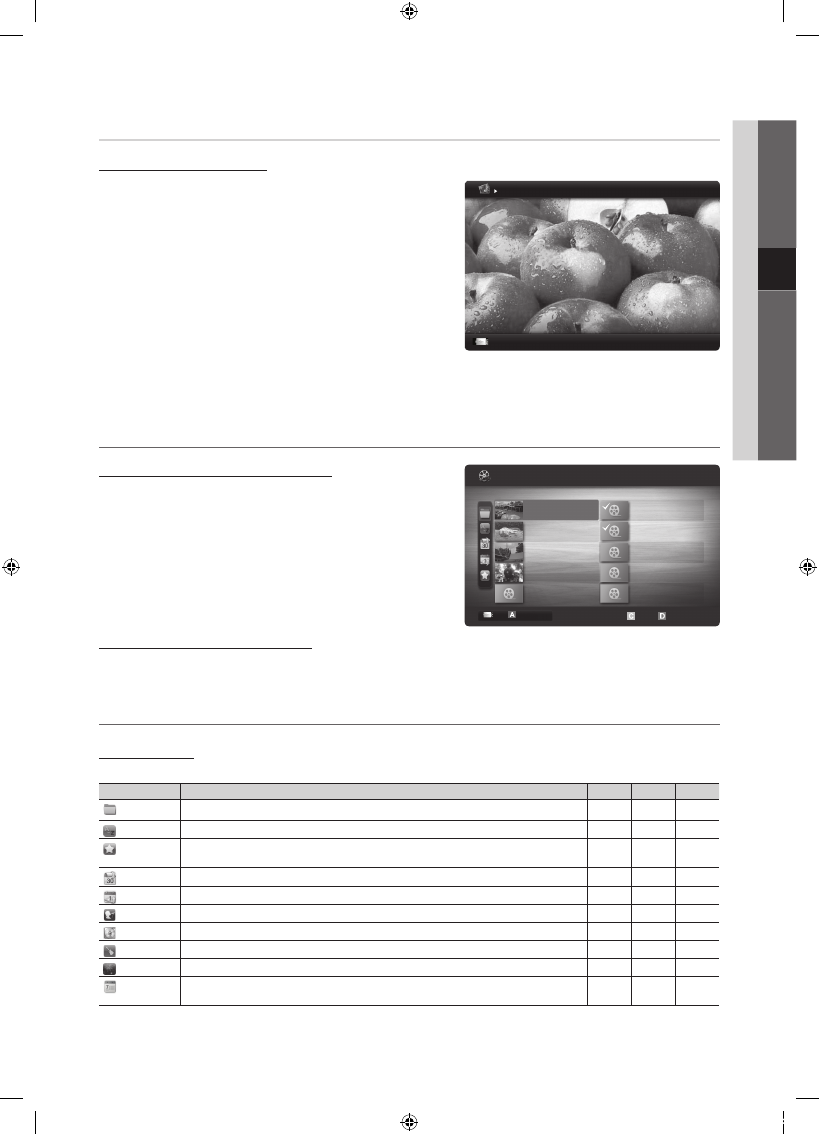
Photos
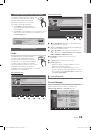
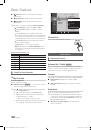
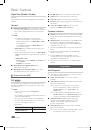
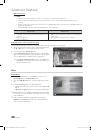
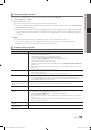
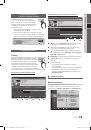
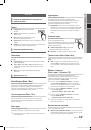
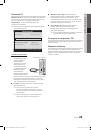
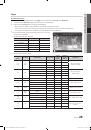
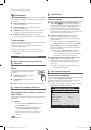
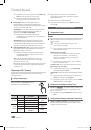
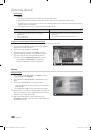
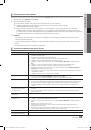
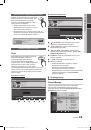
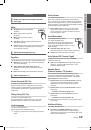
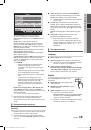
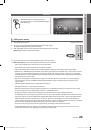
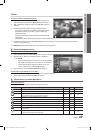
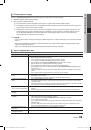
Viewing a Photo (or Slide Show)
1.
Press the
◄
or
►
button to select
Photos
, then press the
ENTER
E
button in the
Media Play
menu.
2.
Press the
◄
/
►
/
▲
/
▼
button to select the desired file in the file
list.
3.
Press the
ENTER
E
button or
�
(Play) button.
– While a photo list is displayed, press the
�
(Play) /
ENTER
E
button on the remote control to start slide show.
– All files in the file list section will be displayed in the slide show.
– During the slide show, files are displayed in order from
currently being shown.
✎
Music files can be automatically played during the Slide Show if
the
Background Music
is set to
On
.
✎
The
BGM Mode
cannot be changed until the BGM has finished
loading.
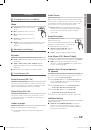
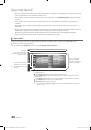
¦
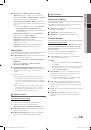
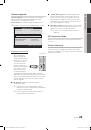
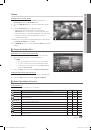
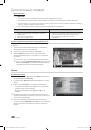
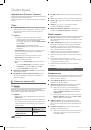
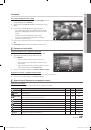
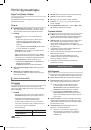
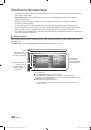
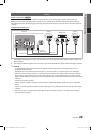
Playing the Multiple Files
Playing the selected video/music/photo files
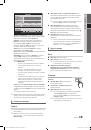
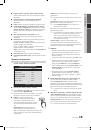
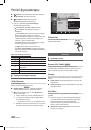
1.
Press the Yellow button in the file list to select the desired file.
2.
Repeat the above operation to select multiple files.
✎
NOTE
x
The
c
mark appears to the left of the selected files.
x
To cancel a selection, press the Yellow button again.
x
To deselect all selected files, press the
TOOLS
button
and select
Deselect All
.
3.
Press the
TOOLS
button and select
Play Selected Contents
.
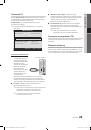
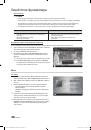
Playing the video/music/photo file group
1.
While a file list is displayed, move to the any file in desired group.
2.
Press the
TOOLS
button and select
Play Current Group
.
¦
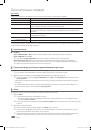
Media Play Additional Function
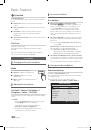
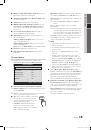
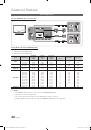
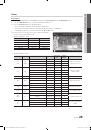
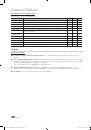
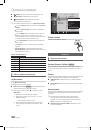
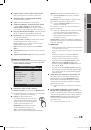
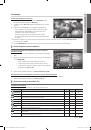
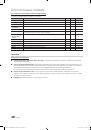
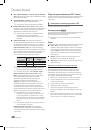
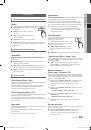
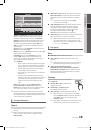
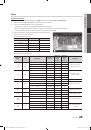
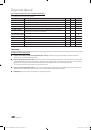
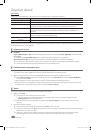
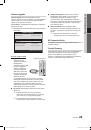
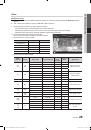
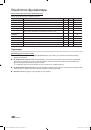
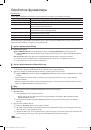
Sorting the file list
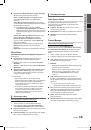
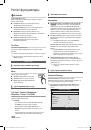
Press the Blue button in the file list to sort the files.
Category
Operations
Videos
Music
Photos
Basic View
It shows whole folder. You can view the photo by selecting the folder.
>
>
>
Title
It sorts and displays the file title in Symbol/Number/Alphabet/Special order.
>
>
>
Preference
It sorts and displays the file by preference. You can change the file preference in the file list section
using the Green button.
>
>
>
Latest Date
It sorts and shows files by latest date.
>
>
Earliest Date
It sorts and shows files by earliest date.
>
>
Artist
It sorts the music file by artist in alphabetical.
>
Album
It sorts the music file by album in alphabetical order.
>
Genre
It sorts music files by the genre.
>
Mood
It sorts music files by the mood. You can change the music mood information.
>
Monthly
It sorts and shows photo files by month. It sorts only by month (from January to December)
regardless of year.
>
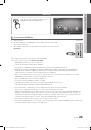
Image1024.jpg 1024x768
2010/2/1
3/15
SUM
E
Pause
L
Previous/Next
T
Tools
R
Return
Normal
1/1
/Movie 01.avi
SUM
Movie 01.avi
Jan.10.2010
Jan.10.2010
Jan.10.2010
Jan.10.2010
Jan.10.2010
Jan.10.2010
Jan.10.2010
Jan.10.2010
Jan.10.2010
Jan.10.2010
Movie 03.avi
Movie 05.avi
Movie 07.avi
Movie 09.avi
Movie 02.avi
Movie 04.avi
Movie 06.avi
Movie 08.avi
Movie 10.avi
Change Device
Select Sorting
T
Tools
Videos
2 files selected
Page
[450-Rus]BN68-02575B-01L04.indb 27
2010-03-02 오후 11:23:53