Инструкция для Samsung PS42C450B1W, PS50C450B1W
 1
 2
 3
 4
 5
 6
 7
 8
 9
 10
 11
 12
 13
 14
 15
 16
 17
 18
 19
 20
 21
 22
 23
 24
 25
 26
 27
 28
 29
 30
 31
 32
 33
 34
 35
 36
 37
 38
 39
 40
 41
 42
 43
 44
 45
 46
 47
 48
 49
 50
 51
 52
 53
 54
 55
 56
 57
 58
 59
 60
 61
 62
 63
 64
 65
 66
 67
 68
 69
 70
 71
 72
 73
 74
 75
 76
 77
 78
 79
 80
 81
 82
 83
 84
 85
 86
 87
 88
 89
 90
 91
 92
 93
 94
 95
 96
 97
 98
 99
 100
 101
 102
 103
 104
 105
 106
 107
 108
 109
 110
 111
 112
 113
 114
 115
 116
 117
 118
 119
 120
 121
 122
 123
 124
 125
 126
 127
 128
 129
 130
 131
 132
 133
 134
 135
 136
 137
 138
 139
 140
 141
 142
 143
 144
 145
 146
 147
 148
 149
 150
 151
 152
 153
 154
 155
 156
 157
 158
 159
 160
 161
16
English
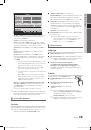
Basic Features
■
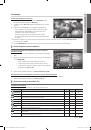
MPEG Noise Filter (Off / Low / Medium / High /
Auto)
: Reduces MPEG noise to provide improved
picture quality.
■
HDMI Black Level (Normal / Low)
: Selects the black
level on the screen to adjust the screen depth.
✎
Available only in HDMI mode (RGB signals).
■
Film Mode (Off / Auto1 / Auto2)
: Sets the TV to
automatically sense and process film signals from all
sources and adjust the picture for optimum quality.
✎
Available in TV, AV, COMPONENT (480i / 1080i)
and HDMI (480i / 1080i).
■
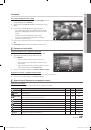
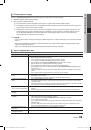
Screen Burn Protection
: To reduce the possibility of
screen burn, this unit is equipped with screen burn
prevention technology. The Time setting allows you to
programme the time between movement of the picture
in minutes.
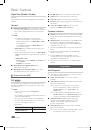
Pixel Shift (Off / On)
: Using this function, you can
minutely move pixels on the PDP in horizontal or vertical
direction to minimize after image on the screen.
✎
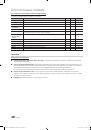
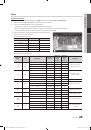
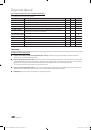
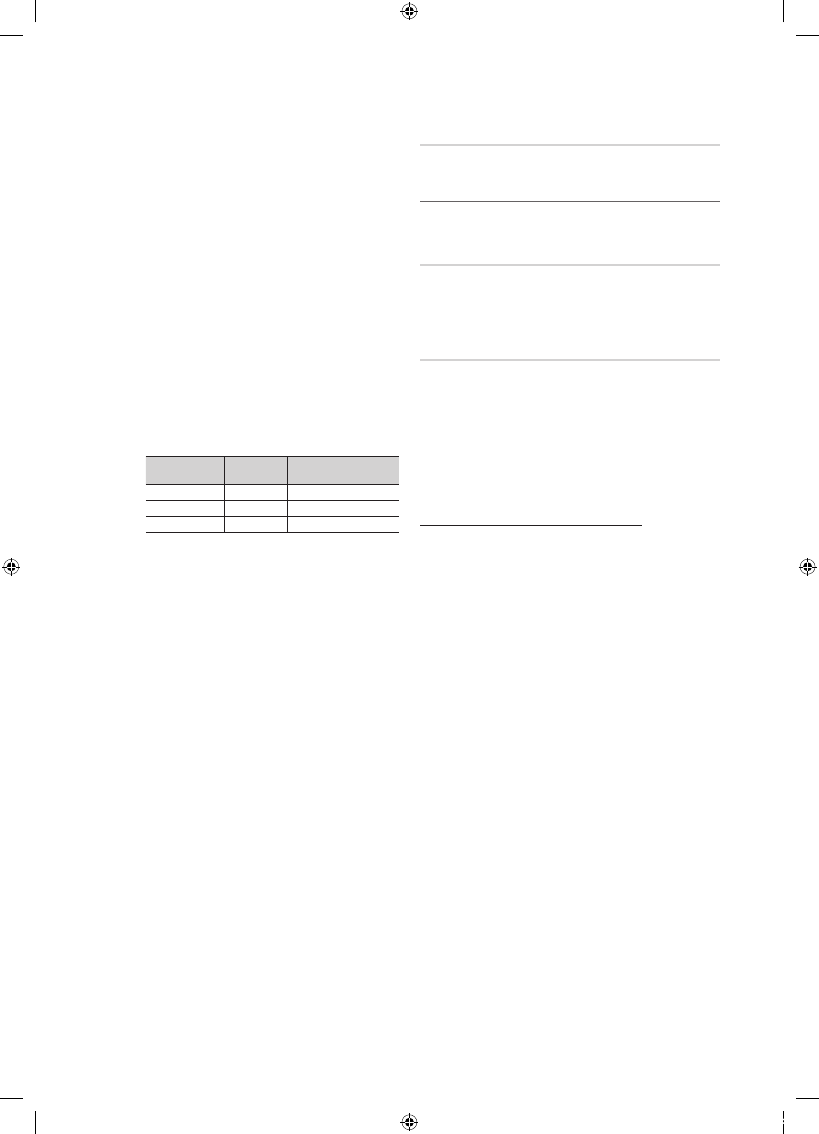
Optimum condition for pixel shift
Item
TV/AV/Component/
HDMI/PC
Horizontal
0~4
4
Vertical
0~4
4
Time
(minute)
1~4 min
4 min
✎
The
Pixel Shift
value may differ depending on the
monitor size (inches) and mode.
✎
This function is not available in the
Screen Fit
mode.
Auto Protection Time (10 min / 20 min / 40 min /
1 hour / Off)
: If the screen remains idle with a still
image for a certain period of time defined by the user,
the screen saver is activated to prevent the formation of
ghost images on the screen.
Scrolling
: This function removes after-images on the
screen by moving all the pixels on the PDP according
to a pattern. Use this function when there are remaining
after images or symbols on the screen, especially when
you displayed a still image on the screen for a long time.
✎
The after-image removal function has to be
executed for a long time (approximately 1 hour)
to effectively remove after-images on the screen.
If the after-image is not removed after performing
the function, repeat the function again.
✎
Press any key on the remote control to cancel this
feature.
Side Grey (Dark / Light)
: When you watch TV with the
screen ratio set to 4:3, the screen is prevented from any
damage by adjusting the white balance on both extreme
left and right sides.
Picture Reset (OK / Cancel)
Resets your current picture mode to its default settings.
¦
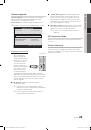
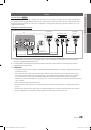
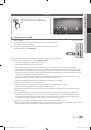
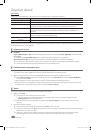
Setting up the TV with Your PC
Set the input source to PC.
Auto Adjustment
t
Adjust frequency values/positions and fine tune the settings
automatically.
✎
Not available when connecting with an HDMI/DVI cable.
Screen
■
Coarse / Fine
: Removes or reduces picture noise. If the
noise is not removed by Fine-tuning alone, then adjust
the frequency as best as possible (
Coarse
) and Fine-
tune again. After the noise has been reduced, readjust
the picture so that it is aligned to the centre of screen.
■
Position
: Adjust the PC screen position with direction
button (
▲
/
▼
/
◄
/
►
).
■
Image Reset
: Resets the image to default settings.
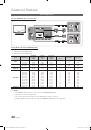
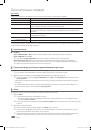
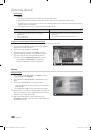
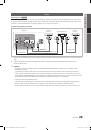
Using Your TV as a Computer (PC) Display
Setting Up Your PC Software (Based on Windows XP)
Depending on the version of Windows and the video card,
the actual screens on your PC may differ in which case the
same basic set-up information will almost always be applied.
(If not, contact your computer manufacturer or Samsung
Dealer.)
1.
Click on “Control Panel” on the Windows start menu.
2.
Click on “Appearance and Themes” in the “Control
Panel” window and a display dialog-box will appear.
3.
Click on “Display” and a display dialog box will appear.
4.
Navigate to the “Settings” tab on the display dialog-box.
y
The correct size setting (resolution)
[Optimum: PS42C450: 1024 X 768 / PS50C450: 1360
X 768 pixels]
y
If a vertical-frequency option exists on your display
settings dialog box, the correct value is “60” or “60 Hz.”
Otherwise, just click “OK” and exit the dialog box.
[450-Rus]BN68-02575B-01L04.indb 16
2010-03-02 오후 11:23:40