Инструкция для GIGABYTE GA-P67A-UD3P-B3 (rev. 1.1), GA P67A UD3P B3 rev 1 1
 1
 2
 3
 4
 5
 6
 7
 8
 9
 10
 11
 12
 13
 14
 15
 16
 17
 18
 19
 20
 21
 22
 23
 24
 25
 26
 27
 28
 29
 30
 31
 32
 33
 34
 35
 36
 37
 38
 39
 40
 41
 42
 43
 44
 45
 46
 47
 48
 49
 50
 51
 52
 53
 54
 55
 56
 57
 58
 59
 60
 61
 62
 63
 64
 65
 66
 67
 68
 69
 70
 71
 72
 73
 74
 75
 76
 77
 78
 79
 80
 81
 82
 83
 84
 85
 86
 87
 88
 89
 90
 91
 92
 93
 94
 95
 96
 97
 98
 99
 100
 101
 102
 103
 104
- 85 -
Appendix
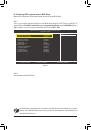
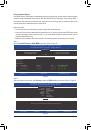
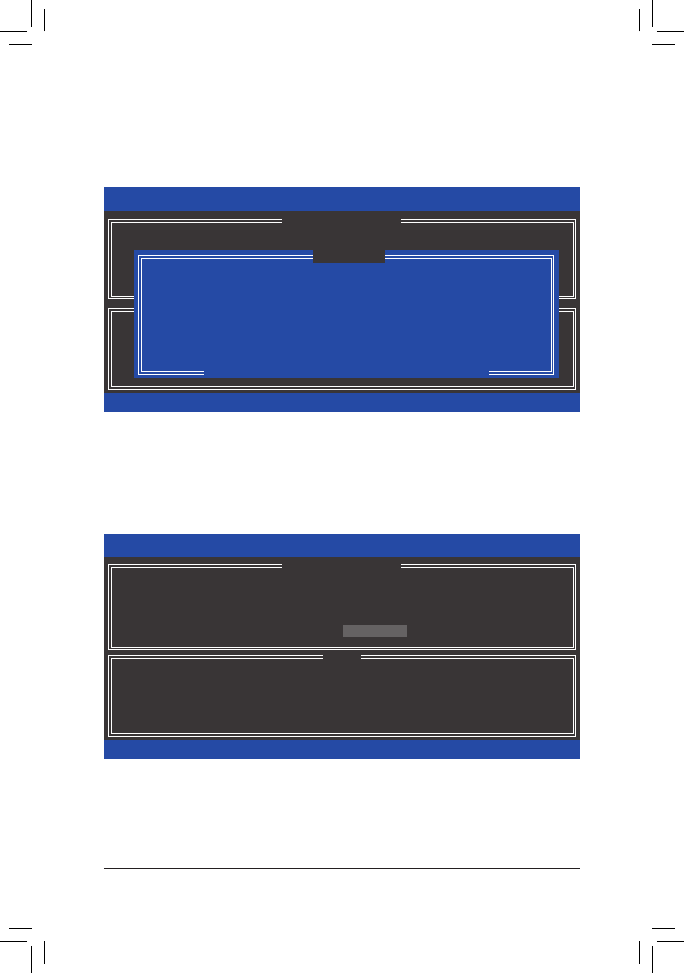
Figure 10
Step 3:
Press <Enter> under the
Select Disks
item. In the
SELECT DISKS
box, press <Tab> on the hard drive you
want to use for the master drive and press <Space> on the hard drive you want to use for the recovery drive.
(Make sure the recovery drive has equal or larger capacity than the master drive.) Then press <Enter> to
confirm. (Figure 10)
Intel(R) Rapid Storage Technology - Option ROM - 10.0.0.1046
Copyright(C) 2003-10 Intel Corporation. All Rights Reserved.
Choose the RAID level:
RAID0: Stripes data (performance).
RAID1: Mirrors data (redundancy).
Recovery: Copies data between a master and a recovery disk.
RAID10: Mirrors data and stripes the mirror.
RAID5: Stripes data and parity.
[
hi
]-Change
[TAB]-Next
[ESC]-Previous Menu
[ENTER]-Select
[ HELP ]
[ CREATE VOLUME MENU ]
Name : Volume0
RAID Level : Recovery
Disks :
Select Disks
Strip Size : 128KB
Capacity : 223.6 GB
Create Volume
[ SELECT DISKS ]
[
hi
]-Prev/Next [TAB]-(M)aster [SPACE]-(R)ecovery [ENTER]-Done
Port Drive Model
Serial #
Size
Status
M
0
ST3120026AS
3JT354CP
111.7GB
Non-RAID Disk
R
1
ST3120026AS
3JT329JX
111.7GB
Non-RAID Disk
Select 1 Master and 1 Recovery disk to create volume.
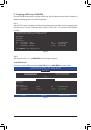
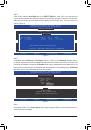
Step 4:
Under
Sync
, select
Continuous
or
On Request
(Figure 11). When set to
Continuous
, changes made to
the data on the master drive will be automatically and continuously copied to the recovery drive when both
hard drives are installed in the system.
On Request
allows users to update data from the master drive to the
recovery drive manually using the Intel Rapid Storage Technology utility in the operating system.
On Request
also allows users to restore the master drive to a previous state.
Intel(R) Rapid Storage Technology - Option ROM - 10.0.0.1046
Copyright(C) 2003-10 Intel Corporation. All Rights Reserved.
Select a sync option:
On Request: volume is updated manually
Continuous: volume is updated automatically
[
hi
]-Change
[TAB]-Next
[ESC]-Previous Menu
[ENTER]-Select
[ HELP ]
Name : Volume0
RAID Level : Recovery
Disks :
Select Disks
Strip Size : N/A
Capacity : 0.0 GB
Sync : Continuous
Create Volume
[ CREATE VOLUME MENU ]
Figure 11
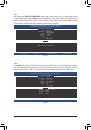
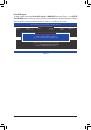
Step 5:
Finally press <Enter> on the
Create Volume
item to begin creating the Recovery Volume and follow the on-
screen instructions to complete.
Оглавление инструкции
- Box Contents
- Optional Items
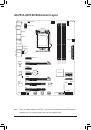
- GA-P67A-UD3P-B3 Motherboard Layout
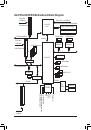
- GA-P67A-UD3P-B3 Motherboard Block Diagram
- Chapter 1 Hardware Installation
- Chapter 2 BIOS Setup
- 2-1 Startup Screen
- 2-2 The Main Menu
- 2-3 MB Intelligent Tweaker(M.I.T.)
- 2-4 Standard CMOS Features
- 2-5 Advanced BIOS Features
- 2-6 Integrated Peripherals
- 2-7 Power Management Setup
- 2-8 PC Health Status
- 2-9 Load Fail-Safe Defaults
- 2-10 Load Optimized Defaults
- 2-11 Set Supervisor/User Password
- 2-12 Save & Exit Setup
- 2-13 Exit Without Saving
- Chapter 3 Drivers Installation
- Chapter 4 Unique Features
- Chapter 5 Appendix