Инструкция для GIGABYTE GA-P67A-UD3P-B3 (rev. 1.1), GA P67A UD3P B3 rev 1 1
 1
 2
 3
 4
 5
 6
 7
 8
 9
 10
 11
 12
 13
 14
 15
 16
 17
 18
 19
 20
 21
 22
 23
 24
 25
 26
 27
 28
 29
 30
 31
 32
 33
 34
 35
 36
 37
 38
 39
 40
 41
 42
 43
 44
 45
 46
 47
 48
 49
 50
 51
 52
 53
 54
 55
 56
 57
 58
 59
 60
 61
 62
 63
 64
 65
 66
 67
 68
 69
 70
 71
 72
 73
 74
 75
 76
 77
 78
 79
 80
 81
 82
 83
 84
 85
 86
 87
 88
 89
 90
 91
 92
 93
 94
 95
 96
 97
 98
 99
 100
 101
 102
 103
 104
Unique Features
- 74 -
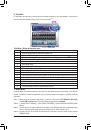
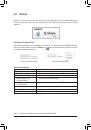
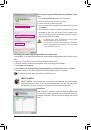
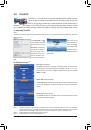
SMART DualBIOS
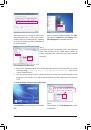
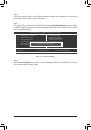
SMART DualBIOS is a new feature that can record personal passwords and important dates,
and remind users of the dates. It also stores the recorded data in the main and backup BIOS
simultaneously, which can prevent loss of the data in case the system/hard drive fails.
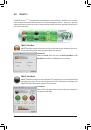
Instructions:
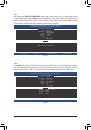
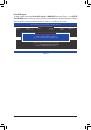
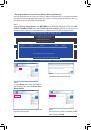
Enter the Smart 6
™
password to launch the SMART DualBIOS utility.
You can record personal passwords and important dates and set re-
minders of these dates. Click Save to save the settings and click Exit
to exit.
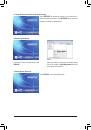
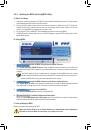
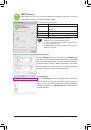
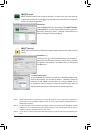
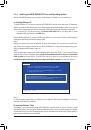
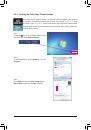
Recovering your system with Smart Recovery 2 (Windows 7 only):
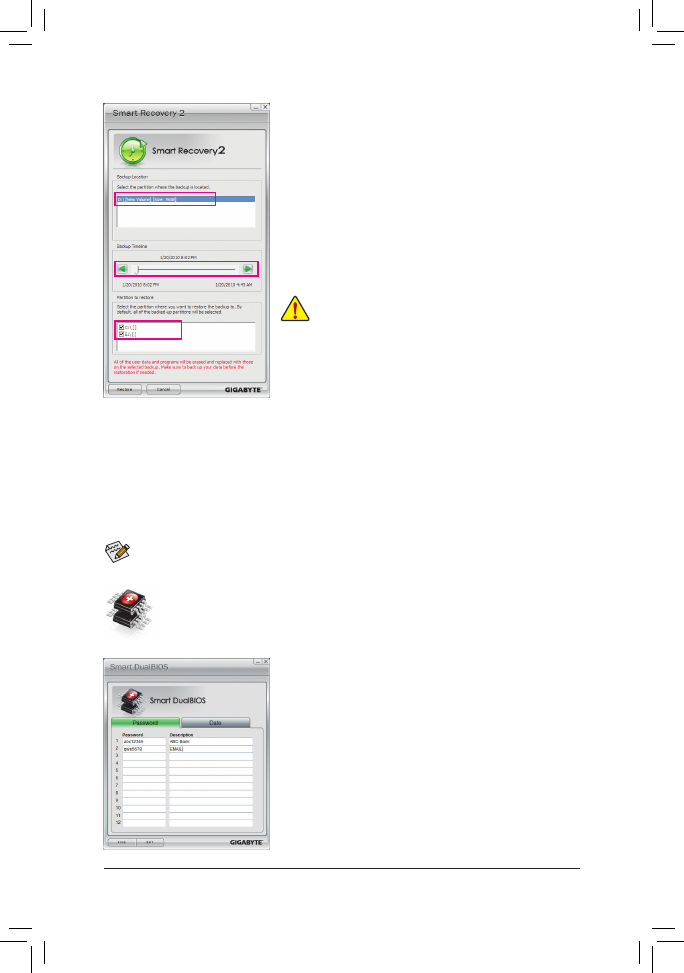
Steps:
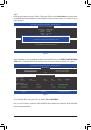
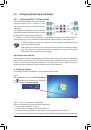
1. Click the
System Recovery
button on the main menu.
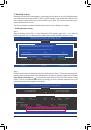
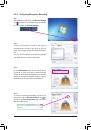
2. Select the partition where your backup is saved.
3. Use the time slider to select a time point.
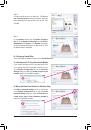
4. Select a partition backup created on the selected time point and
click
Restore
.
5. Confirm whether to restart your system to proceed with the restore
immediately or later. Once you respond "Yes" the system will re-
start to the Windows recovery environment. Follow the on-screen
instructions to restore your system.
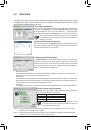
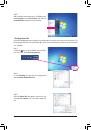
Recovering your system using the original Windows installation disk:
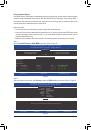
In case Windows or your hard drive has serious errors, use the original Windows installation disk for system recovery.
Steps:
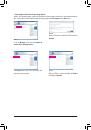
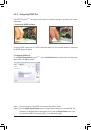
1. Restart your computer to boot from the original Windows installation disk.
2. When the Windows installation screen appears, select your language and click
Next
.
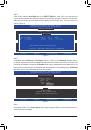
3. Select
Repair your computer
.
4. Select
Restore your computer using a system image that you created earlier
and then click
Next
.
5. Select the backup you want to use and then follow the on-screen instructions to complete.
•
For Windows Vista, refer to the steps below to use the original
Windows installation disk for system recovery.
•
All of your files and programs will be deleted and replaced with
those on the selected backup. If needed, be sure to make a copy
of your data before the restore.
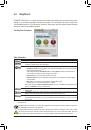
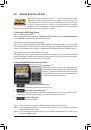
For further instructions, refer to the Help file of Smart Recovery 2.
Оглавление инструкции
- Box Contents
- Optional Items
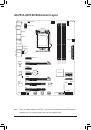
- GA-P67A-UD3P-B3 Motherboard Layout
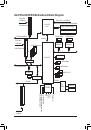
- GA-P67A-UD3P-B3 Motherboard Block Diagram
- Chapter 1 Hardware Installation
- Chapter 2 BIOS Setup
- 2-1 Startup Screen
- 2-2 The Main Menu
- 2-3 MB Intelligent Tweaker(M.I.T.)
- 2-4 Standard CMOS Features
- 2-5 Advanced BIOS Features
- 2-6 Integrated Peripherals
- 2-7 Power Management Setup
- 2-8 PC Health Status
- 2-9 Load Fail-Safe Defaults
- 2-10 Load Optimized Defaults
- 2-11 Set Supervisor/User Password
- 2-12 Save & Exit Setup
- 2-13 Exit Without Saving
- Chapter 3 Drivers Installation
- Chapter 4 Unique Features
- Chapter 5 Appendix