Инструкция для Samsung LE40B620R3W, LE46B620R3W, LE52B620R3W
 1
 2
 3
 4
 5
 6
 7
 8
 9
 10
 11
 12
 13
 14
 15
 16
 17
 18
 19
 20
 21
 22
 23
 24
 25
 26
 27
 28
 29
 30
 31
 32
 33
 34
 35
 36
 37
 38
 39
 40
 41
 42
 43
 44
 45
 46
 47
 48
 49
 50
 51
 52
 53
 54
 55
 56
 57
 58
 59
 60
 61
 62
 63
 64
 65
 66
 67
 68
 69
 70
 71
 72
 73
 74
 75
 76
 77
 78
 79
 80
 81
 82
 83
 84
 85
 86
 87
 88
 89
 90
 91
 92
 93
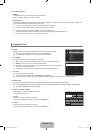
English - 14
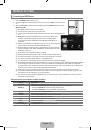
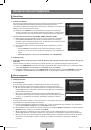
PICTurE
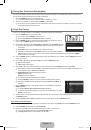
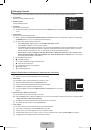
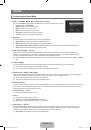
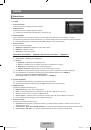
Configuring the Picture Menu
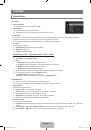
Mode
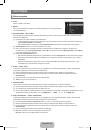
You can select the type of picture which best corresponds to your viewing requirements.
Press the
TooLS
button to display the
Tools
menu. You can also set the picture mode by
selecting
Tools → Picture Mode
.
Dynamic
Selects the picture for increased definition in a bright room.
Standard
Selects the picture for the optimum display in a normal environment.
Natural
Selects the picture for an optimum and eye-comfortable display.
Movie
Selects the picture for viewing movies in a dark room.
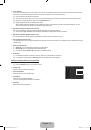
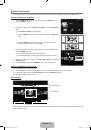
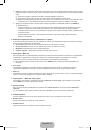
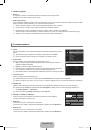
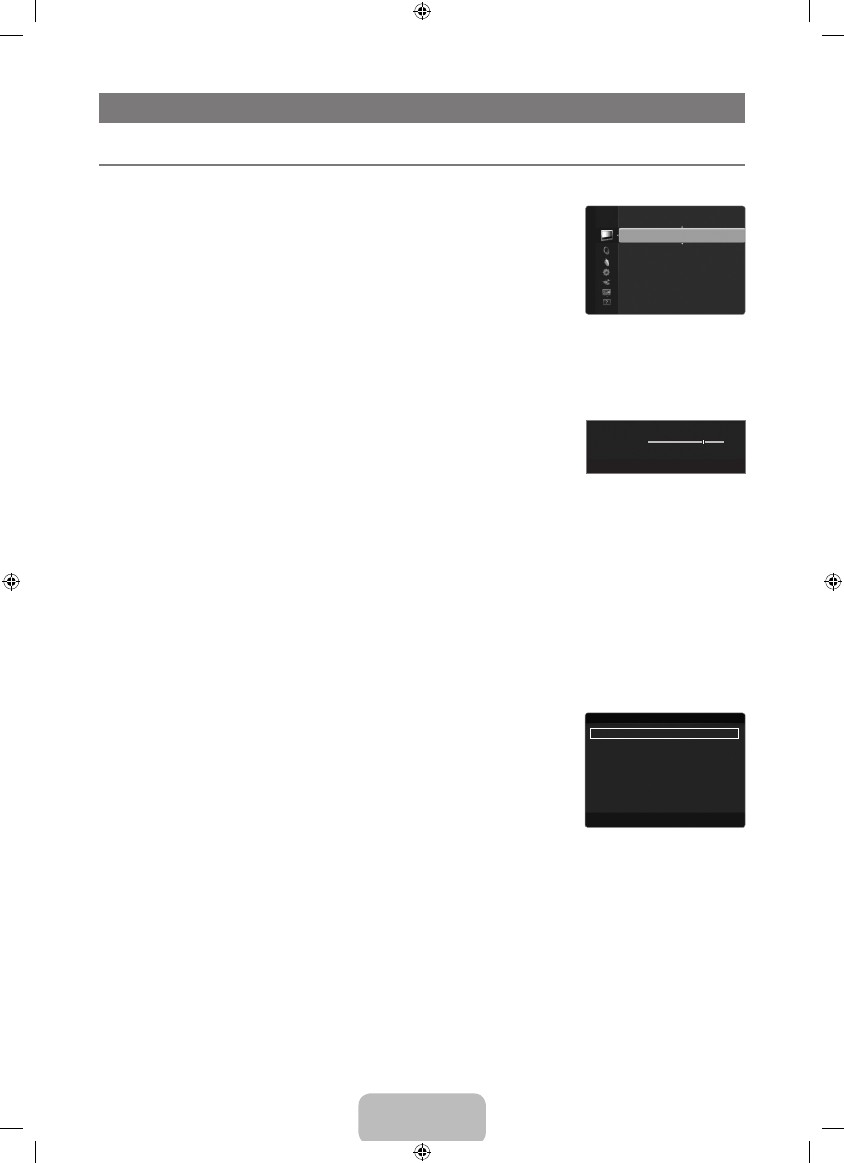
Backlight / Contrast / Brightness / Sharpness / Colour / Tint(g/r)
Your television has several setting options that allow you to control the picture quality.
Backlight
: Adjusts the brightness of LCD back light.
Contrast
: Adjusts the contrast level of the picture.
Brightness
: Adjusts the brightness level of the picture
Sharpness
: Adjusts the edge definition of the picture.
Colour
: Adjusts colour saturation of the picture.
Tint(g/r)
: Adjusts the colour tint of the picture.
In analogue
TV, Ext., AV
modes of the PAL system, you cannot use the
Tint(g/r)
Function.
When you make changes to
Backlight, Contrast, Brightness, Sharpness, Colour
or
Tint(g/r)
the OSD will be adjusted
accordingly.
In PC mode, you can only make changes to
Backlight, Contrast
and
Brightness
.
Settings can be adjusted and stored for each external device you have connected to an input of the TV.
The energy consumed during use can be significantly reduced if the brightness level of the picture is lowered, which will
reduce the overall running cost.
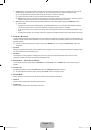
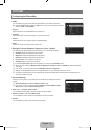
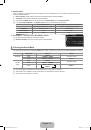
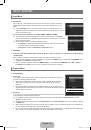
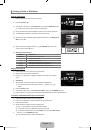
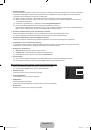
Advanced Settings
Samsung’s new TVs allow you to make even more precise picture settings than previous
models.
Advanced Settings
is available in
Standard
or
Movie
mode.
In PC mode, you can only make changes to
Dynamic Contrast, gamma
and
White
Balance
from among the
Advanced Settings
items.
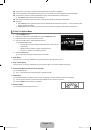
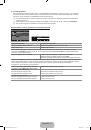
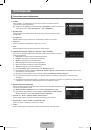
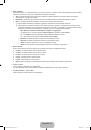
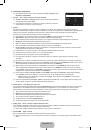
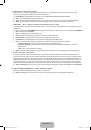
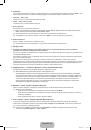
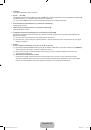
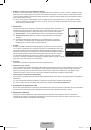
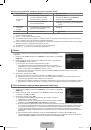
Black Tone → Off / Dark / Darker / Darkest
You can select the black level on the screen to adjust the screen depth.
Dynamic Contrast → Off / Low / Medium / High
You can adjust the screen contrast so that the optimal contrast is provided.
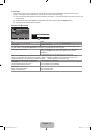
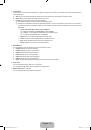
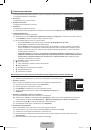
gamma
You can adjust the primary colour (red, green, blue) intensity.
¦
❑
T
■
■
■
■
❑
●
●
●
●
●
●
N
N
N
N
N
❑
N
N
■
■
■
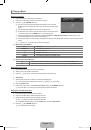
Mode
: Standard
▶
Backlight
: 7
Contrast
: 95
Brightness
: 45
Sharpness
: 50
Colour
: 50
Tint (G/R)
: G50/R50
Advanced Settings
Picture
7
U
Move
L
Adjust
E
Enter
R
Return
▲
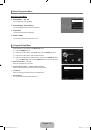
Backlight
▼
Black Tone
: Off
▶
Dynamic Contrast
: Medium
Gamma
: 0
Colour Space
: Native
White Balance
Flesh Tone
: 0
Edge Enhancement
: On
U
Move
E
Enter
R
Return
Advanced Settings
BN68-02097D-Eng.indd 14
2009-03-19 �� 8:15:34
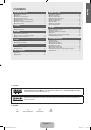
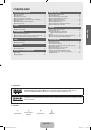
Оглавление инструкции
- Cover
- Eng
- Setting up Your TV
- Viewing the Control Panel
- Accessories
- Viewing the Connection Panel
- Viewing the Remote Control
- Installing Batteries in the Remote Control
- Viewing the menus
- Placing Your Television in Standby Mode
- Plug & Play Feature
- CHANNEL
- PICTURE
- SOUND
- SETUP
- INPUT / SUPPORT
- Media Play (USB)
- ANYNET+
- RECOMMENDATIONS
- Setting up Your TV
- Rus