Инструкция для Samsung LE40B620R3W, LE52B620R3W
 1
 2
 3
 4
 5
 6
 7
 8
 9
 10
 11
 12
 13
 14
 15
 16
 17
 18
 19
 20
 21
 22
 23
 24
 25
 26
 27
 28
 29
 30
 31
 32
 33
 34
 35
 36
 37
 38
 39
 40
 41
 42
 43
 44
 45
 46
 47
 48
 49
 50
 51
 52
 53
 54
 55
 56
 57
 58
 59
 60
 61
 62
 63
 64
 65
 66
 67
 68
 69
 70
 71
 72
 73
 74
 75
 76
 77
 78
 79
 80
 81
 82
 83
 84
 85
 86
 87
 88
 89
 90
 91
 92
 93
 94
 95
 96
 97
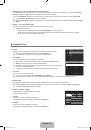
English - 32
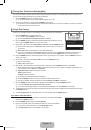
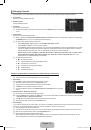
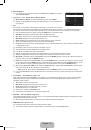
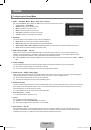
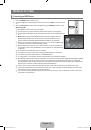
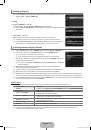
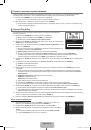
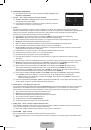
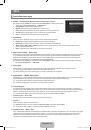
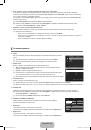
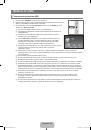
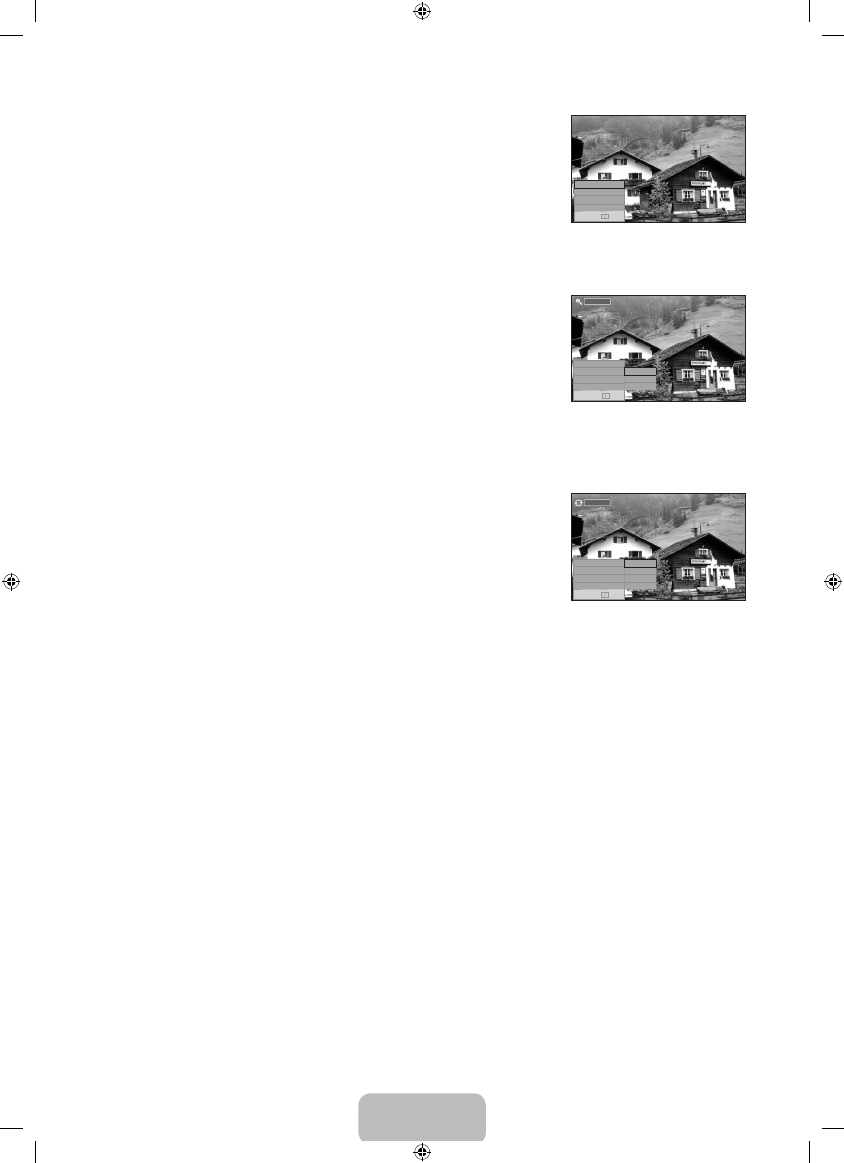
Using the option Menu
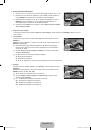
1.
Complete Steps 1 to 3 of “Using the Media Play Menu”. (Refer to page 29)
2.
Press the ◄ or ► button to move to
Photo
, then press the
ENTEr
E
button. The
saved file information is displayed as a folder or file.
3.
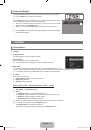
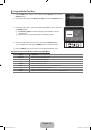
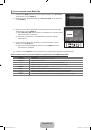
Press the ▲, ▼, ◄ and ► button to select a file, then press the
ENTEr
E
button.
Pressing the button over a photo thumbnail displays the photo in full screen.
4.
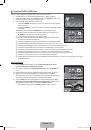
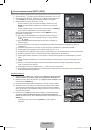
Press the
INFo
button to display the option (
Start Slide Show
,
Zoom
,
rotate
,
List
)
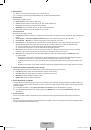
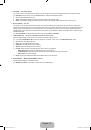
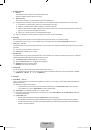
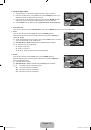
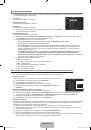
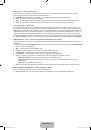
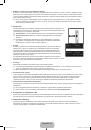
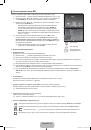
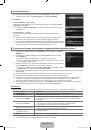
Start Slide Show
Press the ▲ or ▼ button to select
Start Slide Show
, then press the
ENTEr
E
button. You can start a Slide Show.
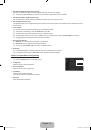
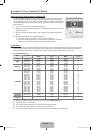
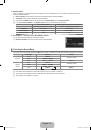
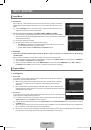
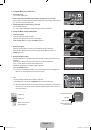
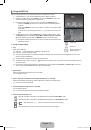
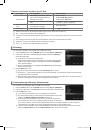
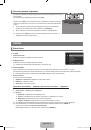
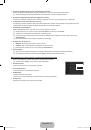
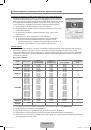
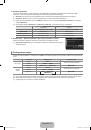
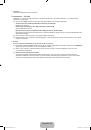
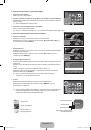
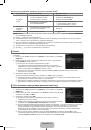
Zoom
Press the ▲ or ▼ button to select
Zoom
, then press the
ENTEr
E
button.
Select the required option by pressing the ▲ or ▼ button, then press the
ENTEr
E
button. (
X1, X2, X4
)
To pan up/down/left/right in the zoomed-in photo, press the
INFo
button to exit option
menu, then press the ▲, ▼, ◄ and ► buttons.
Start Slide Show
or
rotate
is disabled when the
Zoom
option is selected.
x1
: Restore a photo to its original size.
x2
: Zoom-in to a photo x2.
x4
: Zoom-in to a photo x4.
d
/
u
/
l
/
r
: Move the zoomed-in photo up/down/right/left.
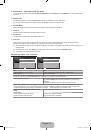
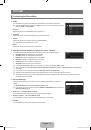
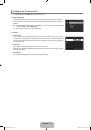
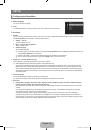
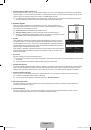
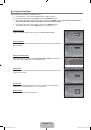
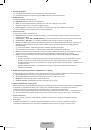
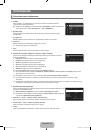
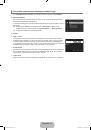
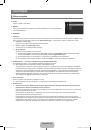
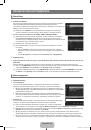
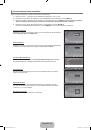
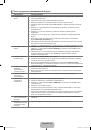
rotate
Press the ▲ or ▼ button to select
rotate
, then press the
ENTEr
E
button.
Select the required option by pressing the ▲ or ▼ button, then press the
ENTEr
E
button. (
0
°
,
90
°
, 10
°
, 20
°
)
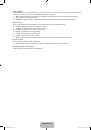
The rotated file is not saved.
Start Slide Show
or
Zoom
is disabled when the
rotate
option is selected.
0
°
: This rotates a photo to its original position
9
0
° : This rotates a photo by 90 degrees
10
° : This rotates a photo by 180 degrees
20
° : This rotates a photo by 270 degrees
❑
■
■
N
N
N
■
N
N
N
Start Slide Show
Zoom :X1
rotate :
0°
List
Exit
X 1
x 1
x 2
x 4
0°
Start Slide Show
Zoom :X1
rotate :0°
List
Exit
0°
90°
10°
20°
Start Slide Show
Zoom :X1
rotate :
0°
List
Exit
BN68-02356G.indb 32
2009-09-03 ¿ÀÈÄ 4:22:35