Инструкция для Samsung LE40B620R3W, LE52B620R3W
 1
 2
 3
 4
 5
 6
 7
 8
 9
 10
 11
 12
 13
 14
 15
 16
 17
 18
 19
 20
 21
 22
 23
 24
 25
 26
 27
 28
 29
 30
 31
 32
 33
 34
 35
 36
 37
 38
 39
 40
 41
 42
 43
 44
 45
 46
 47
 48
 49
 50
 51
 52
 53
 54
 55
 56
 57
 58
 59
 60
 61
 62
 63
 64
 65
 66
 67
 68
 69
 70
 71
 72
 73
 74
 75
 76
 77
 78
 79
 80
 81
 82
 83
 84
 85
 86
 87
 88
 89
 90
 91
 92
 93
 94
 95
 96
 97
English - 29
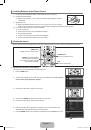
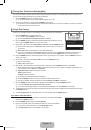
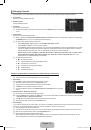
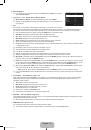
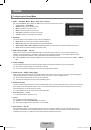
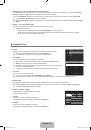
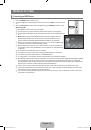
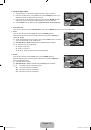
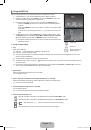
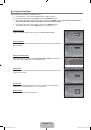
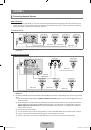
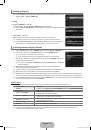
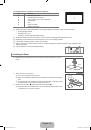
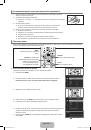
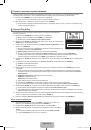
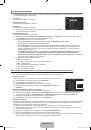
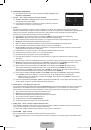
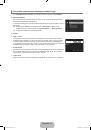
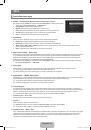
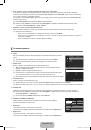
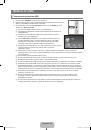
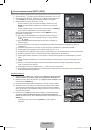
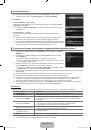
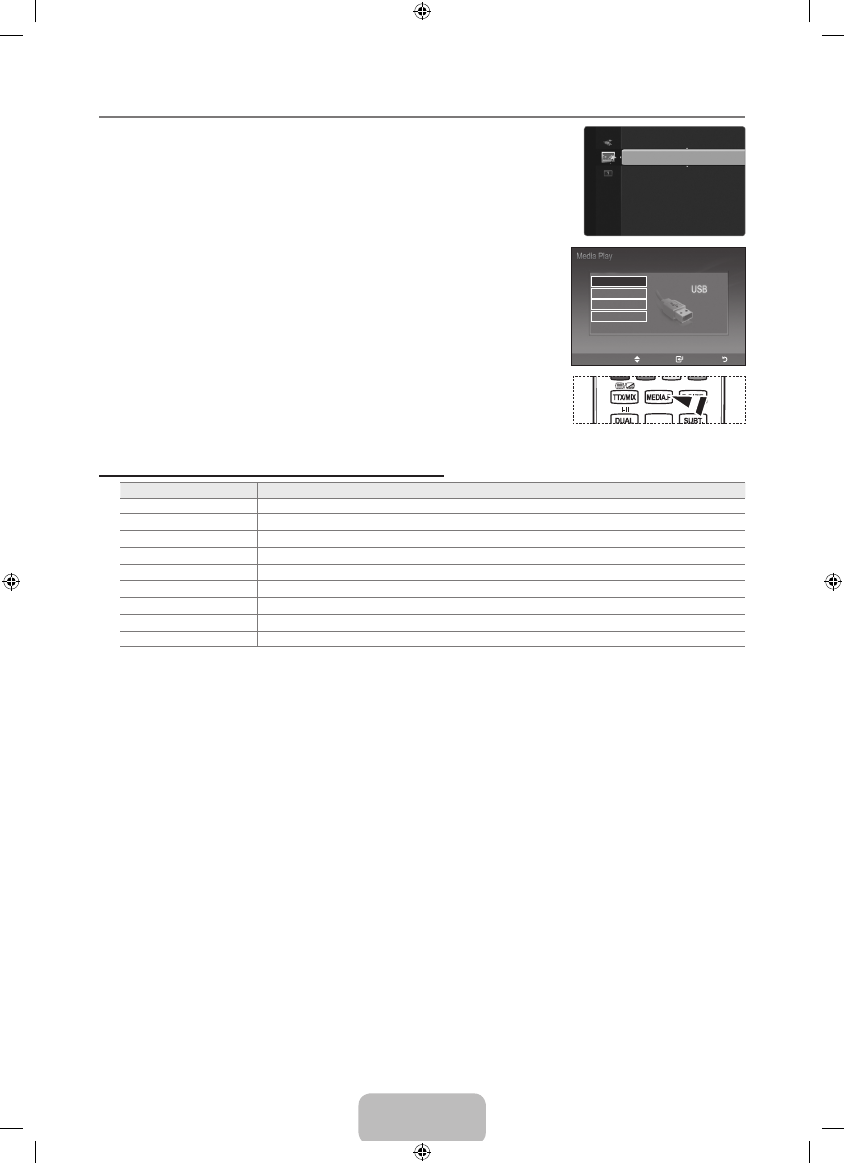
Using the Media Play Menu
1.
Press the
MENU
button. Press the ▲ or ▼ button to select
Application
, then press the
ENTEr
E
button.
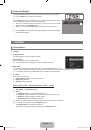
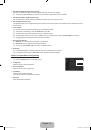
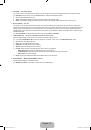
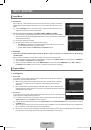
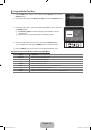
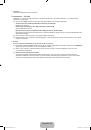
2.
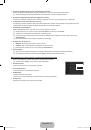
Press the ▲ or ▼ button to select
Media Play (USB)
, then press the
ENTEr
E
button.
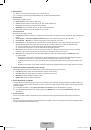
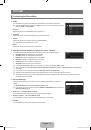
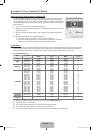
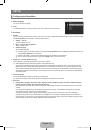
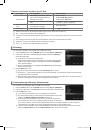
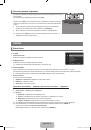
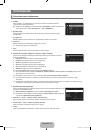
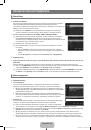
3.
Press the ▲ or ▼ button to select the corresponding USB Memory Device, then press
the
ENTEr
E
button.
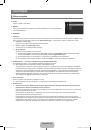
The
Media Play (USB)
menu differs depending on the USB Memory Device
connected to TV.
Some devices may not be supported due to compatibility problems.
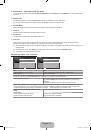
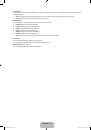
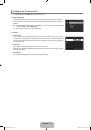
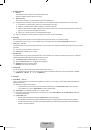
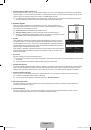
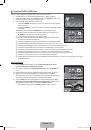
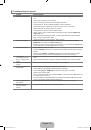
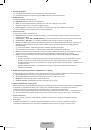
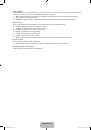
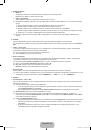
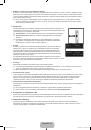
4.
Press the ◄ or ► button to move to an icon, then press the
ENTEr
E
button.
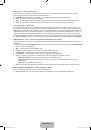
To exit Media Play mode, press the
MEDIA.P
button on the remote control.
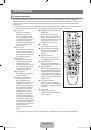
Press the
MEDIA.P
button on the remote control to display a Media Play menu.
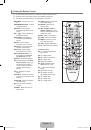
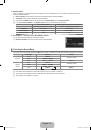
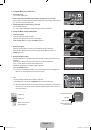
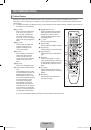
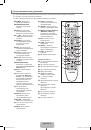
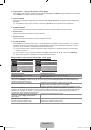
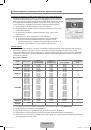
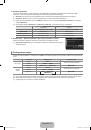
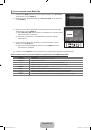
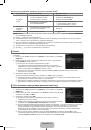
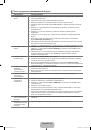
Using the remote Control Button in Media Play (USB) Menu
Button
operations
▲/▼/◄/►
Move the cursor and select an item.
ENTEr
E
Select the currently selected item.
∂
Play the Slide Show or MP3 file.
∑
Play the Slide Show or MP3 file.
rETUrN
Return to the previous menu.
INFo
Run various functions from the Photo and Music menus.
∫
Stop the current slide show or MP3 file.
π
/
μ
Page Up or Down (file list item)
EXIT
Stop the current function and return to the previous high-level menu.
¦
N
N
N
O
Move
Enter
Exit
SUM
STorAGE DEVICE
STorAGE DEVICE
STorAGE DEVICE
STorAGE DEVICE
Anynet+ (HDMI-CEC)
Media Play (USB)
▶
Application
INFO
AD
BN68-02356G.indb 29
2009-09-03 ¿ÀÈÄ 4:22:26