Инструкция для B&W Zeppelin Wireless
 1
 2
 3
 4
 5
 6
 7
 8
 9
 10
 11
 12
 13
 14
 15
 16
 17
 18
 19
 20
 21
 22
 23
 24
 25
 26
 27
 28
 29
 30
 31
 32
 33
 34
 35
 36
 37
 38
 39
 40
 41
 42
 43
 44
 45
 46
 47
 48
 49
 50
 51
 52
 53
 54
 55
 56
 57
 58
 59
 60
 61
 62
 63
 64
 65
 66
 67
 68
 69
 70
 71
 72
 73
 74
 75
 76
 77
 78
 79
 80
 81
 82
 83
 84
 85
 86
 87
 88
 89
 90
 91
 92
 93
 94
 95
 96
 97
 98
 99
 100
 101
 102
 103
6
ENGLISH
5. Operating Zeppelin Wireless
To increase or decrease volume, use the Zeppelin
Wireless volume + or – buttons respectively. A single
press will step the volume change incrementally or
press and hold to ramp the volume more quickly. If
no audio is playing when the volume reaches either
its maximum or minimum level Zeppelin Wireless will
provide audible feedback.
To play or pause stream playback, press the play/
pause button.
To select the next track, press the play/pause button
twice in quick succession. To select the previous
track, press the play/pause button three times in
quick sucession.
Note: Play, pause, next and previous functions do
not operate on AUX input signals.
In normal use there is no need to manage the power
of Zeppelin Wireless. The speaker will automatically
enter sleep if left idle, or if no Bluetooth device
is connected, for 20 minutes. The indicator will
illuminate dim red while in sleep. Zeppelin Wireless will
remain connected to the network and to any paired
Bluetooth
devices within range. Zeppelin Wireless can
be woken from sleep by connecting a cable to the
AUX input, streaming via
Bluetooth
, AirPlay or Spotify,
pressing the power, volume +/- or play/pause buttons
or making a new
Bluetooth
connection.
Note: When in sleep Zeppelin Wireless will not wake
if an AUX input signal is initiated. In this instance the
play/pause or volume buttons should be used to
wake Zeppelin Wireless.
To put Zeppelin Wireless into standby, press and
hold the Power button.
Note: In standby, Zeppelin Wireless will disconnect
from the network and any paired Bluetooth devices.
It can be switched on by pressing the power button.
Note: In sleep, the AUX indicator is not illuminated
and the button inactive. The Bluetooth indicator is
dim and the button active to initiate pairing. Refer to
section 3.5.
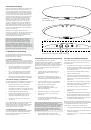
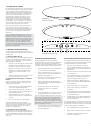
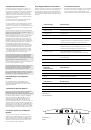
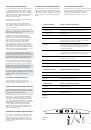
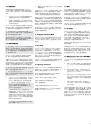
6. Zeppelin Wireless Indicators
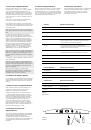
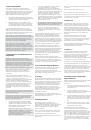
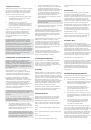
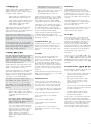
The Zeppelin Wireless indicator uses different
colours and illumination patterns to indicate different
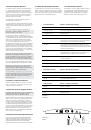
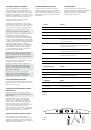
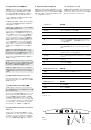
operational states. These are listed in Diagram 4.
7. Zeppelin Wireless Reset Function
Note: Zeppelin Wireless will disconnect from the
network and forget all paired Bluetooth devices
when reset.
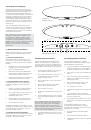
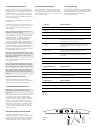
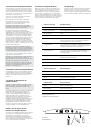
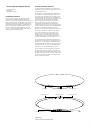
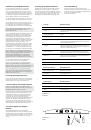
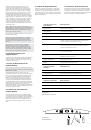
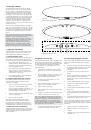
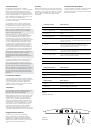
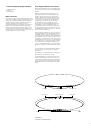
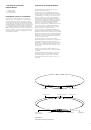
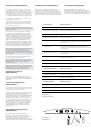
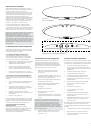
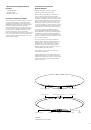
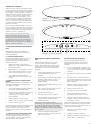
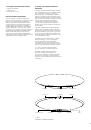
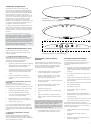
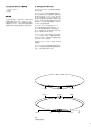
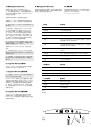
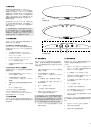
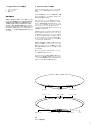
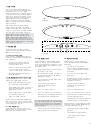
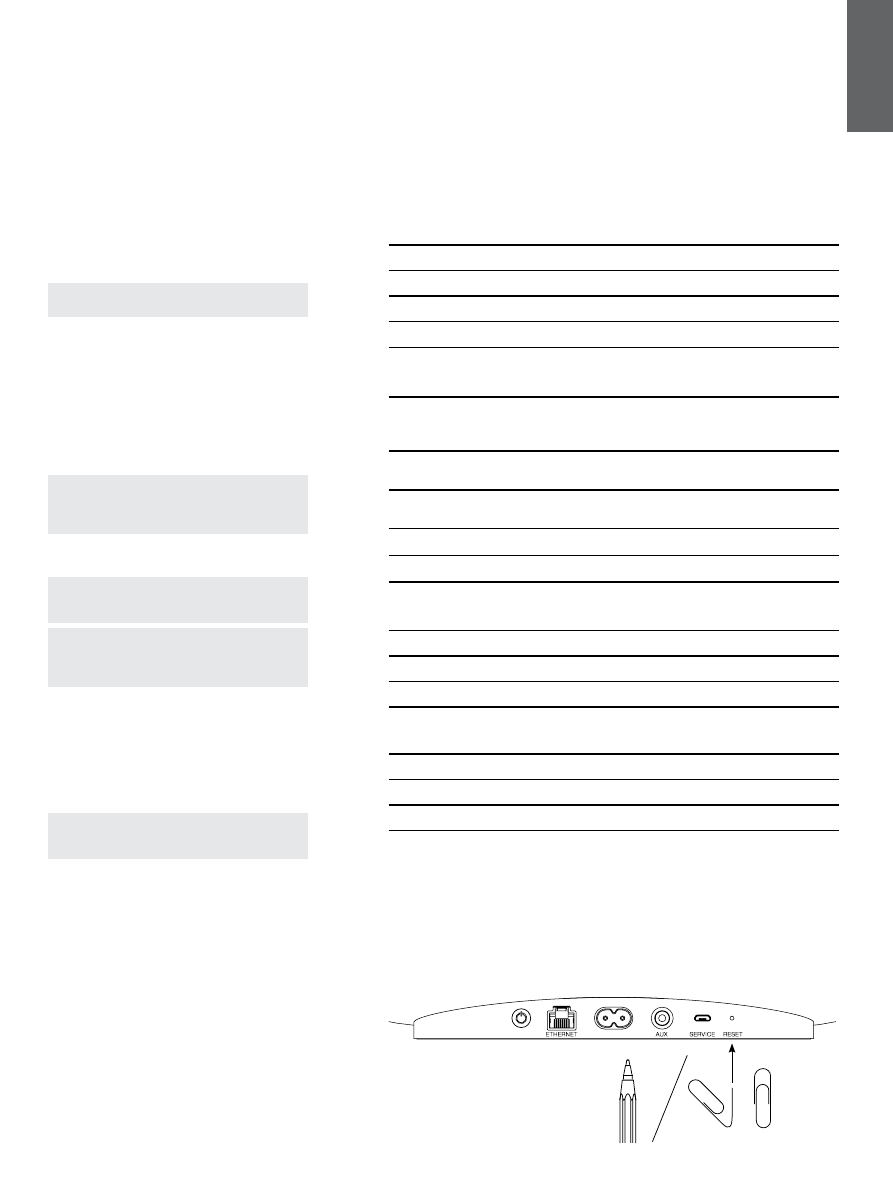
Zeppelin Wireless has a pinhole reset button located
on its rear connection panel. The reset button is
illustrated in Diagram 5. To return Zeppelin Wireless
to its default settings, connect its power cable and
switch it on by pressing the power button. Use a
straightened paperclip or pen to press and hold the
reset button for 6 seconds until the indicator flashes
white, reset is then underway. When the reset is
complete Zeppelin Wireless will power up in network
connection mode.
8. Zeppelin Wireless Firmware Update
Updated firmware may from time to time be
available for the Zeppelin Wireless. Firmware update
notification, download and installation is managed
using Bowers & WIlkins Control. Carefully follow the
firmware update instructions provided by the app.
Diagram 5
Reset
Diagram 4
Indicators
Indicator
Operational State
Off
Standby
Pulse red
Start-up from standby or sleep
Dim red
Sleep
Pulse green
Waiting for network setup
Green
Normal operation with
Bluetooth
, AirPlay or
Spotify Connect streaming. (indicator will flash
green when full volume is reached)
Orange
Operating (AUX or
Bluetooth
inputs) with no network
settings. (indicator will flash orange when full volume
is reached)
Pulse orange
Operating (AUX or
Bluetooth
inputs) with network
settings but no network connection
Flash red
Error - visit the Zeppelin Wireless support pages of
our website
Flash white
Reset underway
White
Firmware update underway
Bluetooth
Indicator
Operational State
Dim blue
No
Bluetooth
device connected
Flash blue
Pairing mode
Blue
Bluetooth
device connected
AUX Indicator
Operational State
Off
AUX input disconnected
Dim white
AUX source connected
White
AUX source active
9. Cleaning Zeppelin Wireless
Use a clothes brush or damp a cloth with water
to clean the grille cloth. Wipe other surfaces with
a clean lint-free or microfibre cloth. Avoid cleaning
products that can be abrasive, or contain acid, alkali
or anti-bacterial agents.
10. Troubleshooting
If you need help troubleshooting a specific problem,
or simply have a question you would like answered,
please initially consult the Zeppelin Wireless support
section of the Bowers & Wilkins website:
www.bowers-wilkins.com
Оглавление инструкции
- ENGLISH
- 1. Zeppelin Wireless Carton Contents
- Environmental Information
- 2. Getting to know Zeppelin Wireless
- 3. Switching on and setting up
- 4. Zeppelin Wireless sources
- 5. Operating Zeppelin Wireless
- 6. Zeppelin Wireless Indicators
- 7. Zeppelin Wireless Reset Function
- 8. Zeppelin Wireless Firmware Update
- 9. Cleaning Zeppelin Wireless
- 10. Troubleshooting
- Specifications
- FRANÇAIS
- 1. Contenu du carton du Zeppelin Wireless
- Information sur l’environnement
- 2. Faites connaissance avec votre Zeppelin Wireless
- 3. Mise sous tension et configuration
- 4. Sources du Zeppelin Wireless
- 6. Indicateurs lumineux du Zeppelin Wireless
- 7. Fonction de réinitialisation du Zeppelin Wireless
- 8. Mise à jour du logiciel interne (firmware) du Zeppelin Wireless
- 9. Entretien du Zeppelin Wireless
- 10. Dépannage
- Spécifications
- DEUTSCH
- 1. Kartoninhalt des Zeppelin Wireless
- Umweltinformationen
- 2. Die wesentlichen Features
- 3. Einschalten und Setup
- 4. Die Funkstandards des Zeppelin Wireless
- 6. Anzeige des Zeppelin Wireless
- 7. Reset-Funktion des Zeppelin Wireless
- 8. Firmware-Update des Zeppelin Wireless
- 9. Reinigung des Zeppelin Wireless
- 10. Fehlerbehebung
- Technische Daten
- ESPAÑOL
- 1. Contenido del Embalaje del Zeppelin Wireless
- Información Medioambiental
- 2. Conociendo su Zeppelin Wireless
- 3. Puesta en marcha y configuración
- 4.Fuentes Zeppelin Wireless
- 5. Funcionamiento del Zeppelin Wireless
- 6. Indicadores Luminosos del Zeppelin Wireless
- 7. Función de Reinicialización del Zeppelin Wireless
- 8. Actualización del Firmware del Zeppelin Wireless
- 9. Limpieza del Zeppelin Wireless
- 10. Problemas y Posibles Soluciones
- Características Técnicas
- PORTUGUÊS
- 1. Conteúdo da embalagem do Zeppelin Wireless
- Informações ambientais
- 2. Conheça o Zeppelin Wireless
- 3. Como ligar e desligar
- 4. Fontes do Zeppelin Wireless
- 5. Como utilizar o Zeppelin Wireless
- 6. Indicadores do Zeppelin Wireless
- 7. Função de reinício do Zeppelin Wireless
- 8. Atualização do firmware do Zeppelin Wireless
- 9. Limpeza do Zeppelin Wireless
- 10. Resolução de problemas
- Especificações
- ITALIANO
- 1. Contenuto della confezione
- Informazioni per l’ambiente
- 2. Descrizione
- 3. Prima accensione ed impostazioni
- 4. Ingressi
- 6. Indicazioni luminose
- 7. Ripristino
- 8. Aggiornamento firmware
- 9. Pulizia
- 10. Risoluzione dei problemi
- Caratteristiche tecniche
- NEDERLANDS
- 1. Inhoud verpakking Zeppelin Wireless
- Milieu-informatie
- 2. De Zeppelin Wireless leren kennen
- 3. Inschakelen en instellen
- 4. Bronnen voor de Zeppelin Wireless
- 5. Zeppelin Wireless bedienen
- 6. Statusindicaties op de Zeppelin Wireless
- 7. Resetfunctie Zeppelin Wireless
- 8. Firmware-update voor de Zeppelin Wireless
- 9. De Zeppelin Wireless schoonmaken
- 10. Problemen oplossen
- Specificaties
- ΕΛΛΗΝΙΚΑ
- 1. Περιεχόμενα συσκευασίας Zeppelin Wireless
- Πληροφορίες σχετικά με το περιβάλλον
- 2. Εξοικείωση με το Zeppelin Wireless
- 3. Ενεργοποίηση και ρύθμιση
- 3.1 Ασύρματη σύνδεση δικτύου
- 4. Πηγές του Zeppelin Wireless
- 4.1 AirPlay
- 5. Χειρισμός του Zeppelin Wireless
- 6. Ενδεικτικές λυχνίες του Zeppelin Wireless
- 7. Λειτουργία επαναφοράς του Zeppelin Wireless
- 8. Ενημέρωση υλικολογισμικού στο Zeppelin Wireless
- 9. Καθαρισμός του Zeppelin Wireless
- 10. Αντιμετώπιση προβλημάτων
- Προδιαγραφές
- РУССКИЙ
- 1. Содержимое коробки с Zeppelin Wireless
- Информация о защите окружающей среды
- 2. Знакомство с Zeppelin Wireless
- 3. Включение и настройка
- 4. Источники для Zeppelin Wireless
- 5. Использование Zeppelin Wireless
- 6. Индикаторы Zeppelin Wireless
- 7. Функция сброса Zeppelin Wireless (Reset)
- 8. Обновления прошивки ПО Zeppelin Wireless
- 9. Очистка Zeppelin Wireless
- 10. Устранение неисправностей
- Технические характеристики
- ČESKY
- 1. Balení přístroje Zeppelin Wireless obsahuje
- Informace k životnímu prostředí
- 2. Seznamte se s přístrojem Zeppelin Wireless
- 3. Zapnutí a nastavení
- 4. Zeppelin Wireless zdroje
- 5. Používání Zeppelin Wireless
- 6. Indikátory na Zeppelin Wireless
- 7. Resetování přístroje Zeppelin Wireless
- 8. Aktualizace firmware Zeppelin Wireless
- 9. Čištění přístroje Zeppelin Wireless
- 10. Odstraňování problémů
- Specifikace
- SLOVENČINA
- 1. Balenie prístroja Zeppelin Wireless obsahuje
- Informácie k životnému prostrediu
- 2. Zoznámte se s prístrojom Zeppelin Wireless
- 3. Zapnutie a nastavenie
- 4. Zeppelin Wireless zdroje
- 5. Používanie Zeppelin Wireless
- 6. Indikátory na Zeppelin Wireless
- 7. Resetovanie prístroja Zeppelin Wireless
- 8. Aktualizácia firmware Zeppelin Wireless
- 9. Čistenie prístroja Zeppelin Wireless
- 10. Odstraňovanie problémov
- Špecifikácia
- MAGYAR
- 1. A Zeppelin Air dobozának tartalma
- Környezetvédelmi tájékoztatás
- 2. Ismerje meg a Zeppelin Wireless készüléket
- 3. Bekapcsolás és beállítás
- 4. Zeppelin Wireless források
- 6. A Zeppelin Wireless kijelzője
- 7. Zeppelin Wireless Beállítások törlése (Reset) funkció
- 8. Zeppelin Wireless Firmware frissítés
- 9. A Zeppelin Wireless tisztítása
- 10. Hibaelhárítás
- Műszaki adatok
- POLSKI
- 1. Zawartość pudełka Zeppelin Wireless
- Informacje o wpływie na środowisko
- 2. Poznawanie Zeppelin Wireless
- 3. Włączanie i konfigurowanie
- 4. Źródła Zeppelin Wireless
- 6. Diody Zeppelin Wireless
- 7. Funkcja resetu Zeppelin Wireless
- 8. Aktualizacja oprogramowania Zeppelin Wireless
- 9. Czyszczenie Zeppelin Wireless
- 10. Rozwiązywanie problemów
- Specyfikacja
- 简体中文
- 繁體中文
- 日本語
- 한국어

