Инструкция для GIGABYTE GA-H67N-USB3-B3 (rev. 1.0), GA H67N USB3 B3 rev 1 0
 1
 2
 3
 4
 5
 6
 7
 8
 9
 10
 11
 12
 13
 14
 15
 16
 17
 18
 19
 20
 21
 22
 23
 24
 25
 26
 27
 28
 29
 30
 31
 32
 33
 34
 35
 36
 37
 38
 39
 40
 41
 42
 43
 44
 45
 46
 47
 48
 49
 50
 51
 52
 53
 54
 55
 56
 57
 58
 59
 60
 61
 62
 63
 64
 65
 66
 67
 68
 69
 70
 71
 72
 73
 74
 75
 76
 77
 78
 79
 80
 81
 82
 83
 84
 85
 86
 87
 88
 89
 90
 91
 92
 93
 94
 95
 96
 97
 98
 99
 100
Unique Features
- 74 -
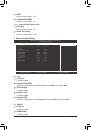
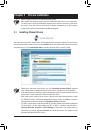
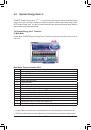
4-9 Cloud OC
Cloud OC
(Note 1)
is an easy-to-use overclocking utility designed for system overclock-
ing via virtually any Internet-connected device, such as a smart phone, iPhone, note-
book PC, etc. By simply connecting to an Internet browser via LAN, wireless LAN, or
Bluetooth
(Note 2)
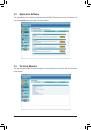
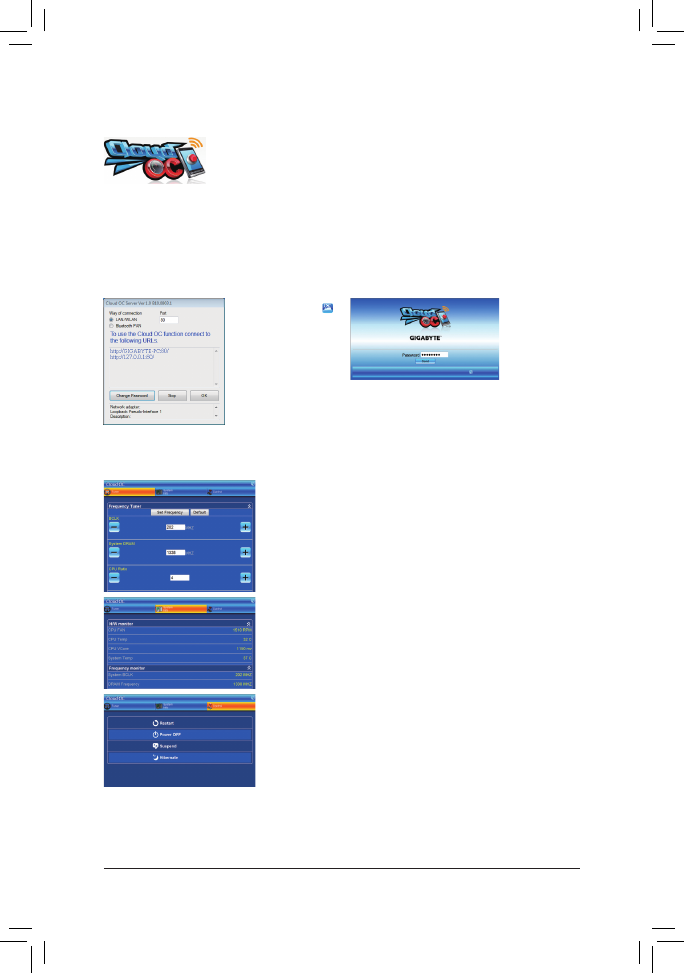
and logging in to the Cloud OC server, you can easily access three major functions of Cloud
OC, including Tuner (system tweaking), System Info (system monitoring), and Control (system status control).
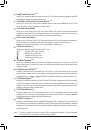
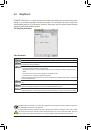
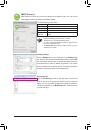
A. Launching Cloud OC
B. Directions for use
(Note 3)
Step 1:
The first time you launch Cloud OC, the system will request you to set up a password which will be required for login to the
Cloud OC server.
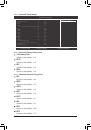
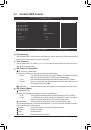
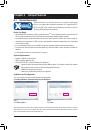
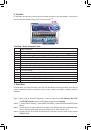
Tuner
•
(System Tweaking):
The
Tuner
tab provides a full range of tweaking options that include CPU,
memory, graphics, and PCIe frequencies and voltages. Click the <+> or <-> but-
ton under an item you want to configure or directly enter a value, and click
Set
XXXX
to complete.
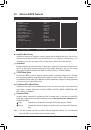
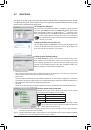
System Info
•
(System Monitoring):
The
System Info
tab enables real time PC system status monitoring for values
such as CPU temperature, cooling fan speeds, CPU VCore and system tem-
perature.
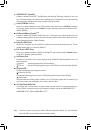
Control
•
(System Status Control):
The
Control
tab allows for controlling system power states with restart, power
off, suspend, and hibernate options.
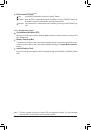
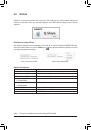
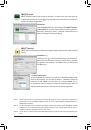
Step 2:
Find the
Cloud OC
icon
in the notification area and
right click the icon to select
Start Server
to launch the
Cloud OC server. The Cloud
OC server will provide a
dedicated IP and you can
enter this IP address in an
Internet-connected browser to log in to the Cloud OC server
later.
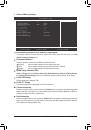
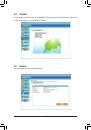
Step 3:
When the Cloud
OC web page ap-
pears, click
Login
,
enter the previously
configured pass-
word, and then click
Send
and you will be able to view your
system status.
(Note 1) Supported on Windows 7, Vista, and XP. For Windows XP, be sure to update Internet Explorer to version 7.0 or later. When
using Cloud OC, make sure the Internet connection is normal. Cloud OC will be unable to connect to the remote computer
when the Internet is disconnected or when the remote computer is in power off , standby, or hibernation mode.
(Note 2) Bluetooth PAN (Personal Area Network) support is required.
(Note 3) Available functions may differ by motherboard model.
Оглавление инструкции
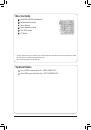
- Box Contents
- Optional Items
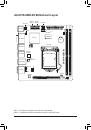
- GA-H67N-USB3-B3 Motherboard Layout
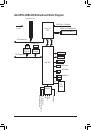
- GA-H67N-USB3-B3 Motherboard Block Diagram
- Chapter 1 Hardware Installation
- Chapter 2 BIOS Setup
- 2-1 Startup Screen
- 2-2 The Main Menu
- 2-3 MB Intelligent Tweaker(M.I.T.)
- 2-4 Standard CMOS Features
- 2-5 Advanced BIOS Features
- 2-6 Integrated Peripherals
- 2-7 Power Management Setup
- 2-8 PC Health Status
- 2-9 Load Fail-Safe Defaults
- 2-10 Load Optimized Defaults
- 2-11 Set Supervisor/User Password
- 2-12 Save & Exit Setup
- 2-13 Exit Without Saving
- Chapter 3 Drivers Installation
- Chapter 4 Unique Features
- Chapter 5 Appendix