Инструкция для GIGABYTE GA-H67N-USB3-B3 (rev. 1.0), GA H67N USB3 B3 rev 1 0
 1
 2
 3
 4
 5
 6
 7
 8
 9
 10
 11
 12
 13
 14
 15
 16
 17
 18
 19
 20
 21
 22
 23
 24
 25
 26
 27
 28
 29
 30
 31
 32
 33
 34
 35
 36
 37
 38
 39
 40
 41
 42
 43
 44
 45
 46
 47
 48
 49
 50
 51
 52
 53
 54
 55
 56
 57
 58
 59
 60
 61
 62
 63
 64
 65
 66
 67
 68
 69
 70
 71
 72
 73
 74
 75
 76
 77
 78
 79
 80
 81
 82
 83
 84
 85
 86
 87
 88
 89
 90
 91
 92
 93
 94
 95
 96
 97
 98
 99
 100
- 43 -
BIOS Setup
(Note) This item is present only when you install a CPU that supports this feature. For more information
about Intel CPUs' unique features, please visit Intel's website.
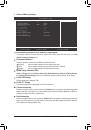
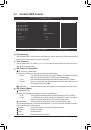
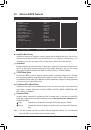
2-5 Advanced BIOS Features
Hard Disk Boot Priority
Specifies the sequence of loading the operating system from the installed hard drives. Use the up or
down arrow key to select a hard drive, then press the plus key <+> (or <PageUp>) or the minus key <-> (or
<PageDown>) to move it up or down on the list. Press <Esc> to exit this menu when finished.
Quick Boot
Enables or disables the quick boot function to speed up the system boot-up process to shorten the wait
-
ing time for entering the operating system and to deliver greater efficiency for daily use. The settings
here synchronize with the settings of the SMART QuickBoot of Smart 6
™
. (Default: Disabled)
CD/DVD Boot Option
Set this item to
EFI
if you want to install the operating system to a hard drive larger than 2.2 TB. Make
sure the operating system to be installed supports booting from a GPT partition, such as Windows 7 64-
bit and Windows Server 2003 64-bit.
Auto
lets the BIOS automatically configure this setting depending
on the hard drive you install. (Default: Auto)
First/Second/Third Boot Device
Specifies the boot order from the available devices. Use the up or down arrow key to select a device and
press <Enter> to accept. Options are: Hard Disk, CDROM, USB-FDD, USB-ZIP, USB-CDROM, USB-
HDD, Legacy LAN, Disabled.
Password Check
Specifies whether a password is required every time the system boots, or only when you enter BIOS
Setup. After configuring this item, set the password(s) under the
Set Supervisor/User Password
item in
the BIOS Main Menu.
Setup
A password is only required for entering the BIOS Setup program. (Default)
System
A password is required for booting the system and for entering the BIOS Setup pro
-
gram.
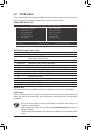
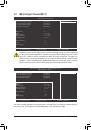
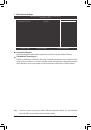
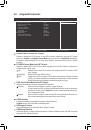
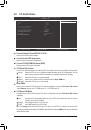
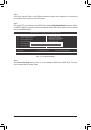
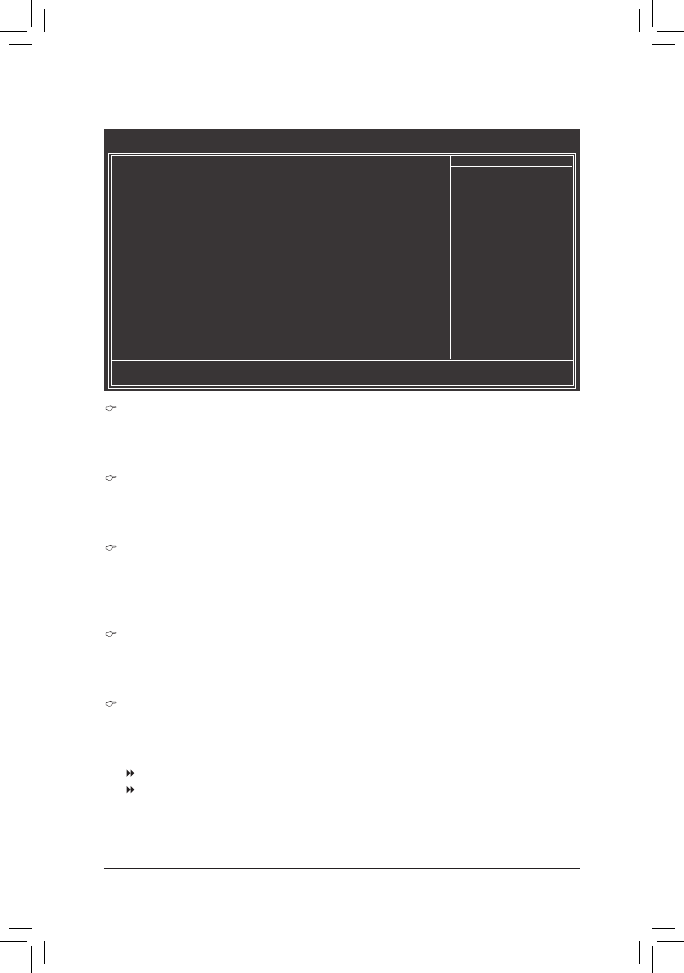
CMOS Setup Utility-Copyright (C) 1984-2011 Award Software
Advanced BIOS Features
}
Hard Disk Boot Priority
[Press Enter]
Quick Boot
[Disabled]
CD/DVD Boot Option
[Auto]
First Boot Device
[Hard Disk]
Second Boot Device
[CDROM]
Third Boot Device
[USB-FDD]
Password Check
[Setup]
HDD S.M.A.R.T. Capability
[Disabled]
Limit CPUID Max. to 3
(Note)
[Disabled]
No-Execute Memory Protect
(Note)
[Enabled]
Delay For HDD (Secs)
[0]
Full Screen LOGO Show
[Enabled]
Init Display First
[PCIE x16]
Onboard VGA
[Enable If No Ext PEG]
On-Chip Frame Buffer Size
[64MB+2MB for GTT]
: Move
Enter: Select
+/-/PU/PD: Value
F10: Save
ESC: Exit
F1: General Help
F5: Previous Values
F6: Fail-Safe Defaults
F7: Optimized Defaults
Item Help
Menu Level
}
Оглавление инструкции
- Box Contents
- Optional Items
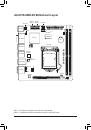
- GA-H67N-USB3-B3 Motherboard Layout
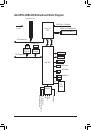
- GA-H67N-USB3-B3 Motherboard Block Diagram
- Chapter 1 Hardware Installation
- Chapter 2 BIOS Setup
- 2-1 Startup Screen
- 2-2 The Main Menu
- 2-3 MB Intelligent Tweaker(M.I.T.)
- 2-4 Standard CMOS Features
- 2-5 Advanced BIOS Features
- 2-6 Integrated Peripherals
- 2-7 Power Management Setup
- 2-8 PC Health Status
- 2-9 Load Fail-Safe Defaults
- 2-10 Load Optimized Defaults
- 2-11 Set Supervisor/User Password
- 2-12 Save & Exit Setup
- 2-13 Exit Without Saving
- Chapter 3 Drivers Installation
- Chapter 4 Unique Features
- Chapter 5 Appendix