Инструкция для GIGABYTE GA-H67N-USB3-B3 (rev. 1.0), GA H67N USB3 B3 rev 1 0
 1
 2
 3
 4
 5
 6
 7
 8
 9
 10
 11
 12
 13
 14
 15
 16
 17
 18
 19
 20
 21
 22
 23
 24
 25
 26
 27
 28
 29
 30
 31
 32
 33
 34
 35
 36
 37
 38
 39
 40
 41
 42
 43
 44
 45
 46
 47
 48
 49
 50
 51
 52
 53
 54
 55
 56
 57
 58
 59
 60
 61
 62
 63
 64
 65
 66
 67
 68
 69
 70
 71
 72
 73
 74
 75
 76
 77
 78
 79
 80
 81
 82
 83
 84
 85
 86
 87
 88
 89
 90
 91
 92
 93
 94
 95
 96
 97
 98
 99
 100
Unique Features
- 72 -
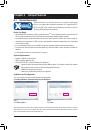
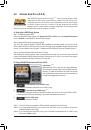
4-7 Auto Green
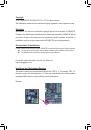
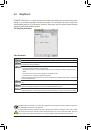
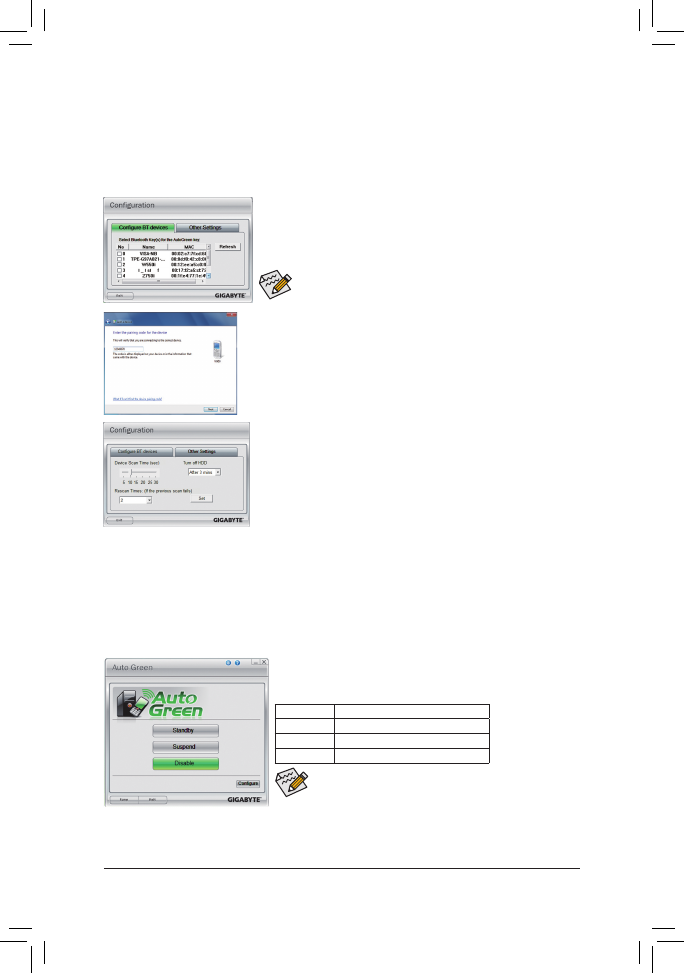
Auto Green is an easy-to-use tool that provides users with simple options to enable system power savings
via a Bluetooth cell phone. When the phone is out of the range of the computer's Bluetooth receiver, the sys-
tem will enter the specified power saving mode.
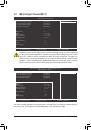
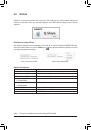
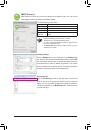
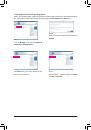
Selecting a system energy saving mode:
Depending on your needs, select a system power saving mode on the Auto
Green main menu and click
Save
to save the settings.
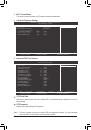
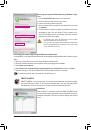
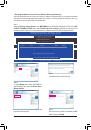
The Configuration dialog box:
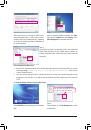
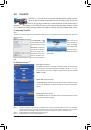
First, you have to set your Bluetooth cell phone as a portable key. On the Auto Green
main menu, click
Configure
and then click
Configure BT devices
. Select the Blu-
etooth cell phone that you want to use as the portable key
(Note 1)
. (If the screen doesn't
display your Bluetooth cell phone, click
Refresh
to let Auto Green re-detect the device.)
Before creating a Bluetooth cell phone key, make sure your motherboard
has a Bluetooth receiver and you have turned on the search and Bluetooth
functions on your phone.
Device Scan Time (sec.):
•
Set the length of time Auto Green scans your Bluetooth cell phone key, ranging from 5 to 30 seconds in 5-second incre-
ment. Auto Green searches for the key based on the length of time you set.
Rescan Times:
•
Set how many times Auto Green will rescan your Bluetooth cell phone key if it does not detect it, ranging from 2 to 5 times. Auto
Green will keep rescanning according to the times you set. When the times limit is reached and your Bluetooth cell phone key is
still not detected, the system will enter the selected energy saving mode.
Turn off HD:
•
Set when to turn off the hard drive. If the system inactivity time exceeds the specified time limit, the hard drive will be turned off.
The Bluetooth dongle included in the motherboard package
(Note 2)
allows
you to wake up the system from Suspend to RAM mode without the
need to press the power button first.
(Note 1) If your cell phone has been configured as the Auto Green key, you'll not be able to use it to connect to other Blu
-
etooth device(s) when Auto Green is enabled.
(Note 2) Whether the Bluetooth dongle is included depends on the motherboard models. Before installing the Bluetooth
dongle, be sure to turn off other Bluetooth receiver on your computer.
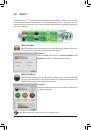
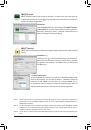
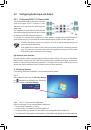
Configuring the Bluetooth cell phone key:
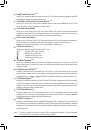
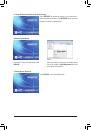
After you select a cell phone, the
Add device
as shown on the left will appear. Enter
a passkey (8~16 digits recommended) which will be used for pairing with the cell
phone. Then enter the same passkey on your cell phone.
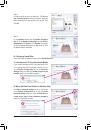
Configuring other Bluetooth settings:
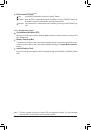
On the
Other Settings
tab, you can set how much time it takes to scan your Blu-
etooth cell phone key, how many times to rescan the key to make sure it is in range
of your computer, and when to turn off the hard drive if the system energy saving
state lasts over the predetermined period of time. After completing the settings, click
Set
for the settings to take effect and then click
Exit
to quit.
Button
Description
Standby
Enters Power on Suspend mode
Suspend
Enters Suspend to RAM mode
Disable
Disables this function
Оглавление инструкции
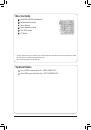
- Box Contents
- Optional Items
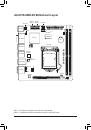
- GA-H67N-USB3-B3 Motherboard Layout
- GA-H67N-USB3-B3 Motherboard Block Diagram
- Chapter 1 Hardware Installation
- Chapter 2 BIOS Setup
- 2-1 Startup Screen
- 2-2 The Main Menu
- 2-3 MB Intelligent Tweaker(M.I.T.)
- 2-4 Standard CMOS Features
- 2-5 Advanced BIOS Features
- 2-6 Integrated Peripherals
- 2-7 Power Management Setup
- 2-8 PC Health Status
- 2-9 Load Fail-Safe Defaults
- 2-10 Load Optimized Defaults
- 2-11 Set Supervisor/User Password
- 2-12 Save & Exit Setup
- 2-13 Exit Without Saving
- Chapter 3 Drivers Installation
- Chapter 4 Unique Features
- Chapter 5 Appendix