Инструкция для GIGABYTE GA-H67N-USB3-B3 (rev. 1.0), GA H67N USB3 B3 rev 1 0
 1
 2
 3
 4
 5
 6
 7
 8
 9
 10
 11
 12
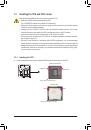 13
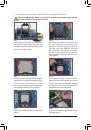 14
 15
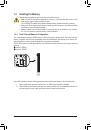 16
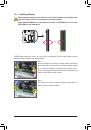 17
 18
 19
 20
 21
 22
 23
 24
 25
 26
 27
 28
 29
 30
 31
 32
 33
 34
 35
 36
 37
 38
 39
 40
 41
 42
 43
 44
 45
 46
 47
 48
 49
 50
 51
 52
 53
 54
 55
 56
 57
 58
 59
 60
 61
 62
 63
 64
 65
 66
 67
 68
 69
 70
 71
 72
 73
 74
 75
 76
 77
 78
 79
 80
 81
 82
 83
 84
 85
 86
 87
 88
 89
 90
 91
 92
 93
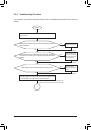 94
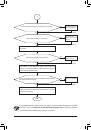 95
 96
 97
 98
 99
 100
- 31 -
BIOS Setup
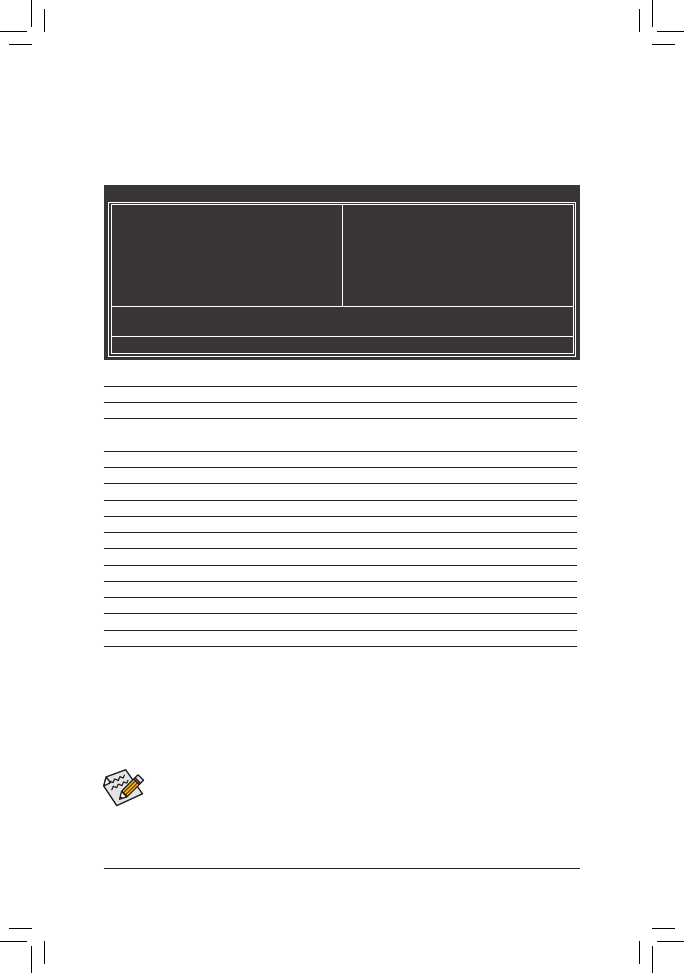
2-2 The Main Menu
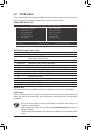
Once you enter the BIOS Setup program, the Main Menu (as shown below) appears on the screen. Use ar-
row keys to move among the items and press <Enter> to accept or enter a sub-menu.
(Sample BIOS Version: D15)
Main Menu Help
The on-screen description of a highlighted setup option is displayed on the bottom line of the Main Menu.
Submenu Help
While in a submenu, press <F1> to display a help screen (General Help) of function keys available for the
menu. Press <Esc> to exit the help screen. Help for each item is in the Item Help block on the right side of
the submenu.
If you do not find the settings you want in the Main Menu or a submenu, press <Ctrl>+<F1> to
•
access more advanced options.
When the system is not stable as usual, select the
•
Load Optimized Defaults
item to set your
system to its defaults.
The BIOS Setup menus described in this chapter are for reference only and may differ by BIOS
•
version.
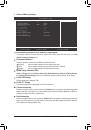
CMOS Setup Utility-Copyright (C) 1984-2011 Award Software
Change CPU's Clock & Voltage
MB Intelligent Tweaker(M.I.T.)
Standard CMOS Features
Advanced BIOS Features
Integrated Peripherals
Power Management Setup
PC Health Status
Load Fail-Safe Defaults
Load Optimized Defaults
Set Supervisor Password
Set User Password
Save & Exit Setup
Exit Without Saving
ESC: Quit
hi
: Select Item
F11: Save CMOS to BIOS
F8: Q-Flash
F10: Save & Exit Setup
F12: Load CMOS from BIOS
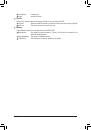
BIOS Setup Program Function Keys
<
h
><
i
><
><
> Move the selection bar to select an item
<Enter>
Execute command or enter the submenu
<Esc>
Main Menu: Exit the BIOS Setup program
Submenus: Exit current submenu
<Page Up>
Increase the numeric value or make changes
<Page Down>
Decrease the numeric value or make changes
<F1>
Show descriptions of the function keys
<F2>
Move cursor to the Item Help block on the right (submenus only)
<F5>
Restore the previous BIOS settings for the current submenus
<F6>
Load the Fail-Safe BIOS default settings for the current submenus
<F7>
Load the Optimized BIOS default settings for the current submenus
<F8>
Access the Q-Flash utility
<F9>
Display system information
<F10>
Save all the changes and exit the BIOS Setup program
<F11>
Save CMOS to BIOS
<F12>
Load CMOS from BIOS
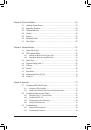
Оглавление инструкции
- Box Contents
- Optional Items
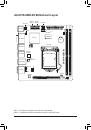
- GA-H67N-USB3-B3 Motherboard Layout
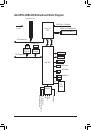
- GA-H67N-USB3-B3 Motherboard Block Diagram
- Chapter 1 Hardware Installation
- Chapter 2 BIOS Setup
- 2-1 Startup Screen
- 2-2 The Main Menu
- 2-3 MB Intelligent Tweaker(M.I.T.)
- 2-4 Standard CMOS Features
- 2-5 Advanced BIOS Features
- 2-6 Integrated Peripherals
- 2-7 Power Management Setup
- 2-8 PC Health Status
- 2-9 Load Fail-Safe Defaults
- 2-10 Load Optimized Defaults
- 2-11 Set Supervisor/User Password
- 2-12 Save & Exit Setup
- 2-13 Exit Without Saving
- Chapter 3 Drivers Installation
- Chapter 4 Unique Features
- Chapter 5 Appendix