Инструкция для GIGABYTE GA-870A-USB3L (rev. 3.1), GA 870A USB3L rev 3 1
 1
 2
 3
 4
 5
 6
 7
 8
 9
 10
 11
 12
 13
 14
 15
 16
 17
 18
 19
 20
 21
 22
 23
 24
 25
 26
 27
 28
 29
 30
 31
 32
 33
 34
 35
 36
 37
 38
 39
 40
 41
 42
 43
 44
 45
 46
 47
 48
 49
 50
 51
 52
 53
 54
 55
 56
 57
 58
 59
 60
 61
 62
 63
 64
 65
 66
 67
 68
 69
 70
 71
 72
 73
 74
 75
 76
 77
 78
 79
 80
 81
 82
 83
 84
 85
 86
 87
 88
 89
 90
 91
 92
 93
 94
 95
 96
Unique Features
- 70 -
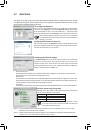
4-6 SMART Recovery
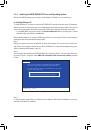
With SMART Recovery, users can quickly create backups of changed data files
(Note 1)
or copy files from a spe
-
cific backup on PATA and SATA hard drives (partitioned on NTFS file system) in Windows 7/Vista.
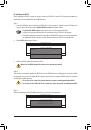
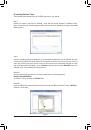
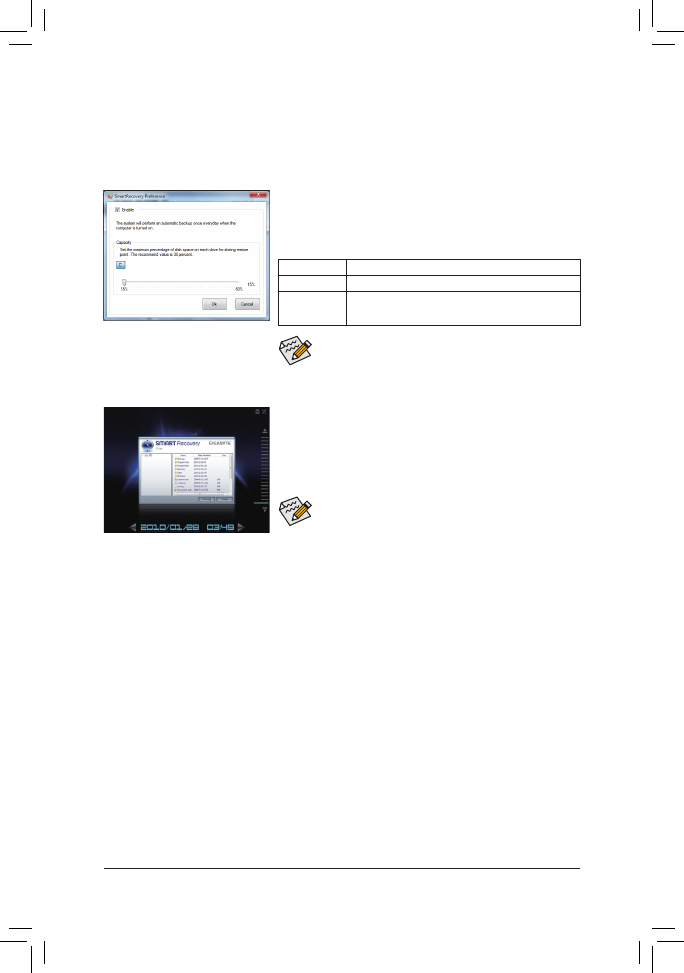
Instructions for copying files/folders from a backup:
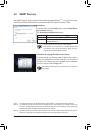
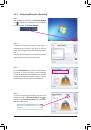
To browse through your backups made at different time, select a
backup time using the time scroll bar on the right or at the bottom of
the screen. If you want to copy back a file/folder, select the file/folder
you wish to copy and click the
Copy
button.
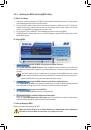
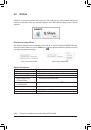
Button
Function
Enable
Enables automatic daily backup
(Note 2)
Capacity
Sets the percentage of hard drive space used for
saving backups
(Note 3)
•
The hard drive must have more than 1 GB of capacity.
•
Each partition can accommodate up to 64 backups (the actual
limit depends on the size of each partition). When this limit is
reached, the oldest backup will be ovewritten.
The files/folders listed on the screen are read-only so you cannot edit
their contents.
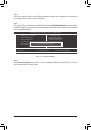
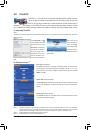
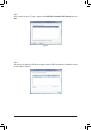
Instructions:
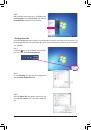
In the main menu, click the
Config
button to open the
Smart Recov-
ery Preference
dialog box.
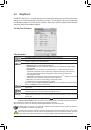
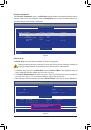
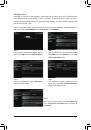
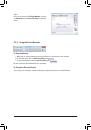
The
Smart Recovery Preference
dialog box:
(Note 1) The changed data refers to the data that has been modified, deleted, or newly added since the last backup.
(Note 2) The system will make an automatic backup on changed data only once everyday. If the computer is turned on for
a long time, the backup will be performed at the scheduled backup time. If the computer is turned off before the
scheduled backup time, the backup will be performed on the next boot.
(Note 3) We recommend that you preserve at least 25 percent of the hard drive space to optimize the storage space for
the backups. The backups of the changed data will be stored in the original partition of the data.
Оглавление инструкции
- Box Contents
- Optional Items
- GA-870A-USB3L Motherboard Layout
- GA-870A-USB3L Motherboard Block Diagram
- Chapter 1 Hardware Installation
- Chapter 2 BIOS Setup
- 2-1 Startup Screen
- 2-2 The Main Menu
- 2-3 MB Intelligent Tweaker(M.I.T.)
- 2-4 Standard CMOS Features
- 2-5 Advanced BIOS Features
- 2-6 Integrated Peripherals
- 2-7 Power Management Setup
- 2-8 PC Health Status
- 2-9 Load Fail-Safe Defaults
- 2-10 Load Optimized Defaults
- 2-11 Set Supervisor/User Password
- 2-12 Save & Exit Setup
- 2-13 Exit Without Saving
- Chapter 3 Drivers Installation
- Chapter 4 Unique Features
- Chapter 5 Appendix