Инструкция для GIGABYTE GA-870A-USB3L (rev. 3.1), GA 870A USB3L rev 3 1
 1
 2
 3
 4
 5
 6
 7
 8
 9
 10
 11
 12
 13
 14
 15
 16
 17
 18
 19
 20
 21
 22
 23
 24
 25
 26
 27
 28
 29
 30
 31
 32
 33
 34
 35
 36
 37
 38
 39
 40
 41
 42
 43
 44
 45
 46
 47
 48
 49
 50
 51
 52
 53
 54
 55
 56
 57
 58
 59
 60
 61
 62
 63
 64
 65
 66
 67
 68
 69
 70
 71
 72
 73
 74
 75
 76
 77
 78
 79
 80
 81
 82
 83
 84
 85
 86
 87
 88
 89
 90
 91
 92
 93
 94
 95
 96
- 33 -
BIOS Setup
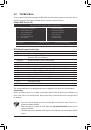
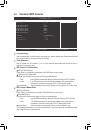
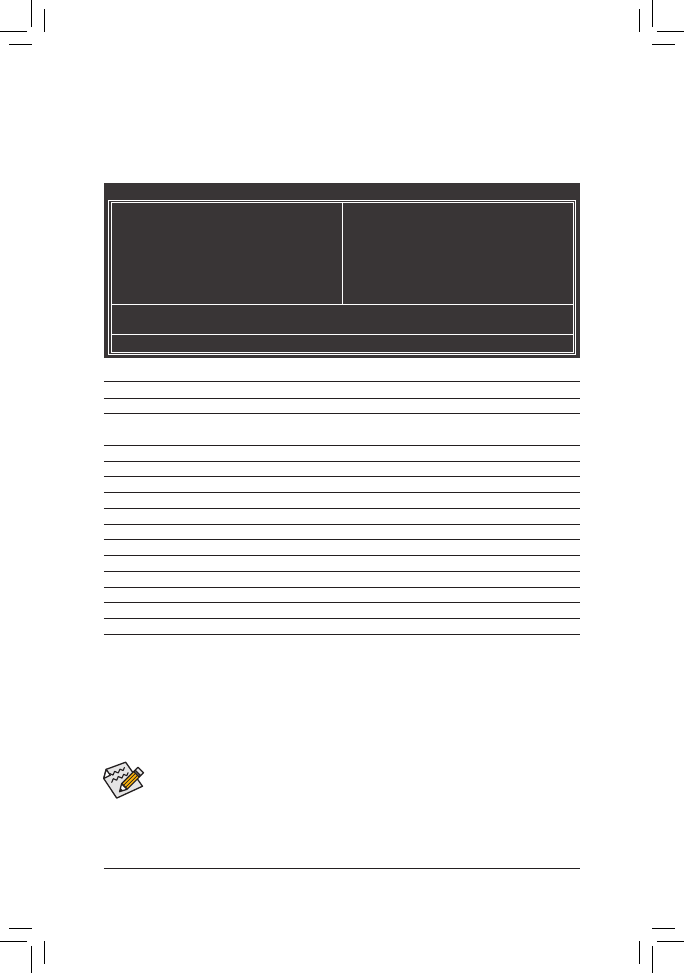
2-2 The Main Menu
Once you enter the BIOS Setup program, the Main Menu (as shown below) appears on the screen. Use ar-
row keys to move among the items and press <Enter> to accept or enter a sub-menu.
(Sample BIOS Version: D2)
Main Menu Help
The on-screen description of a highlighted setup option is displayed on the bottom line of the Main Menu.
Submenu Help
While in a submenu, press <F1> to display a help screen (General Help) of function keys available for the
menu. Press <Esc> to exit the help screen. Help for each item is in the Item Help block on the right side of
the submenu.
BIOS Setup Program Function Keys
<
h
><
i
><
f
><
g
> Move the selection bar to select an item
<Enter>
Execute command or enter the submenu
<Esc>
Main Menu: Exit the BIOS Setup program
Submenus: Exit current submenu
<Page Up>
Increase the numeric value or make changes
<Page Down>
Decrease the numeric value or make changes
<F1>
Show descriptions of the function keys
<F2>
Move cursor to the Item Help block on the right (submenus only)
<F5>
Restore the previous BIOS settings for the current submenus
<F6>
Load the Fail-Safe BIOS default settings for the current submenus
<F7>
Load the Optimized BIOS default settings for the current submenus
<F8>
Access the Q-Flash utility
<F9>
Display system information
<F10>
Save all the changes and exit the BIOS Setup program
<F11>
Save CMOS to BIOS
<F12>
Load CMOS from BIOS
•
If you do not find the settings you want in the Main Menu or a submenu, press <Ctrl>+<F1> to
access more advanced options.
•
When the system is not stable as usual, select the
Load Optimized Defaults
item to set your
system to its defaults.
•
The BIOS Setup menus described in this chapter are for reference only and may differ by BIOS
version.
CMOS Setup Utility-Copyright (C) 1984-2011 Award Software
MB Intelligent Tweaker(M.I.T.)
Standard CMOS Features
Advanced BIOS Features
Integrated Peripherals
Power Management Setup
PC Health Status
Load Fail-Safe Defaults
Load Optimized Defaults
Set Supervisor Password
Set User Password
Save & Exit Setup
Exit Without Saving
ESC: Quit
higf
: Select Item
F11: Save CMOS to BIOS
F8: Q-Flash
F10: Save & Exit Setup
F12: Load CMOS from BIOS
Change CPU's Clock & Voltage
Оглавление инструкции
- Box Contents
- Optional Items
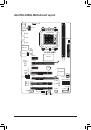
- GA-870A-USB3L Motherboard Layout
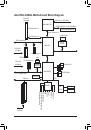
- GA-870A-USB3L Motherboard Block Diagram
- Chapter 1 Hardware Installation
- Chapter 2 BIOS Setup
- 2-1 Startup Screen
- 2-2 The Main Menu
- 2-3 MB Intelligent Tweaker(M.I.T.)
- 2-4 Standard CMOS Features
- 2-5 Advanced BIOS Features
- 2-6 Integrated Peripherals
- 2-7 Power Management Setup
- 2-8 PC Health Status
- 2-9 Load Fail-Safe Defaults
- 2-10 Load Optimized Defaults
- 2-11 Set Supervisor/User Password
- 2-12 Save & Exit Setup
- 2-13 Exit Without Saving
- Chapter 3 Drivers Installation
- Chapter 4 Unique Features
- Chapter 5 Appendix