Инструкция для D-Link DKVM-IP8
 1
 2
 3
 4
 5
 6
 7
 8
 9
 10
 11
 12
 13
 14
 15
 16
 17
 18
 19
 20
 21
 22
 23
 24
 25
 26
 27
 28
 29
 30
 31
 32
 33
 34
 35
 36
 37
 38
 39
 40
 41
 42
 43
 44
 45
 46
 47
 48
 49
 50
 51
 52
 53
 54
 55
 56
 57
 58
 59
 60
 61
 62
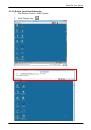 63
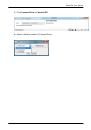 64
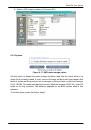 65
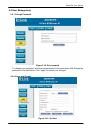 66
 67
 68
 69
 70
 71
 72
 73
 74
 75
 76
 77
 78
 79
 80
 81
 82
 83
 84
 85
 86
 87
 88
 89
 90
 91
 92
 93
 94
 95
 96
 97
 98
 99
 100
 101
 102
 103
 104

DKVM-IP8 User Manual
96 / 104
7. Troubleshooting
The remote mouse doesn’t work or is not synchronous
Make sure the mouse settings in DKVM-IP8 match the mouse model. There are some
circumstances where the mouse synchronization process could behave incorrectly, refer to
Sections 5.4.1 & 6.5.22 for further explanation.
The video quality is bad or the picture is grainy
Try to correct the brightness and contrast settings (see Sections 5.4.1 & 6.5.3) until they
are out of a range where the picture looks grainy. Use the auto adjustment feature to
correct a flickering video.
Login on DKVM-IP8 fails.
Was the correct combination of user and password given? On delivery, the user ”super”
has the password ”pass”. Moreover your browser must be configured to accept cookies.
The Remote Console window can’t connect to DKVM-IP8
.
Possibly a firewall prevents access to the Remote Console. Make sure the TCP port
numbers 443 or 80 are open for incoming TCP connection establishments.
No connection can be established to DKVM-IP8.
Check whether the network connection is working in general (ping the IP address of
DKVM-IP8). If not, check network hardware. Is DKVM-IP8 powered on? Check whether the
IP address of DKVM-IP8 and all other IP related settings are correct! Also verify that all the
IP infrastructure of your LAN, like routers etc., is correctly configured. Without a ping
functioning, DKVM-IP8 can’t work either.
Special key combinations, e.g. ALT+F2, ALT+F3 are intercepted by the console
system and not transmitted to the host.
You have to define a so-called ’Button Key’. This can be done in the Remote Console
settings.
In the browser the DKVM-IP8 pages are inconsistent or chaotic.
Make sure your browser cache settings are feasible. Especially make sure the cache
settings are not set to something like ”never check for newer pages”. Otherwise DKVM-IP8
pages may be loaded from your browser cache and not from the card.
Windows XP doesn’t awake from standby mode
This is possibly a Windows XP problem. Try not to move the mouse while XP goes in
standby mode.
Can’t upload the signed certificate in MacOS X
If an ’internal error’ occurs while uploading the signed certificate either change the
extension of the file to .txt or add a file helper using the Internet Explorer preferences for
this type of file. Make sure that the encoding is plain text and the checkbox ’use for
outgoing’ is checked. Another possibility is to use a Mozilla based browser.
Every time I open a dialog box with some buttons the mouse pointers are not
Оглавление инструкции
- Install JVM on Client system
- Connect the DKVM-IP8 unit via Web Browser
- The super user has all permissions to administrate your DKVM-IP8:
- After login, the system will prompt for changing the default username and password to user specific settings.
- Control servers via Remote Console
- Hardware
- Software
- 3.4.1 Login Windows
- 3.4.2 Port Name
- 3.4.3 Main Menu
- 3.4.4 Language
- 3.4.5 Port Name Edit
- 3.4.6 Port Search
- 3.4.7 User Security
- 3.4.8 Access List
- 3.4.9 Hotkey
- 3.4.10 Time Settings
- 3.4.11 OSD Mouse
- 4.1.1 Initial configuration via serial console
- 4.2.1 DKVM-IP8 keyboard settings
- 4.2.2 Remote Mouse Settings
- 4.2.3 Automatic mouse speed and mouse synchronization
- 4.2.4 Host system mouse settings
- 4.2.5 Single and Double Mouse Mode
- 4.2.6 Recommended Mouse Settings
- 4.2.7 Video Modes
- 5.2.1 Login into the DKVM-IP8
- 5.2.2 Logout from the DKVM-IP8
- 5.4.1 Remote Console Control Bar
- 5.4.2 Remote Console Status Line
- 6.1.1 KVM Console
- 6.1.2 Telnet Console
- 6.3.1 Floppy Disk
- 6.3.2 CD–ROM Image
- 6.3.3 Drive redirection
- 6.3.4 Options
- 6.4.1 Change Password
- 6.4.2 Users and Groups
- 6.5.1 User Console
- 6.5.2 Keyboard/Mouse
- 6.5.3 Video
- 6.6.1 Network
- 6.6.2 Dynamic DNS
- 6.6.3 Security
- 6.6.4 Certificate
- 6.6.5 Authentication
- 6.6.6 Serial Port
- 6.6.7 Date / Time
- 6.6.8 Event Log
- 6.7.1 Device Information
- 6.7.2 Even log
- 6.7.3 Update Firmware
- 6.7.4 Unit Reset
- The remote mouse doesn’t work or is not synchronous