Инструкция для D-Link DKVM-IP8
 1
 2
 3
 4
 5
 6
 7
 8
 9
 10
 11
 12
 13
 14
 15
 16
 17
 18
 19
 20
 21
 22
 23
 24
 25
 26
 27
 28
 29
 30
 31
 32
 33
 34
 35
 36
 37
 38
 39
 40
 41
 42
 43
 44
 45
 46
 47
 48
 49
 50
 51
 52
 53
 54
 55
 56
 57
 58
 59
 60
 61
 62
 63
 64
 65
 66
 67
 68
 69
 70
 71
 72
 73
 74
 75
 76
 77
 78
 79
 80
 81
 82
 83
 84
 85
 86
 87
 88
 89
 90
 91
 92
 93
 94
 95
 96
 97
 98
 99
 100
 101
 102
 103
 104

DKVM-IP8 User Manual
19 / 104
3.4
OSD Operations
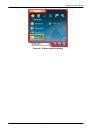
You can either activate the OSD window by press hotkey or by mouse.
♦
By pressing hotkey: Press hotkey twice then press Space bar.
♦
By mouse: Press and hold the left button of the mouse and hit the Esc key to show the
Status screen. Press and hold the right button of the mouse and hit the Esc key to bring
up the Main Menu.
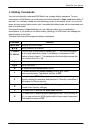
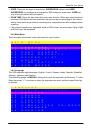
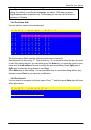
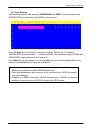
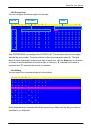
OSD Menu provides a menu-driven interface to control the KVM Switch. It has four types of
display screens:
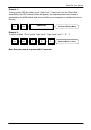
1
Login Window:
When powering on this KVM Switch, if the security function is enable,
it will prompt a login window and ask for user name and password. This KVM system
can setup one
SUPERVISOR
and eight
USERs
. SUPERVISOR can access to all OSD
functions. USER can access to PORT NAME and PORT SEARCH only.
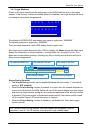
2
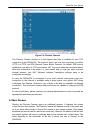
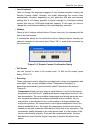
Status screen:
after the log in the Status screen will show up to display the current port
selection, port name, Hotkey type, and Screen Saving status.
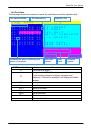
3
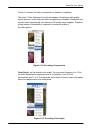
Port Name:
this menu displays port status, and allows us to switch bank/port. The Help
message is shown on the right pane of the OSD window.
4
Main Menu:
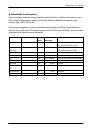
there are eight sub-menus to operate. They are listed as below:
Item
Main Menu
Function
01
LANGUAGE
Select OSD language
02
PORT NAME EDIT
Edit port name
03
PORT SEARCH
Quick searching by port name
04
USER SECURITY
Set username and password
05
ACCESS LIST
Define user access authority
06
HOTKEY
Select Hotkey
07
TIME SETTINGS
Set auto-scan time interval
08
OSD MOUSE
Modify OSD mouse speed
Оглавление инструкции
- Install JVM on Client system
- Connect the DKVM-IP8 unit via Web Browser
- The super user has all permissions to administrate your DKVM-IP8:
- After login, the system will prompt for changing the default username and password to user specific settings.
- Control servers via Remote Console
- Hardware
- Software
- 3.4.1 Login Windows
- 3.4.2 Port Name
- 3.4.3 Main Menu
- 3.4.4 Language
- 3.4.5 Port Name Edit
- 3.4.6 Port Search
- 3.4.7 User Security
- 3.4.8 Access List
- 3.4.9 Hotkey
- 3.4.10 Time Settings
- 3.4.11 OSD Mouse
- 4.1.1 Initial configuration via serial console
- 4.2.1 DKVM-IP8 keyboard settings
- 4.2.2 Remote Mouse Settings
- 4.2.3 Automatic mouse speed and mouse synchronization
- 4.2.4 Host system mouse settings
- 4.2.5 Single and Double Mouse Mode
- 4.2.6 Recommended Mouse Settings
- 4.2.7 Video Modes
- 5.2.1 Login into the DKVM-IP8
- 5.2.2 Logout from the DKVM-IP8
- 5.4.1 Remote Console Control Bar
- 5.4.2 Remote Console Status Line
- 6.1.1 KVM Console
- 6.1.2 Telnet Console
- 6.3.1 Floppy Disk
- 6.3.2 CD–ROM Image
- 6.3.3 Drive redirection
- 6.3.4 Options
- 6.4.1 Change Password
- 6.4.2 Users and Groups
- 6.5.1 User Console
- 6.5.2 Keyboard/Mouse
- 6.5.3 Video
- 6.6.1 Network
- 6.6.2 Dynamic DNS
- 6.6.3 Security
- 6.6.4 Certificate
- 6.6.5 Authentication
- 6.6.6 Serial Port
- 6.6.7 Date / Time
- 6.6.8 Event Log
- 6.7.1 Device Information
- 6.7.2 Even log
- 6.7.3 Update Firmware
- 6.7.4 Unit Reset
- The remote mouse doesn’t work or is not synchronous