Инструкция для D-Link DKVM-IP8
 1
 2
 3
 4
 5
 6
 7
 8
 9
 10
 11
 12
 13
 14
 15
 16
 17
 18
 19
 20
 21
 22
 23
 24
 25
 26
 27
 28
 29
 30
 31
 32
 33
 34
 35
 36
 37
 38
 39
 40
 41
 42
 43
 44
 45
 46
 47
 48
 49
 50
 51
 52
 53
 54
 55
 56
 57
 58
 59
 60
 61
 62
 63
 64
 65
 66
 67
 68
 69
 70
 71
 72
 73
 74
 75
 76
 77
 78
 79
 80
 81
 82
 83
 84
 85
 86
 87
 88
 89
 90
 91
 92
 93
 94
 95
 96
 97
 98
 99
 100
 101
 102
 103
 104
DKVM-IP8 User Manual
41 / 104
With respect to the keyboard, the very exact remote representation might lead to some
confusion as your local keyboard changes its keyboard layout according to the remote
host system. If you use a German administration system, and your host system uses a
US English keyboard layout, for instance, special keys on the German keyboard will
not work as expected. Instead, the keys will result in their US English counterpart. You
can circumvent such problems by adjusting the keyboard of your remote system to the
same mapping as your local one.
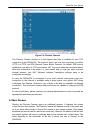
The Remote Console window always tries to show the remote screen with its optimal
size. That means it will adapt its size to the size of the remote screen initially and after
the screen resolution of the remote screen has been changed. However, you can
always resize the Remote Console window in your local window system as usual.
Warning
In difference to the remote host system, the Remote Console window on your
local window system is just one window among others. In order to make
keyboard and mouse work, your Remote Console window must have the local
input focus.
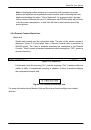
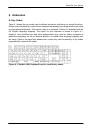
5.4.1 Remote Console Control Bar
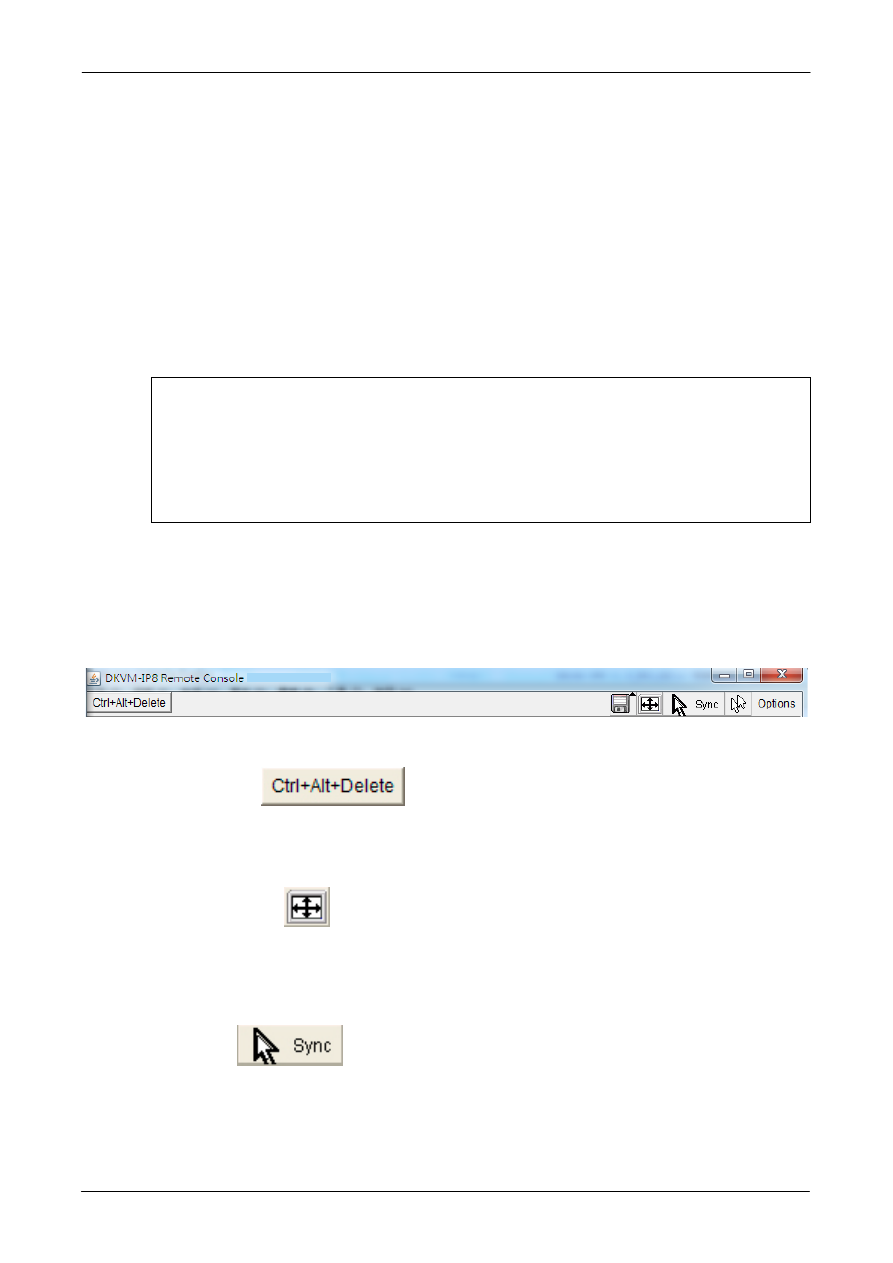
The upper part of the Remote Console window contains a control bar. Using its
elements you can see the state of the Remote Console and adjust the local Remote
Console settings. A description for each control follows.
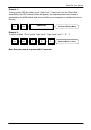
Figure 5-5. Remote Console Control Bar
Ctrl+Alt+Delete
Special button key to send the “Control Alt Delete” key combination to the remote
system (see also section 6.4.1 for defining new button keys).
Auto Adjust button
If the video display is of bad quality or distorted in some way, press this button and
wait a few seconds while the DKVM-IP8 tries to detect the video mode of VGA port
to the controlled host and adjust itself for the best possible video quality.
Sync mouse
Activates the mouse synchronization process. Choose this option in order to
synchronize the local with the remote mouse cursor. This is especially necessary
when using accelerated mouse settings on the host system. In general, there is no
need to change mouse settings on the host
.
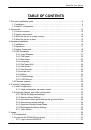
Оглавление инструкции
- Install JVM on Client system
- Connect the DKVM-IP8 unit via Web Browser
- The super user has all permissions to administrate your DKVM-IP8:
- After login, the system will prompt for changing the default username and password to user specific settings.
- Control servers via Remote Console
- Hardware
- Software
- 3.4.1 Login Windows
- 3.4.2 Port Name
- 3.4.3 Main Menu
- 3.4.4 Language
- 3.4.5 Port Name Edit
- 3.4.6 Port Search
- 3.4.7 User Security
- 3.4.8 Access List
- 3.4.9 Hotkey
- 3.4.10 Time Settings
- 3.4.11 OSD Mouse
- 4.1.1 Initial configuration via serial console
- 4.2.1 DKVM-IP8 keyboard settings
- 4.2.2 Remote Mouse Settings
- 4.2.3 Automatic mouse speed and mouse synchronization
- 4.2.4 Host system mouse settings
- 4.2.5 Single and Double Mouse Mode
- 4.2.6 Recommended Mouse Settings
- 4.2.7 Video Modes
- 5.2.1 Login into the DKVM-IP8
- 5.2.2 Logout from the DKVM-IP8
- 5.4.1 Remote Console Control Bar
- 5.4.2 Remote Console Status Line
- 6.1.1 KVM Console
- 6.1.2 Telnet Console
- 6.3.1 Floppy Disk
- 6.3.2 CD–ROM Image
- 6.3.3 Drive redirection
- 6.3.4 Options
- 6.4.1 Change Password
- 6.4.2 Users and Groups
- 6.5.1 User Console
- 6.5.2 Keyboard/Mouse
- 6.5.3 Video
- 6.6.1 Network
- 6.6.2 Dynamic DNS
- 6.6.3 Security
- 6.6.4 Certificate
- 6.6.5 Authentication
- 6.6.6 Serial Port
- 6.6.7 Date / Time
- 6.6.8 Event Log
- 6.7.1 Device Information
- 6.7.2 Even log
- 6.7.3 Update Firmware
- 6.7.4 Unit Reset
- The remote mouse doesn’t work or is not synchronous