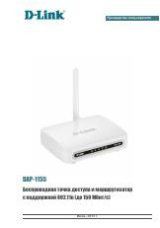
Инструкция для D-Link DKVM-IP8
 1
 2
 3
 4
 5
 6
 7
 8
 9
 10
 11
 12
 13
 14
 15
 16
 17
 18
 19
 20
 21
 22
 23
 24
 25
 26
 27
 28
 29
 30
 31
 32
 33
 34
 35
 36
 37
 38
 39
 40
 41
 42
 43
 44
 45
 46
 47
 48
 49
 50
 51
 52
 53
 54
 55
 56
 57
 58
 59
 60
 61
 62
 63
 64
 65
 66
 67
 68
 69
 70
 71
 72
 73
 74
 75
 76
 77
 78
 79
 80
 81
 82
 83
 84
 85
 86
 87
 88
 89
 90
 91
 92
 93
 94
 95
 96
 97
 98
 99
 100
 101
 102
 103
 104

DKVM-IP8 User Manual
34 / 104
parameter n is adjustable with the scaling. Please note that this works only when
mouse acceleration is turned off on the remote system.
4.2.3 Automatic mouse speed and mouse synchronization
The automatic mouse speed mode performs the speed detection during mouse
synchronization. Whenever the local and remote mouse cursors move synchronously
or not, there are two ways for re-synchronizing local and remote mouse cursors:
Fast Sync
The fast synchronization is used to correct a temporary, but fixed skew. Choose
the option using the Remote Console options menu or press the mouse
synchronization hotkey sequence in case you defined one.
Intelligent Sync
If the fast sync does not work or the mouse settings have been changed on the
host system, use the intelligent resynchronization. This method takes more time
than the fast one and can be accessed with the appropriate item in the Remote
Console option menu. The intelligent synchronization requires a correctly
adjusted picture. Use the auto adjustment function to setup the picture, and make
sure that there are no window at the top left corner of the remote desktop that are
able to change the mouse cursor shape from the normal state. The Sync mouse
button on top of the Remote Console can behave differently, depending on the
current state of mouse synchronization. Usually pressing this button leads to a
fast sync, except in situations where the KVM port or the video mode changed
recently.
Note:
At first start, if the local mouse pointer is not synchronized with
the remote mouse pointer, press the Auto Adjust Button once.
4.2.4 Host system mouse settings
The host's operating system knows various settings from the mouse driver.
Warning
The following limitations do not apply in case of USB and Mouse Type
“Windows >= 2000, MacOSX”.
While the DKVM-IP8 works with accelerated mice and is able to synchronize the local
with the remote mouse pointer, there are the following limitations, which may prevent
this synchronization from working properly:
Special Mouse Driver
There are mouse drivers that influence the synchronization process and lead to
desynchronized mouse pointers. If this happens, make sure you do not use a
special vendor-specific mouse driver on your host system.
Оглавление инструкции
- Install JVM on Client system
- Connect the DKVM-IP8 unit via Web Browser
- The super user has all permissions to administrate your DKVM-IP8:
- After login, the system will prompt for changing the default username and password to user specific settings.
- Control servers via Remote Console
- Hardware
- Software
- 3.4.1 Login Windows
- 3.4.2 Port Name
- 3.4.3 Main Menu
- 3.4.4 Language
- 3.4.5 Port Name Edit
- 3.4.6 Port Search
- 3.4.7 User Security
- 3.4.8 Access List
- 3.4.9 Hotkey
- 3.4.10 Time Settings
- 3.4.11 OSD Mouse
- 4.1.1 Initial configuration via serial console
- 4.2.1 DKVM-IP8 keyboard settings
- 4.2.2 Remote Mouse Settings
- 4.2.3 Automatic mouse speed and mouse synchronization
- 4.2.4 Host system mouse settings
- 4.2.5 Single and Double Mouse Mode
- 4.2.6 Recommended Mouse Settings
- 4.2.7 Video Modes
- 5.2.1 Login into the DKVM-IP8
- 5.2.2 Logout from the DKVM-IP8
- 5.4.1 Remote Console Control Bar
- 5.4.2 Remote Console Status Line
- 6.1.1 KVM Console
- 6.1.2 Telnet Console
- 6.3.1 Floppy Disk
- 6.3.2 CD–ROM Image
- 6.3.3 Drive redirection
- 6.3.4 Options
- 6.4.1 Change Password
- 6.4.2 Users and Groups
- 6.5.1 User Console
- 6.5.2 Keyboard/Mouse
- 6.5.3 Video
- 6.6.1 Network
- 6.6.2 Dynamic DNS
- 6.6.3 Security
- 6.6.4 Certificate
- 6.6.5 Authentication
- 6.6.6 Serial Port
- 6.6.7 Date / Time
- 6.6.8 Event Log
- 6.7.1 Device Information
- 6.7.2 Even log
- 6.7.3 Update Firmware
- 6.7.4 Unit Reset
- The remote mouse doesn’t work or is not synchronous