Инструкция для Samsung LE40A550P1R, LE52A552P3R, LE46A552P3R, LE40A552P3R, LE37A552P3R
 1
 2
 3
 4
 5
 6
 7
 8
 9
 10
 11
 12
 13
 14
 15
 16
 17
 18
 19
 20
 21
 22
 23
 24
 25
 26
 27
 28
 29
 30
 31
 32
 33
 34
 35
 36
 37
 38
 39
 40
 41
 42
 43
 44
 45
 46
 47
 48
 49
 50
 51
 52
 53
 54
 55
 56
 57
 58
 59
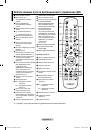 60
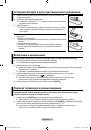 61
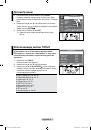 62
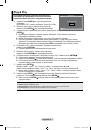 63
 64
 65
 66
 67
 68
 69
 70
 71
 72
 73
 74
 75
 76
 77
 78
 79
 80
 81
 82
 83
 84
 85
 86
 87
 88
 89
 90
 91
 92
 93
 94
 95
 96
 97
 98
 99
 100
 101
 102
 103
 104
 105
 106
 107
 108
 109
 110
 111
 112
 113
 114
 115
 116
 117
 118
 119
 120
 121
 122
 123
 124
 125
 126
 127
 128
 129
 130
 131
 132
 133
 134
 135
 136
 137
 138
 139
 140
 141
 142
 143
 144
 145
 146
 147
 148
 149
 150
 151
 152
 153
 154
 155
 156
 157
 158
 159
 160
 161
 162
 163
 164
 165
 166
 167
 168
 169
 170
 171
 172
 173
English -
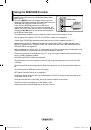
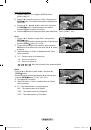
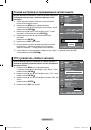
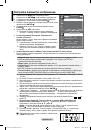
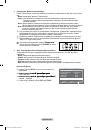
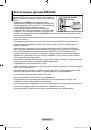
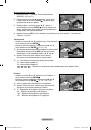
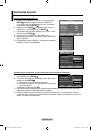
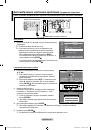
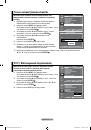
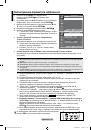
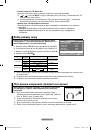
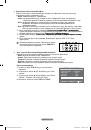
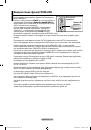
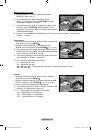
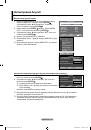
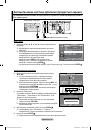
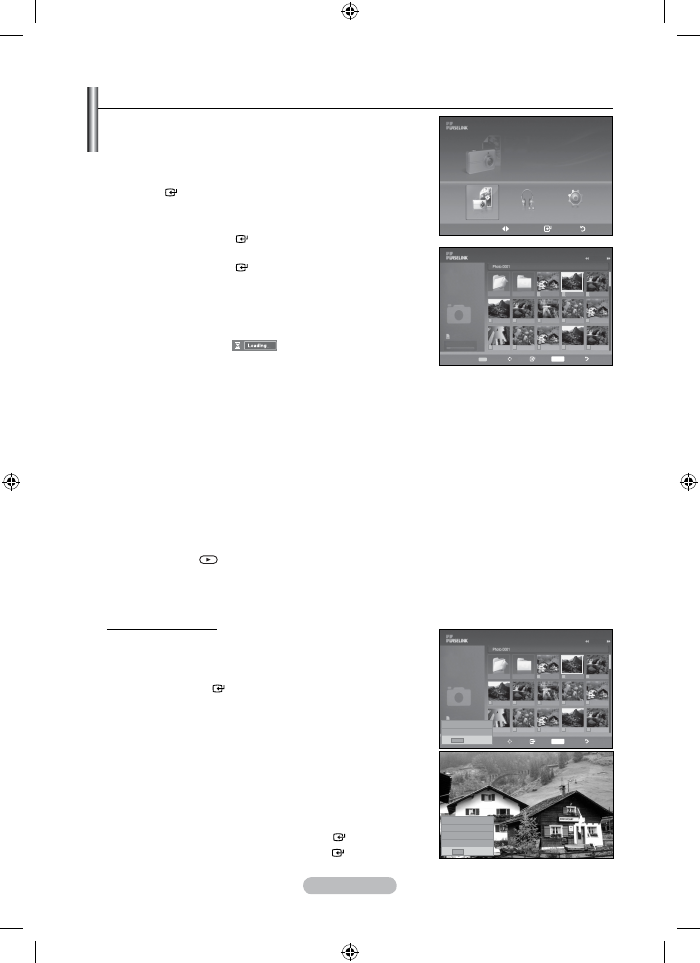
Using the PhOtO (JPEG) List
This menu shows JPEG files and folders saved on an USB memory
device
.
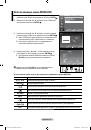
1.
Complete Steps 1 to 3 of “Using the WISELINK Menu”.
(Refer to page 31)
.
Press the ◄ or ► button to move to “Photo”, then press the
ENtER
button. The saved file information is displayed as a
folder or file.
.
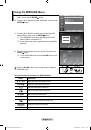
Press the ▲, ▼, ◄ and ► buttons to select a file.
• Pressing the
ENtER
button over a photo icon shows the
currently selected photo in full screen.
• Pressing the
ENtER
button over a folder icon shows the
JPEG files included in the folder.
To exit WISELINK mode, press the
W.LINK
button on the
remote control.
Moving to a photo may take a few seconds to load the file.
At this point, the
icon will appear at the top left
of the screen.
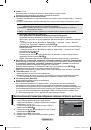
It takes time to show JPEG files as Thumbnail images.
This menu only shows files whose file extension is jpg. Files of other formats such as bmp or tiff
will not be displayed.
The files are displayed on a page. 15 thumbnail photos are displayed per page.
The thumbnails are numbered from left to right and from top to bottom, from 1 to 15.
Certain types of USB Digital camera and audio devices may not be compatible with this TV.
Folders are displayed first and they are followed by all JPEG files in the current folder.
The folders and JPEG files appear in the order of the time they were saved to the USB memory
device.
If the photo is displayed in full screen, you can zoom in and out or rotate the photo on the screen.
While a full screen is displayed, ◄ or ► button will let you see another photo image in the same
folder.
Press the
button when a Photo icon is selected to start a Slide Show.
Photos without EXIF information may not be displayed as thumbnail images in the PHOTO LIST
depending on the picture quality and resolution.
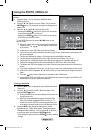
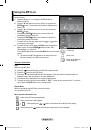
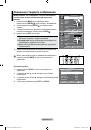
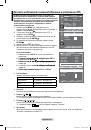
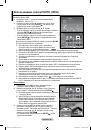
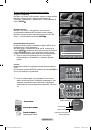
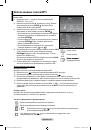
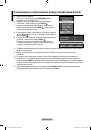
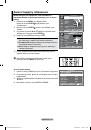
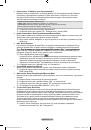
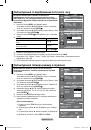
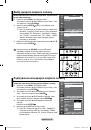
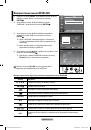
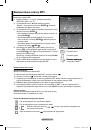
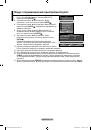
Viewing a Slide Show
.
Press the
INFO
button to display the option("Start Slide Show",
"Select All").
.
Press the ▲ or ▼ button to select “Start Slide Show” then
press the
ENtER
button.
During the slide show, files are displayed in order from the
currently shown file.
MP3 files can be automatically played during the Slide
Show if the Default Background Music is set to On. To
enable this function, MP3 files and other photo files must
be located in the same folder on the USB Memory Device.
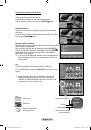
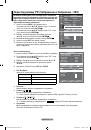
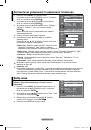
.
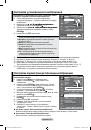
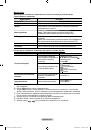
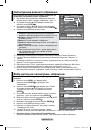
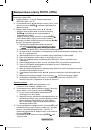
Press the
INFO
button during the slide show to set the
following options ("Slide Show Speed", "Background Music",
"Background Music Setting", "List"). Press the ▲ or ▼ button
to select the option, then press the
ENtER
button.
• After setting the option press the
ENtER
button to make a
change.
➣
➣
➣
➣
➣
➣
➣
➣
➣
➣
➣
➣
➣
➣
Upper Folder Forder1
Photo 0001
Photo 0001 None
File 4
File 5
File 6
File 7
File 8
File 9
File 10
File 11
File 12
File 13
Select Move Enter
INFO
Option Return
Photo
1/10 Page
580*440
47KB
Jun 1,2008
3/23
895MB/993MB
SUM
Upper Folder Forder1
Photo 0001
Photo 0001 None
File 4
File 5
File 6
File 7
File 8
File 9
File 10
File 11
File 12
File 13
Select Move Enter
INFO
Option Return
Photo
1/10 Page
580*440
47KB
Jun 1,2008
3/23
895MB/993MB
Start Slide Show
Select All
INFO
Exit
Slide Show Speed Nomal
►
background Music On
►
background Music Setting
List
INFO
Exit
Move
Enter
Return
SUM
861MB/994MBFree
Photo
Photo
Music
Setup
BN68-01410E-01Eng.indd 32
2008-06-02 ¿ÀÀü 1:51:24
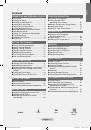
Оглавление инструкции
- Cover
- Eng
- Connecting and Preparingreparing Your TV
- List of Parts
- Installing the Stand
- Installing the Wall Mount Kit
- Viewing the Control Panel
- Viewing the Connection Panel
- Viewing the Remote Control
- Installing Batteries in the Remote Control
- Switching On and Off
- Placing Your Television in Standby Mode
- Viewing the Menus
- Using the TOOLS Button
- Plug & Play
- Setting the Channels
- Setting the Picture
- Setting the Sound
- Setting the Time
- Function Description
- Setting the PC
- WISELINK
- About Anynet+
- Recommendations For Use
- Connecting and Preparingreparing Your TV
- Rus
- Ukr