Инструкция для Samsung LE40A550P1R, LE52A552P3R, LE46A552P3R, LE40A552P3R, LE37A552P3R
 1
 2
 3
 4
 5
 6
 7
 8
 9
 10
 11
 12
 13
 14
 15
 16
 17
 18
 19
 20
 21
 22
 23
 24
 25
 26
 27
 28
 29
 30
 31
 32
 33
 34
 35
 36
 37
 38
 39
 40
 41
 42
 43
 44
 45
 46
 47
 48
 49
 50
 51
 52
 53
 54
 55
 56
 57
 58
 59
 60
 61
 62
 63
 64
 65
 66
 67
 68
 69
 70
 71
 72
 73
 74
 75
 76
 77
 78
 79
 80
 81
 82
 83
 84
 85
 86
 87
 88
 89
 90
 91
 92
 93
 94
 95
 96
 97
 98
 99
 100
 101
 102
 103
 104
 105
 106
 107
 108
 109
 110
 111
 112
 113
 114
 115
 116
 117
 118
 119
 120
 121
 122
 123
 124
 125
 126
 127
 128
 129
 130
 131
 132
 133
 134
 135
 136
 137
 138
 139
 140
 141
 142
 143
 144
 145
 146
 147
 148
 149
 150
 151
 152
 153
 154
 155
 156
 157
 158
 159
 160
 161
 162
 163
 164
 165
 166
 167
 168
 169
 170
 171
 172
 173
English - 1
Gamma: - ~ +
You can adjust the Primary Colour (Red, Green, Blue) Intensity.
Press the ◄ or ► button until you reach the optimal setting.
Colour Space: Auto/Native/Custom
Colour space is a Colour matrix composed of “Red”, “Green” and “Blue” Colours.
Select your favourite Colour space to experience the most natural Colour.
♦
Auto:
Auto Color Space automatically adjusts to the most natural color tone based on program
sources.
♦
Native:
Native Color Space offers deep and rich color tone.
♦
Custom:
Adjusts the color range to suit your preference.
Customizing the Colour Space
Colour: Red/Green/blue/Yellow/Cyan/Magenta
Adjusts the Colour range to suit your preference.
“Colour” is available when “Colour Space” is set to “Custom”.
Press the ▲ or ▼ button to select “Red”, “Green”, “Blue”, “Yellow”, “Cyan” or “Magenta”.
Press the
ENtER
button.
Red/Green/blue:
In “Colour”, you can adjust the RGB values for the selected colour.
Press the ▲ or ▼ button to select "Red", "Green" or "Blue" to change it.
Press the
ENtER
button.
Press the ◄ or ► button to decrease or increase the value of a particular item. Press the
ENtER
button.
Reset
: Resets the colour space to the default values.
White balance: R-Offset/G-Offset/b-Offset/R-Gain/G-Gain/b-Gain/Reset
You can adjust the colour temperature for more natural picture colours.
R-Offset/G-Offset/b-Offset/R-Gain/G-Gain/b-Gain:
Changing the adjustment value will refresh the
adjusted screen.
Select the required option by pressing the ▲ or ▼ button, then press the
ENtER
button.
Press the ◄ or ► button until you reach the optimal setting.
Reset:
The previously adjusted white balance will be reset to the factory defaults.
Flesh tone: -1 ~ +1
You can emphasize the pink 'flesh tone' in the picture.
Press the ◄ or ► button until you reach the optimal setting.
Changing the adjustment value will refresh the adjusted screen.
Edge Enhancement: Off/On
You can emphasize object boundaries in the picture.
xvYCC: Off/On
Setting the xvYCC mode to On increases detail and colour space when watching movies from an
external device (ie. DVD player) connected to the HDMI or Component IN jacks. You must set the
Picture Mode to Movie to enjoy this feature.
Only available in "HDMI" and "Component" on "Movie" mode.
If xvYCC function is active, PIP cannot be selected.
♦
♦
➣
♦
♦
➣
♦
♦
➣
➣
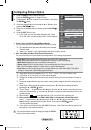
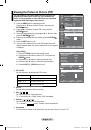
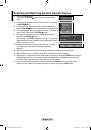
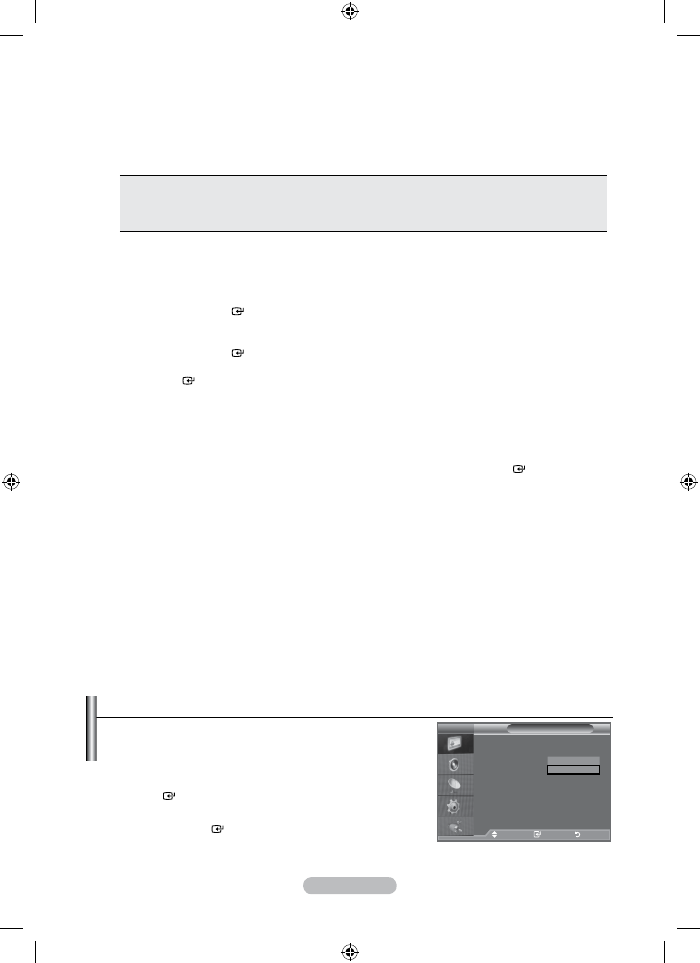
Resetting the Picture Settings to the Factory Defaults
You can return to the factory defaults picture settings.
1.
To select the desired picture effect, follow the "Changing the
Picture Standard" instructions number 1 to 3 (On page 15).
.
Press the ▲ or ▼ button to select "Reset", then press the
ENtER
button.
.
Press the
▲ or ▼
button to select "OK" or "Cancel".
Press the
ENtER
button.
.
Press the
EXIt
button to exit.
The "Reset" will be set for each "Picture" mode.
➣
Picture
More
Picture Options
Reset
: OK
tV
Move
Enter
Return
OK
Cancel
BN68-01410E-01Eng.indd 17
2008-06-02 ¿ÀÀü 1:50:55
Оглавление инструкции
- Cover
- Eng
- Connecting and Preparingreparing Your TV
- List of Parts
- Installing the Stand
- Installing the Wall Mount Kit
- Viewing the Control Panel
- Viewing the Connection Panel
- Viewing the Remote Control
- Installing Batteries in the Remote Control
- Switching On and Off
- Placing Your Television in Standby Mode
- Viewing the Menus
- Using the TOOLS Button
- Plug & Play
- Setting the Channels
- Setting the Picture
- Setting the Sound
- Setting the Time
- Function Description
- Setting the PC
- WISELINK
- About Anynet+
- Recommendations For Use
- Connecting and Preparingreparing Your TV
- Rus
- Ukr