Инструкция для Samsung LE40A550P1R, LE52A552P3R, LE46A552P3R, LE40A552P3R, LE37A552P3R
 1
 2
 3
 4
 5
 6
 7
 8
 9
 10
 11
 12
 13
 14
 15
 16
 17
 18
 19
 20
 21
 22
 23
 24
 25
 26
 27
 28
 29
 30
 31
 32
 33
 34
 35
 36
 37
 38
 39
 40
 41
 42
 43
 44
 45
 46
 47
 48
 49
 50
 51
 52
 53
 54
 55
 56
 57
 58
 59
 60
 61
 62
 63
 64
 65
 66
 67
 68
 69
 70
 71
 72
 73
 74
 75
 76
 77
 78
 79
 80
 81
 82
 83
 84
 85
 86
 87
 88
 89
 90
 91
 92
 93
 94
 95
 96
 97
 98
 99
 100
 101
 102
 103
 104
 105
 106
 107
 108
 109
 110
 111
 112
 113
 114
 115
 116
 117
 118
 119
 120
 121
 122
 123
 124
 125
 126
 127
 128
 129
 130
 131
 132
 133
 134
 135
 136
 137
 138
 139
 140
 141
 142
 143
 144
 145
 146
 147
 148
 149
 150
 151
 152
 153
 154
 155
 156
 157
 158
 159
 160
 161
 162
 163
 164
 165
 166
 167
 168
 169
 170
 171
 172
 173
English - 1
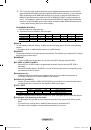
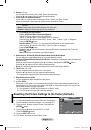
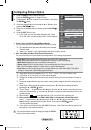
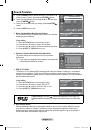
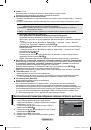
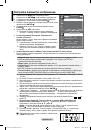
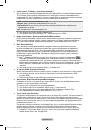
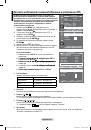
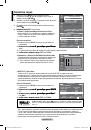
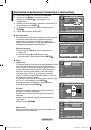
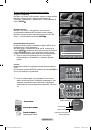
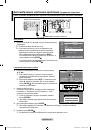
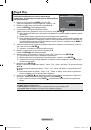
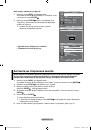
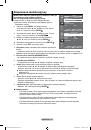
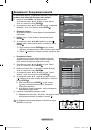
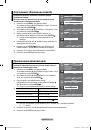
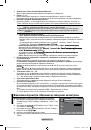
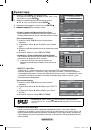
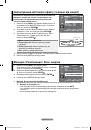
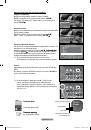
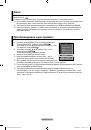
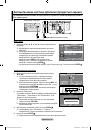
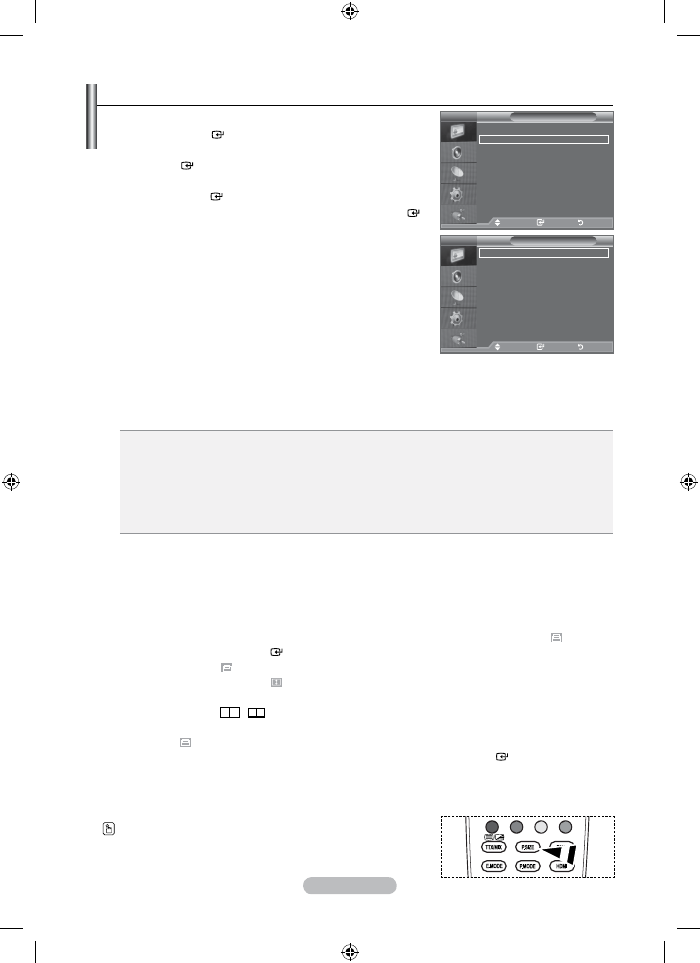
Configuring Picture Option
1.
Press the
MENU
button to display the menu.
Press the
ENtER
button, to select "Picture".
.
Press the ▲ or ▼ button to select "Picture Options", then press
the
ENtER
button.
.
Select the required option by pressing the ▲ or ▼ button, then
press the
ENtER
button.
.
When you are satisfied with your setting, press the
ENtER
button.
.
Press the
EXIt
button to exit.
In PC mode, you can only make changes to the “Colour
Tone” and “Size” from among the items in “Picture Options”.
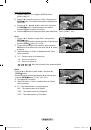
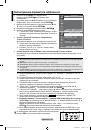
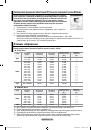
Colour tone: Cool/Cool1/Normal/Warm1/Warm
You can select the most comfortable colour tone to your eyes.
The adjusted values are stored according to the selected
"Picture" mode.
“Warm1” or “Warm2” is only activated when the picture mode is "Movie".
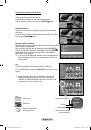
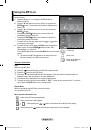
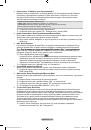
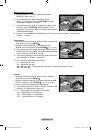
Size: Auto Wide/1:9/Wide Zoom/Zoom/:/Just Scan
You can select the picture size which best corresponds to your viewing requirements.
Auto Wide:
Automatically adjusts the picture size to the "16:9" aspect ratio.
1:9:
Adjusts the picture size to 16:9 appropriate for DVDs or wide broadcasting.
Wide Zoom:
Magnify the size of the picture more than 4:3.
Zoom:
Magnifies the 16:9 wide picture (in the vertical direction) to fit the screen size.
::
This is the default setting for a video movie or normal broadcasting.
Just Scan:
Use the function to see the full image without any cutoff when HDMI (720p/1080i/
1080p) or Component (1080i/1080p) signals are input.
♦
♦
♦
♦
♦
♦
"Auto Wide" function is available only in "TV", "Ext.1", "Ext.2", "AV", and "S-Video" mode.
In PC Mode, only "16:9" and "4:3" mode can be adjusted.
Settings can be adjusted and stored for each external device you have connected to an input of
the TV.
Temporary image retention may occur when viewing a static image on the set for more than two
hours.
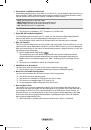
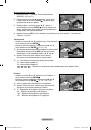
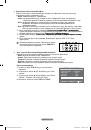
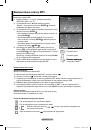
"Wide Zoom": Move the screen up/down using the ▲ or ▼ button after selecting the
by
pressing the ► or
ENtER
button.
"Zoom": Select
by pressing the ◄ or ►button. Use the ▲ or ▼ button to move the picture up
and down. After selecting
, use the ▲ or ▼ button to magnify or reduce the picture size in the
vertical direction.
When Double (
,
) mode has been set in PIP, the Picture Size cannot be set.
After selecting “Just Scan” in hDMI (100i/100p) or Component (100i/100p) mode
:
Select
by pressing the ◄ or ►button. Use the ▲, ▼, ◄ or ► button to move the picture.
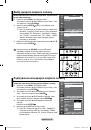
Reset:
Press the ◄ or ► button to select “Reset”, then press the
ENtER
button.
You can initialize the setting.
If you use the “Just Scan” function with HDMI 720p input, 1 line will be cut at the top, bottom, left
and right as in the overscan function.
You can select these options by simply pressing the
P.SIZE
button on the remote control.
➣
♦
➣
➣
♦
➣
➣
➣
➣
➣
➣
➣
➣
➣
Picture
More
Picture Options
Reset
: OK
tV
Move
Enter
Return
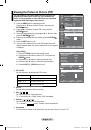
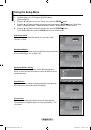
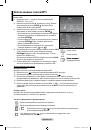
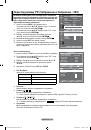
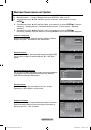
Picture Options
Colour tone
: Normal
Size
: Auto Wide
Screen Mode
: 1:9
Digital NR
: Auto
DNIe
: Off
hDMI black Level : Normal
Movie Plus
: Low
blue Only Mode : Off
Move
Enter
Return
tV
BN68-01410E-01Eng.indd 18
2008-06-02 ¿ÀÀü 1:50:56
Оглавление инструкции
- Cover
- Eng
- Connecting and Preparingreparing Your TV
- List of Parts
- Installing the Stand
- Installing the Wall Mount Kit
- Viewing the Control Panel
- Viewing the Connection Panel
- Viewing the Remote Control
- Installing Batteries in the Remote Control
- Switching On and Off
- Placing Your Television in Standby Mode
- Viewing the Menus
- Using the TOOLS Button
- Plug & Play
- Setting the Channels
- Setting the Picture
- Setting the Sound
- Setting the Time
- Function Description
- Setting the PC
- WISELINK
- About Anynet+
- Recommendations For Use
- Connecting and Preparingreparing Your TV
- Rus
- Ukr