Инструкция для Samsung PS42A410C3, PS42A410, PS42A412C4, PS50A410C3, PS50A410C1
 1
 2
 3
 4
 5
 6
 7
 8
 9
 10
 11
 12
 13
 14
 15
 16
 17
 18
 19
 20
 21
 22
 23
 24
 25
 26
 27
 28
 29
 30
 31
 32
 33
 34
 35
 36
 37
 38
 39
 40
 41
 42
 43
 44
 45
 46
 47
 48
 49
 50
 51
 52
 53
 54
 55
 56
 57
 58
 59
 60
 61
 62
 63
 64
 65
 66
 67
 68
 69
 70
 71
 72
 73
 74
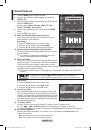
English -
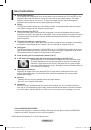
Energy Saving
:
Off/Low/Medium/High
This feature adjusts the screen brightness depending on the
surrounding lighting conditions.
−
Off
: Switches off the Energy Saving mode.
−
Low
: Operates in standard mode regardless of the
surrounding illumination.
−
Medium
: Enters Medium power saving mode regardless of
the surrounding illumination.
−
High
: Enters maximum power saving mode regardless of
the surrounding illumination.
Easy Setting
1
Press the
TOOLS
button on the remote control.
Press the ▲ or ▼ button to select
Energy Saving
.
Press the ◄ or ► button to select the required option.
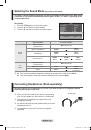
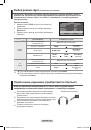
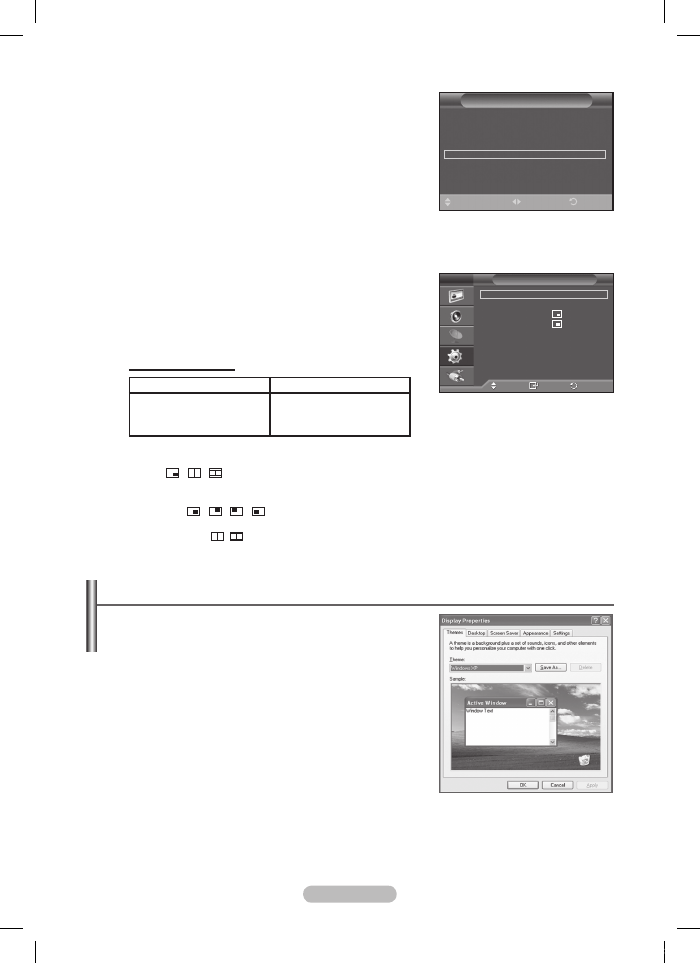
PIP (Picture in Picture): PIP(On/Off)/Source/Size/Position/
Programme
You can display a sub picture within the main picture. In this
way you can watch TV programme or monitor the video input
from any connected devices.
− PIP: On/Off
You can activate or deactivate the PIP function.
Table of PIP Settings
Main Picture
Sub Picture
Component
HDMI1, 2
PC
Analog TV broadcasts
only Ext1, Ext2, AV
− Source: TV/Ext.1/Ext.2/AV
You can select a source of the sub-picture.
− Size:
/
/
You can select a size of the sub-picture.
➢
If main picture is in
PC
and
Component
mode,
Size
is not available.
− Position:
/ /
/
You can select a position of the sub-picture.
➢
In Double( , ) mode,
Position
cannot be selected.
− Programme
You can select a channel of the sub-picture only when the
Source
is set to
TV
.
Move
Enter
Return
PIP
:
On
Source
:
TV
Size
:
Position
:
Programme
:
P 1
PIP
T V
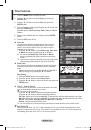
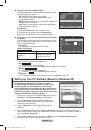
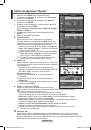
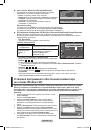
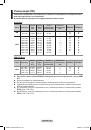
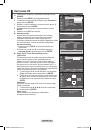
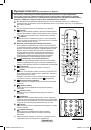
Setting up Your PC Software (Based on Windows XP)
The Windows display-settings for a typical computer
are shown below. But the actual screens on your PC will
probably be different, depending upon your particular
version of Windows and your particular video card. But even
if your actual screens look different, the same, basic set-up
information will apply in almost all cases. (If not, contact your
computer manufacturer or Samsung Dealer.)
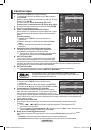
1
Right click the mouse on the Windows Desktop, then click on
Properties
. The
Display Properties
will be displayed.
Click on
Settings tab
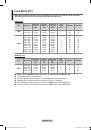
, then set the Display Mode with
reference to the Display Modes Table. You do not need to
change the Colours settings.
Click on
Advanced
. A new settings dialog box will be
displayed.
4
Click on the
Monitor
tab, then set the
Screen refresh rate
with reference to the Display Modes
Table. Set the Vertical Frequency and Horizontal Frequency individually if you can do so instead of
setting the
Screen refresh rate
.
5
Click on
OK
to close the window, then Click on
OK
button to the
Display Properties
window.
Automatic re-booting may commence at this moment.
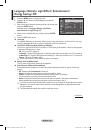
Tools
Picture Mode
: Standard
Sound Mode
: Custom
Sleep Timer
: Off
SRS TS XT
: Off
Energy Saving
◄ Off
►
Dual I-II
: Mono
Exit
Move
Adjust
BN68-01423EF-00Eng.indb 27
2008-04-14 오후 6:36:53
Оглавление инструкции
- Cover
- Eng
- User Instructions
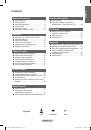
- Contents
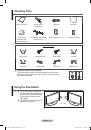
- Checking Parts
- Using the Stand-Base
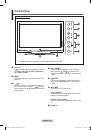
- Control Panel
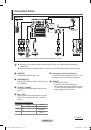
- Connection Panel
- Viewing the Remote Control
- Switching Your Television On and Off
- Viewing the Menus
- Plug & Play Feature
- Using the TOOLS Button
- Viewing External Signal Sources
- Editing Device Names
- Storing Channels Automatically
- Storing Channels Manually
- Adding / Locking Channels
- Sorting the Stored Channels
- Assigning Names to Channels
- Fine Tuning Channel Reception
- LNA (Low Noise Amplifier
- Changing the Picture Standard
- Customizing the Picture Settings
- Configuring Detailed Settings on the Picture
- Picture Options
- Resetting the Picture Settings to the Factory Defaults
- Sound Features
- Selecting the Sound Mode (depending on the model
- Connecting Headphones (Sold separately)
- Language / Melody / Light Effect / Entertainment /Energy Saving / PIP
- Setting up Your PC Software (Based on Windows XP)
- Input Mode (PC)
- Setting the PC
- Teletext Feature (depending on the model)
- Wall Mount Kit Specifications (VESA)
- Wall- mount adjustment (Sold separately)
- How to assemble the Stand-Base (depending on the model)
- Troubleshooting
- Specifications
- Rus
- Eng