Инструкция для Samsung PS42A410C3, PS42A410, PS42A412C4, PS50A410C3, PS50A410C1
 1
 2
 3
 4
 5
 6
 7
 8
 9
 10
 11
 12
 13
 14
 15
 16
 17
 18
 19
 20
 21
 22
 23
 24
 25
 26
 27
 28
 29
 30
 31
 32
 33
 34
 35
 36
 37
 38
 39
 40
 41
 42
 43
 44
 45
 46
 47
 48
 49
 50
 51
 52
 53
 54
 55
 56
 57
 58
 59
 60
 61
 62
 63
 64
 65
 66
 67
 68
 69
 70
 71
 72
 73
 74
English - 1
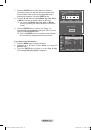
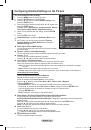
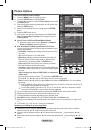
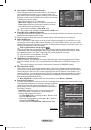
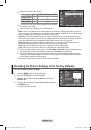
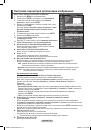
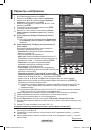
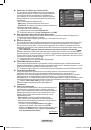
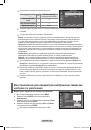
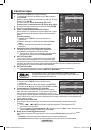
Configuring Detailed Settings on the Picture
You can set detailed picture settings.
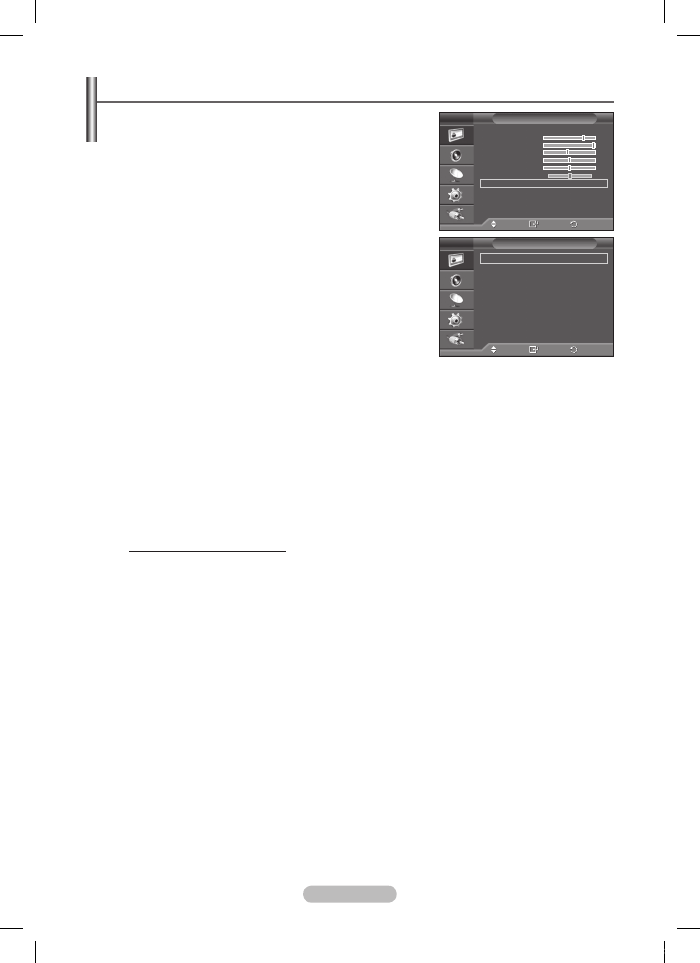
1
Press the
MENU
button to display the menu.
Press the
ENTER
button to select
Picture
.
Press the ▲ or ▼ button to select
Detailed Settings
, then
press the
ENTER
button.
4
Select the required option by pressing the ▲ or ▼ button, then
press the
ENTER
button.
Available options:
Black Adjust
,
Dynamic Contrast
,
Gamma
,
Colour Space
,
White Balance
,
Edge Enhancement
5
When you are satisfied with your setting, press the
ENTER
button.
Press the
EXIT
button to exit.
➢
Detailed Settings
is available in
Standard
or
Movie
mode.
➢
In PC mode, you can only make changes to
Dynamic
Contrast
,
Gamma
and
White Balance
from among the
Detailed Settings
items.
Black Adjust
:
Off/Low/Medium/High
You can directly select the black level on the screen to adjust
the screen depth.
Dynamic Contrast
:
Off/Low/Medium/High
You can adjust the screen contrast so that the optimal contrast is provided.
Gamma
:
- ~ +
You can adjust the middle brightness of pictures.
Press the ◄ or ► button until you reach the optimal setting.
Colour Space
:
Auto/Native/Custom
Colour space is a colour matrix composed of red, green and blue colours.
Select your favorite colour space to experience the most natural colour.
−
Auto
: Auto Colour Space automatically adjusts to the most natural colour tone based on program
sources.
−
Native
: Native Colour Space offers deep and rich colour tone.
−
Custom
: Adjusts the colour range to suit your preference. (see “Customizing the Colour Space”)
Customizing the Colour Space
Colour
:
Red
/
Green
/
Blue
/
Yellow
/
Cyan
/
Magenta
Adjusts the Colour range to suit your preference.
Colour is available when
Colour Space
is set to Custom.
Press the ▲ or ▼ button to select
Red
,
Green
,
Blue
,
Yellow
,
Cyan
or
Magenta
.
Press the
ENTER
button.
−
Red/Green/Blue
: In Colour, you can adjust the RGB values for the selected colour.
Press the ▲ or ▼ button to select
Red
,
Green
or
Blue
to change it. Press the
ENTER
button.
Press the ◄ or ► button to decrease or increase the value of a particular item.
Press the
ENTER
button.
−
Reset
: Resets the colour space to the default values.
White Balance
:
R-Offset/G-Offset/B-Offset/R-Gain/G-Gain/B-Gain/Reset
You can adjust the color temperature for more natural picture colors.
R-Offset/G-Offset/B-Offset/R-Gain/G-Gain/B-Gain
: Changing the adjustment value will refresh the
adjusted screen.
Select the required option by pressing the ▲ or ▼ button, then press the
ENTER
button.
Press the ◄ or ► button until you reach the optimal setting.
Reset
: The previously adjusted white balance will be reset to the factory defaults.
Flesh Tone:-15~+15
You can emphasize the pink tone in the picture.
Press the ◄ or ► button until you reach the optimal setting.
➢
Changing the adjustment value will refresh the adjusted screen.
Edge Enhancement
:
Off/On
You can emphasize object boundaries.
Move
Enter
Return
Black Adjust
:
Off
Dynamic Contrast :
Medium
Gamma
:
0
Colour Space
:
Native
White Balance
Flesh Tone
:
0
Edge Enhancement :
On
Detailed Settings
T V
Move
Enter
Return
Mode
: Standard
Cell Light
Contrast
5
Brightness
45
Sharpness
50
Colour
50
Tint
G50 R50
Detailed Settings
Picture Options
Reset
: OK
Picture
T V
BN68-01423EF-00Eng.indb 19
2008-04-14 오후 6:36:48
Оглавление инструкции
- Cover
- Eng
- User Instructions
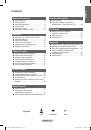
- Contents
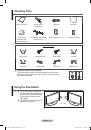
- Checking Parts
- Using the Stand-Base
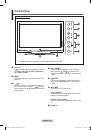
- Control Panel
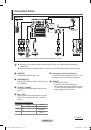
- Connection Panel
- Viewing the Remote Control
- Switching Your Television On and Off
- Viewing the Menus
- Plug & Play Feature
- Using the TOOLS Button
- Viewing External Signal Sources
- Editing Device Names
- Storing Channels Automatically
- Storing Channels Manually
- Adding / Locking Channels
- Sorting the Stored Channels
- Assigning Names to Channels
- Fine Tuning Channel Reception
- LNA (Low Noise Amplifier
- Changing the Picture Standard
- Customizing the Picture Settings
- Configuring Detailed Settings on the Picture
- Picture Options
- Resetting the Picture Settings to the Factory Defaults
- Sound Features
- Selecting the Sound Mode (depending on the model
- Connecting Headphones (Sold separately)
- Language / Melody / Light Effect / Entertainment /Energy Saving / PIP
- Setting up Your PC Software (Based on Windows XP)
- Input Mode (PC)
- Setting the PC
- Teletext Feature (depending on the model)
- Wall Mount Kit Specifications (VESA)
- Wall- mount adjustment (Sold separately)
- How to assemble the Stand-Base (depending on the model)
- Troubleshooting
- Specifications
- Rus
- Eng