Инструкция для GIGABYTE GA-H55M-S2V (rev. 1.4), GA H55M S2V rev 1 4
 1
 2
 3
 4
 5
 6
 7
 8
 9
 10
 11
 12
 13
 14
 15
 16
 17
 18
 19
 20
 21
 22
 23
 24
 25
 26
 27
 28
 29
 30
 31
 32
 33
 34
 35
 36
 37
 38
 39
 40
 41
 42
 43
 44
 45
 46
 47
 48
 49
 50
 51
 52
 53
 54
 55
 56
 57
 58
 59
 60
 61
 62
 63
 64
 65
 66
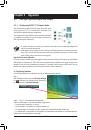 67
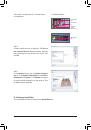 68
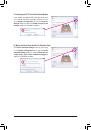 69
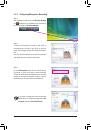 70
 71
 72
 73
 74
 75
 76
 77
 78
 79
 80

- 73 -
Appendix
5-2 Troubleshooting
5-2-1 Frequently Asked Questions
To read more FAQs for your motherboard, please go to the Support&Downloads\Motherboard\FAQ page on
GIGABYTE's website.
Q: In the BIOS Setup program, why are some BIOS options missing?
A: Some advanced options are hidden in the BIOS Setup program. Press <Delete> to enter BIOS Setup during the POST. In
the Main Menu, press <Ctrl>+<F1> to show the advanced options.
Q: Why is the light of my keyboard/optical mouse still on after the computer shuts down?
A: Some motherboards provide a small amount of standby power after the computer shuts down and that's why the light is
still on.
Q: How do I clear the CMOS values?
A: For motherboards that have a CMOS_SW button, press this button to clear the CMOS values (before doing this, please
turn off the computer and unplug the power cord). For motherboards that have a clearing CMOS jumper, refer to the
instructions on the CLR_CMOS jumper in Chapter 1 to short the jumper to clear the CMOS values. If your board doesn't
have this jumper, refer to the instructions on the motherboard battery in Chapter 1. You can temporarily remove the bat-
tery from the battery holder to stop supplying power to the CMOS, which will clear the CMOS values after about one
minute.
Q: Why do I still get a weak sound even though I have turned my speaker to the maximum volume?
A: Make sure your speaker is equipped with an internal amplifier. If not, try a speaker with power/amplifier.
Q: Why cannot I install the onboard HD audio driver successfully? (For Windows XP only)
A: Step 1: First, make sure Service Pack 1 or Service Pack 2 has been installed (check in My Computer > Properties > Gen-
eral > System). If not, please update it from Microsoft's website. Then make sure the Microsoft UAA Bus Driver for
High Definition Audio has been installed successfully (check in My Computer > Properties > Hardware > Device
Manager > System Devices).
Step 2: Check if
Audio Device on High Definition Audio Bus
or
Unknown device
is present in
Device Manager
or
Sound, video, and game controllers
. If yes, please disable this device. (If not, skip this step.)
Step 3: Then go back to My Computer > Properties > Hardware > Device Manager > System devices and right-click on
Microsoft UAA Bus Driver for High Definition Audio
and select
Disable
and
Uninstall
.
Step 4: In
Device Manager
, right-click on the computer name and select
Scan for hardware changes
. When the
Add
New Hardware Wizard
appears, click
Cancel
. Then install the onboard HD audio driver from the motherboard
driver disk or download the audio driver from GIGABYTE's website to install.
For more details, go to the Support&Downloads\Motherboards\FAQ page on our website and search for "onboard HD
audio driver."
Q: What do the beeps emitted during the POST mean?
A: The following Award BIOS beep code descriptions may help you identify possible computer problems.
(For reference only.)
1 short: System boots successfully
2 short: CMOS setting error
1 long, 1 short: Memory or motherboard error
1 long, 2 short: Monitor or graphics card error
1 long, 3 short: Keyboard error
1 long, 9 short: BIOS ROM error
Continuous long beeps: Graphics card not inserted properly
Continuous short beeps: Power error
Оглавление инструкции
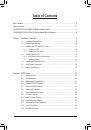
- Box Contents
- Optional Items
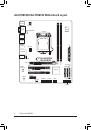
- GA-H55M-S2/GA-H55M-S2V Motherboard Layout
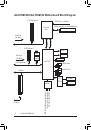
- GA-H55M-S2/GA-H55M-S2V Motherboard Block Diagram
- Chapter 1 Hardware Installation
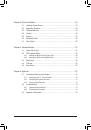
- Chapter 2 BIOS Setup
- 2-1 Startup Screen
- 2-2 The Main Menu
- 2-3 MB Intelligent Tweaker(M.I.T.)
- 2-4 Standard CMOS Features
- 2-5 Advanced BIOS Features
- 2-6 Integrated Peripherals
- 2-7 Power Management Setup
- 2-8 PC Health Status
- 2-9 Load Fail-Safe Defaults
- 2-10 Load Optimized Defaults
- 2-11 Set Supervisor/User Password
- 2-12 Save & Exit Setup
- 2-13 Exit Without Saving
- Chapter 3 Drivers Installation
- Chapter 4 Unique Features
- Chapter 5 Appendix