Инструкция для LG 42LW575S
 1
 2
 3
 4
 5
 6
 7
 8
 9
 10
 11
 12
 13
 14
 15
 16
 17
 18
 19
 20
 21
 22
 23
 24
 25
 26
 27
 28
 29
 30
 31
 32
 33
 34
 35
 36
 37
 38
 39
 40
 41
 42
 43
 44
 45
 46
 47
 48
 49
 50
 51
 52
 53
 54
 55
 56
 57
 58
 59
 60
 61
 62
 63
 64
 65
 66
 67
 68
 69
 70
 71
 72
 73
 74
 75
 76
 77
 78
 79
 80
 81
 82
 83
 84
 85
 86
 87
 88
17
ENTERTAINMENT
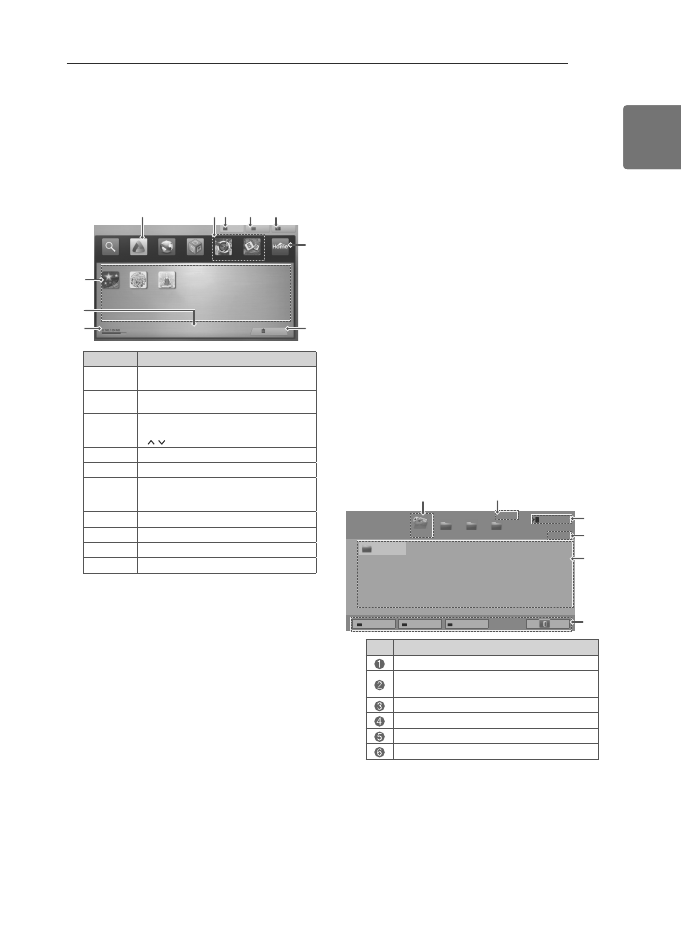
Smart Share Function
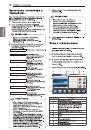
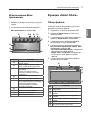
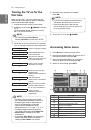
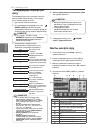
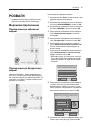
Using My Apps
1
Enter the LG Apps after sign in.
2
Press the Navigation buttons to scroll to the
My
Apps
and press
OK
.
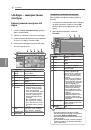
Option
Description
1
Shows the amount of used and avail-
able memories.
2
Current page number/total number of
pages of My Apps.
3
Shows the downloaded apps.
Moves to the previous or next page using
P
button.
4
Moves the LG Apps.
5
Quick Apps.
6
Sign In the LG Apps.
After sign in, manage the ID option (Ac-
count Setting, Change User, Sign Out).
7
Edit the My Apps.
8
Exit the My Apps.
9
Move to the Home menu.
:
Delete the Apps.
My Apps
Edit
Sign In
Exit
Page 1/1
Delete
4
6
7
8
1
3
2
9
-
Search
LG Apps
Web Browser
Media Link
Arrow
Sudoku
Home
5
Horoscope
COLOUR
Yoga
Page 1/1
All Media
USB1 External
Page 1/2
Page Change
Change device
Go to root folder
Go to upper folder
Exit
Drive 1
All Media Movie List Photo List Music List
1
2
4
3
5
6
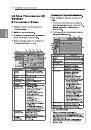
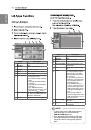
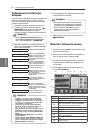
No.
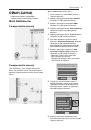
Description
Shows all media folders.
Current page number/total number of pages.
Moves to the previous or next page.
Current page number/total number of pages.
Files info or thumbnail.
Available buttons on the remote control.
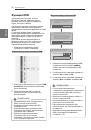
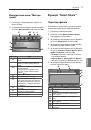
Browsing files
Access the photo, music, or movie lists and browse
files.
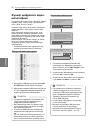
1
Connect a USB storage device.
2
Press
Home
to access the Home menu.
3
Press the Navigation buttons to scroll to
Smart
Share
and press
OK
.
4
Press the Navigation buttons to scroll to the
device you want and press
OK
.
5
Press Navigation buttons to scroll to
All Media,
Movie List
,
Photo List
, or
Music List
and
press
OK
.
-
All Media:
Shows all files in the file list.
-
Movie List
,
Photo
List
, or
Music List:
Shows only one type of file in the file list.
6
Press Navigation buttons to select a folder or
file you want.
ENG
ENGLISH