Инструкция для Samsung LE-37 B530P7, LE-37 B530 P7W
 1
 2
 3
 4
 5
 6
 7
 8
 9
 10
 11
 12
 13
 14
 15
 16
 17
 18
 19
 20
 21
 22
 23
 24
 25
 26
 27
 28
 29
 30
 31
 32
 33
 34
 35
 36
 37
 38
 39
 40
 41
 42
 43
 44
 45
 46
 47
 48
 49
 50
 51
 52
 53
 54
 55
 56
 57
 58
 59
 60
 61

English - 23
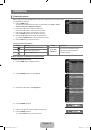
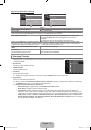
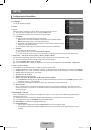
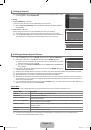
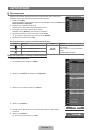
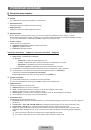
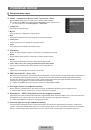
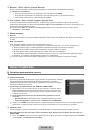
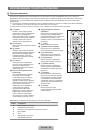
Setting Up Anynet+
Press the
TOOLS
button to display the
Tools
menu. You can also display Anynet+ menu
by selecting
Tools → Anynet+(HDMI-CEC)
.
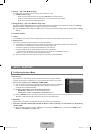
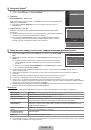
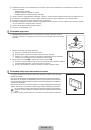
Setup
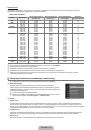
Anynet+(HDMI-CEC) → Off / On
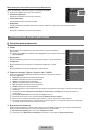
To use the Anynet+ Function, Anynet+ (HDMI-CEC) must be set to On.
When the
Anynet+ (HDMI-CEC)
function is disabled, all the Anynet+ related operations
are deactivated.
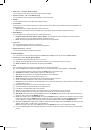
Auto Turn Off → No / Yes
Setting an Anynet+ Device to turn Off Automatically when the TV is Turned Off
The active source on the TV remote must be set to TV to use the Anynet+ function.
If you set
Auto Turn Off
to
Yes
, connected external devices are also turned off when the
TV is turned off. If an external device is still recording, it may or may not turn off.
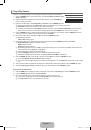
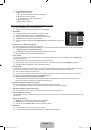
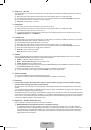
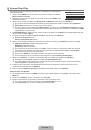
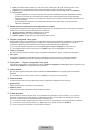
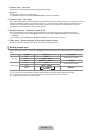
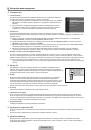
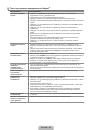
Switching between Anynet+ Devices
1.
Press the
TOOLS
button. Press the
ENTER
E
button to select
Anynet+ (HDMI-CEC)
.
2.
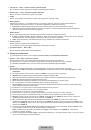
Press the ▲ or ▼ button to select
Device List
, then press the
ENTER
E
button
Anynet+
devices connected to the TV are listed. If you cannot find a device you want,
press the red button to scan for devices.
Only when you set
Anynet+ (HDMI-CEC)
to On in the
Setup
menu, the
Device List
menu appears.
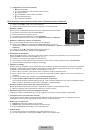
3.
Press the ▲ or ▼ button to select a particular device and press the
ENTER
E
button. It
is switched to the selected device.
Switching to the selected devices may take up to 2 minutes. You cannot cancel the operation during the switching operation.
The time required to scan for devices is determined by the number of connected devices.
When the device scan is complete, the number of devices found are not displayed.
Although the TV automatically searches the device list when the TV is turned on via the power button, devices connected to
the TV when the TV is on or under some conditions are not automatically displayed in the device list. Press the red button to
search for the connected device.
If you have selected external input mode by pressing the
SOURCE
button, you cannot use the Anynet+ function. Make sure to
switch to an Anynet+ device by using the
Device List
.
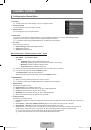
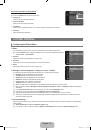
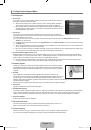
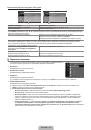
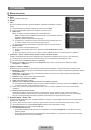
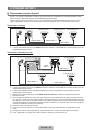
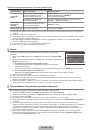
Anynet+ Menu
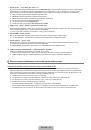
The Anynet+ menu changes depending on the type and status of the Anynet+ devices connected to the TV.
Anynet
+
Menu
Description
View TV
Anynet+ mode changes to TV broadcast mode.
Device List
Shows the Anynet+ device list.
(device_name)
Menu
Shows the connected device menus. E.g. If a DVD recorder is connected, the disc menu of the
DVD recorder will appear.
(device_name)
Operation
Shows the play menu of the connected device. E.g. If a DVD recorder is connected, the play
menu of the DVD recorder will appear.
Record
: (*recorder)
Starts recording immediately using the recorder. (This is only available for devices that support the
recording function.)
Stop Recording:
(*recorder) Stops recording.
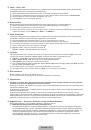
Receiver
Sound is played through the receiver.
If more than one recording device is connected, they are displayed as (*recorder) and if only one recording device is
connected, it will be represented as (*device_name).
¦
T
❑
N
N
N
¦
N
N
N
N
N
N
N
N
View TV
Device List
Record
: DVDR
DVDR Operation
Receiver
: On
Setup
U
Move
E
Enter
R
Return
Device List
Setup
U
Move
E
Enter
R
Return
Setup
Anynet+ (HDMI-CEC)
: On
Auto Turn Off
: Yes
U
Move
E
Enter
R
Return
Anynet+(HDMI-CEC)
►
Application
BN68-01893F-Eng.indd 23
2009-02-24 �� 2:57:22