Инструкция для Samsung LE-37 B530P7, LE-37 B530 P7W
 1
 2
 3
 4
 5
 6
 7
 8
 9
 10
 11
 12
 13
 14
 15
 16
 17
 18
 19
 20
 21
 22
 23
 24
 25
 26
 27
 28
 29
 30
 31
 32
 33
 34
 35
 36
 37
 38
 39
 40
 41
 42
 43
 44
 45
 46
 47
 48
 49
 50
 51
 52
 53
 54
 55
 56
 57
 58
 59
 60
 61
English - 21
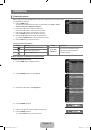
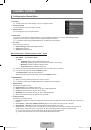
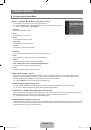
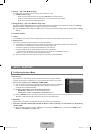
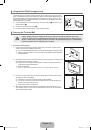
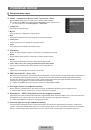
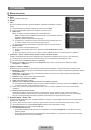
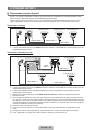
Configuring the Support Menu
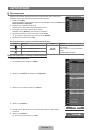
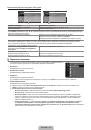
Self Diagnosis
Picture Test
If you think you have a picture problem, perform the picture test. Check the colour pattern on
the screen to see if the problem still exists.
Yes
: If the test pattern does not appear or there is noise in the test pattern, select
Yes
.
There may be a problem with the TV. Contact Samsung’s call centre for assistance.
No
: If the test pattern is properly displayed, select
No
. There may be a problem with your
external equipment. Please check your connections. If the problem still persists, refer to
the external device’s user manual.
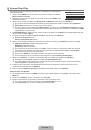
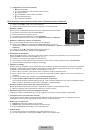
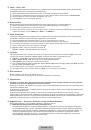
Sound Test
If you think you have a sound problem, please perform the sound test. You can check the
sound by playing a built-in melody sound through the TV. ‘Does the problem still exist with this
sound test?’ appears on the screen.
If you hear no sound from the TV’s speakers, before performing the sound test, make sure
Speaker Select
is set to
TV
speaker
in the Sound menu.
The melody will be heard during the test even if
Speaker Select
is set to
External Speaker
or the sound is muted by pressing
the
MUTE
button.
Yes
: If during the sound test you can hear sound only from one speaker or not at all, select
Yes
. There may be a problem with
the TV. Contact Samsung’s call centre for assistance.
No
: If you can hear sound from the speakers, select
No
. There may be a problem with your external equipment. Please check
your connections. If the problem still persists, refer to the external device’s user manual.
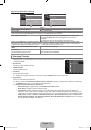
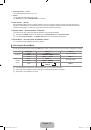
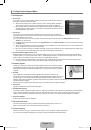
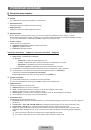
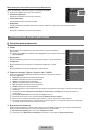
Signal Information (digital channels only)
Unlike analogue channels, which can vary in reception quality from ‘snowy’ to clear, digital (HDTV) channels have either perfect
reception quality or you will not receive them at all. So, unlike analogue channels, you cannot fine tune a digital channel. You can,
however, adjust your antenna to improve the reception of available digital channels.
If the signal strength meter indicates that the signal is weak, physically adjust your antenna to increase the signal strength.
Continue to adjust the antenna until you find the best position with the strongest signal.
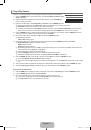
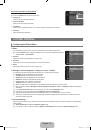
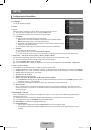
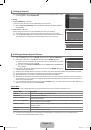
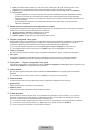
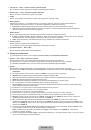
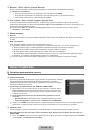
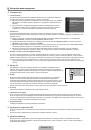
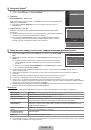
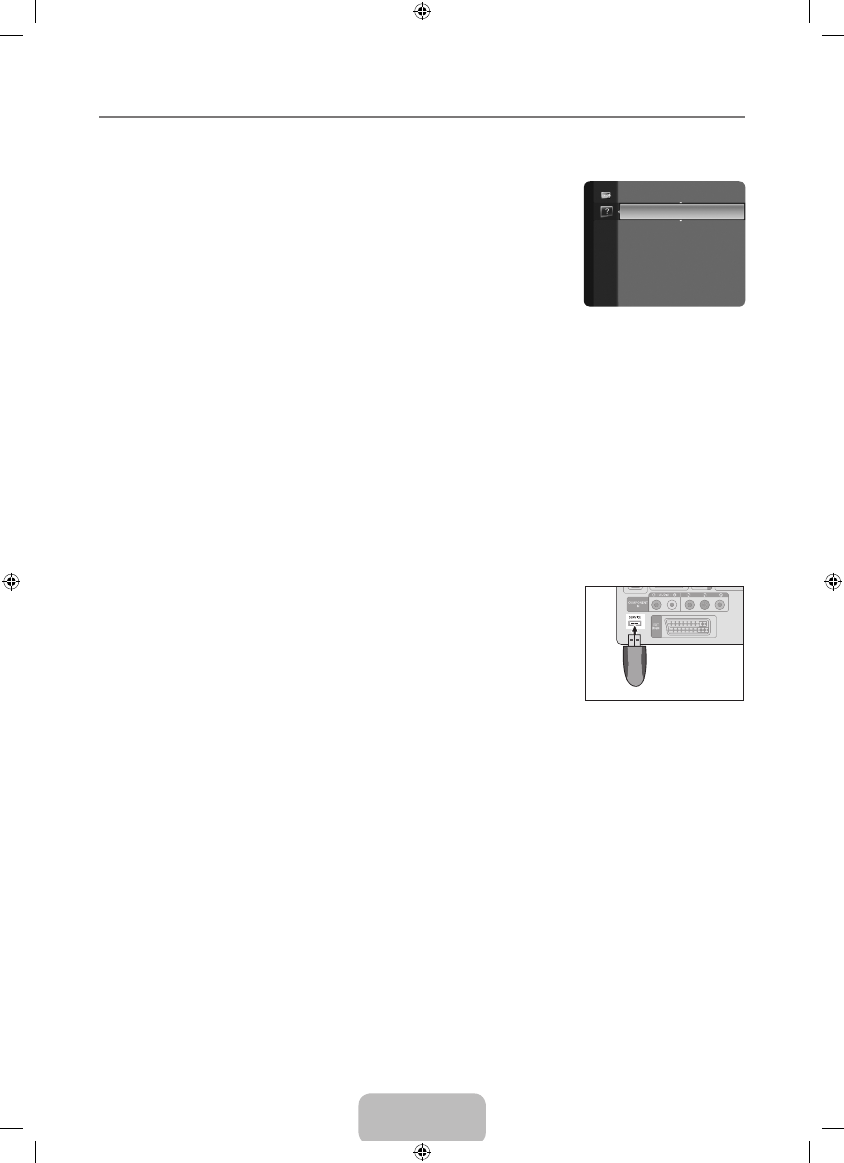
Software Upgrade
To keep your product up-to-date with new Digital Television features then software upgrades
are periodically broadcast as part of the normal Television signal. It will automatically detect
these signals and display the software upgrade banner. You are given the option to install the
upgrade.
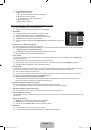
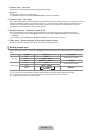
BY USB
Insert a USB drive containing the firmware upgrade into TV. Please be careful to not
disconnect the power or remove the USB drive while upgrades are being applied. The TV will
turn off and turn on automatically after completing the firmware upgrade. Please check the
firmware version after the update is completed. When software is upgraded, video and audio settings you have made will return to
their default (factory) settings.
We recommend you write down your settings so that you can easily reset them after the upgrade.
BY Channel
Upgrades the software using the broadcasting signal.
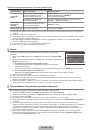
Standby Mode Upgrade
To continue software upgrade with master power on, Select On by pressing the ▲ or ▼ button. 45 minutes after entering standby
mode, a manual upgrade is automatically conducted. Since the power of the unit is turned on internally, the screen may be on
slightly for the LCD product. This phenomenon may continue for more than 1 hour until the software upgrade is completed.
Alternative Software
To display the software version information.
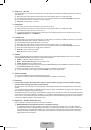
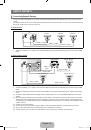
HD Connection Guide
This menu presents the connection method that provides the optimal quality for the HD TV.
Refer to this information when connecting external devices to the TV
.
Contact Samsung
View this information when your TV does not work properly or when you want to upgrade the software.
You can view the information regarding the call centre, product and software file download method.
¦
❑
●
●
N
N
●
●
N
❑
❑
❑
TV Rear Panel
USB Drive
Self Diagnosis
►
Software Upgrade
HD Connection Guide
Contact Samsung
Support
BN68-01893F-Eng.indd 21
2009-02-24 �� 2:57:21