Инструкция для LG 32LA660V
 1
 2
 3
 4
 5
 6
 7
 8
 9
 10
 11
 12
 13
 14
 15
 16
 17
 18
 19
 20
 21
 22
 23
 24
 25
 26
 27
 28
 29
 30
 31
 32
 33
 34
 35
 36
 37
 38
 39
 40
ENG
ENGLISH
6
SMART
REC
→ Settings →
SUPPORT
→
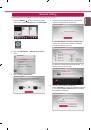
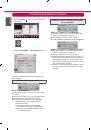
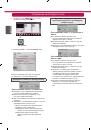
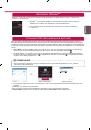
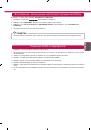
Software Update
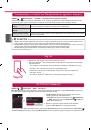
Uses Software Update to check and obtain the latest version. If not updated, certain functions may not work
properly. It is also possible to check manually for available updates.
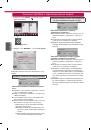
Software Update
Set it to
On
.
If an update is available, a prompt will appear to perform the update.
Automatic update mode
If an update is available, the update automatically starts without prompting.
Check Update Version
Checks the latest update version installed. When a new update is available, the
download process can be performed manually.
NOTE
When the update starts, a pop-up window is displayed to show the update status and then disappears within
five seconds.
The latest version can be obtained via the digital broadcast signal or an internet connection.
Changing the programme while downloading the software via a digital broadcast signal interrupts the
download process. Returning to the initial programme allows downloading to resume.
If software is not updated, certain functions may not work properly.
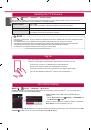
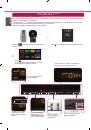
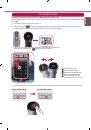
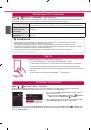
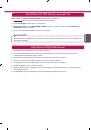
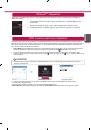
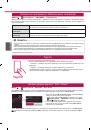
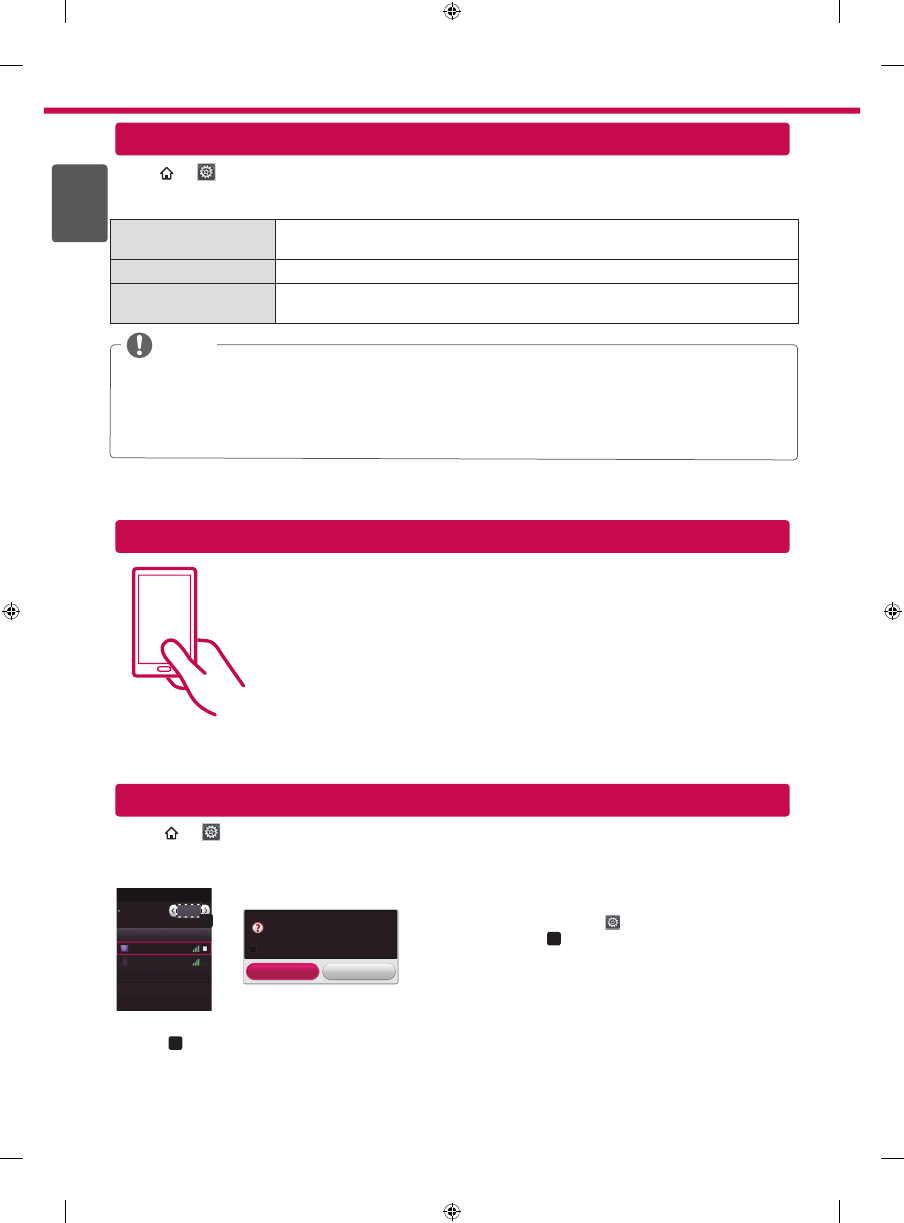
Tag On
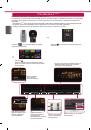
Touch the smartphone to the Tag On sticker.
•
Using an LG smartphone with the NFC and Miracast
TM
functions, you can:
- TV to Phone: run the LG TV Remote app on the smartphone.
- Phone to TV: view the screen of the smartphone on the TV.
To end the connection, touch the smartphone to the Tag On sticker again.
(You can also disable the Miracast
TM
function on the smartphone.)
SMART
REC
→
Settings
→
NETWORK
→
Wi-Fi Direct
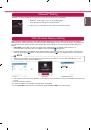
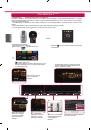
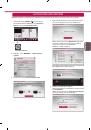
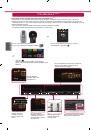
The
Wi-Fi Direct
function supports wireless connection technology. With SmartShare
TM
, you can share files or
screens of devices connected to
Wi-Fi Direct
.
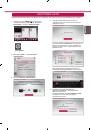
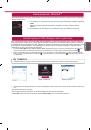
[TAAAA]
Do you want to request a connection?
Automatically connect without asking
Yes
No
Connection
Wi-Fi Direct
Device Name
Connection
TAAAA
BBBB
Wi-Fi Direct
a
On
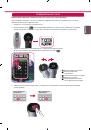
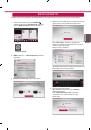
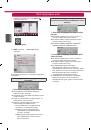
1 If
Wi-Fi Direct
is set to
On
, a list of available devices
appears.
»
To use
Wi-Fi Direct
, go to
Settings
→
NETWORK
and
set
Wi-Fi Direct
(
a
) to
On
.
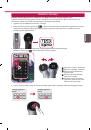
2 When you are prompted to request connection, select
Yes
.
Wi-Fi Direct
is now connected to your TV.
*If you are not using
Wi-Fi Direct
to minimize the interference between Wi-Fi devices, it is recommended to set
Wi-
Fi Direct
(
a
) to
Off
. You can only use devices that support
Wi-Fi Direct
.
Updating the TV Firmware
Tag On
Wi-Fi Direct Setting
Оглавление инструкции
- CIS_01_MBM63817852_Eng_Built in.pdf
- CIS_02_MBM63817852_Rus_Built in
- CIS_03_MBM63817852_Kaz_Built in
- CIS_04_MBM63817852_Ukr_Built in
- pagenation_Rev16_MBM63817852.pdf
- MFL