Инструкция для Zyxel Prestige 791R EE
 1
 2
 3
 4
 5
 6
 7
 8
 9
 10
 11
 12
 13
 14
 15
 16
 17
 18
 19
 20
 21
 22
 23
 24
 25
 26
 27
 28
 29
 30
 31
 32
 33
 34
 35
 36
 37
 38
 39
 40
 41
 42
 43
 44
 45
 46
 47
 48
 49
 50
 51
 52
 53
 54
 55
 56
 57
 58
 59
 60
 61
 62
 63
 64
 65
 66
 67
 68
 69
 70
 71
 72
 73
 74
 75
 76
 77
 78
 79
 80
 81
 82
 83
 84
 85
 86
 87
 88
 89
 90
 91
 92
 93
 94
 95
 96
 97
 98
 99
 100
 101
 102
 103
 104
 105
 106
 107
 108
 109
 110
 111
 112
 113
 114
 115
 116
 117
 118
 119
 120
 121
 122
 123
 124
 125
 126
 127
 128
 129
 130
 131
 132
 133
 134
 135
 136
 137
 138
 139
 140
 141
 142
 143
 144
 145
 146
 147
 148
 149
 150
 151
 152
 153
 154
 155
 156
 157
 158
 159
 160
 161
 162
 163
 164
 165
 166
 167
 168
 169
 170
 171
 172
 173
 174
 175
 176
 177
 178
 179
 180
 181
 182
 183
 184
 185
 186
 187
 188
 189
 190
 191
 192
 193
 194
 195
 196
 197
 198
 199
 200
 201
 202
 203
 204
 205
 206
 207
 208
 209
 210
 211
 212
 213
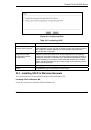 214
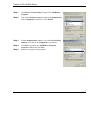 215
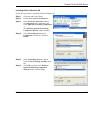 216
 217
 218
 219
 220
 221
 222
 223
 224
 225
 226
 227
 228
 229
 230
 231
 232
 233
 234
 235
 236
 237
 238

Prestige 791R G.SHDSL Router
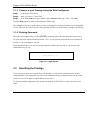
3.1.3 Connect to your Prestige Using the Web Configurator
Step 1.
Launch your web browser.
Step 2.
Enter “192.168.1.1” as the URL.
Step 3.
In the
User Name
field, type "admin". In the
Password
field, type “1234”. Click
OK
.
Click the
Help
button for online web configurator HTML help.
The remainder of this user’s guide shows you how to configure the Prestige for Internet access using SMT
screens. There are also some sections in this guide that also focus on using Telnet to configure the Prestige.
3.1.4 Entering Password
The login screen appears after you press
[ENTER]
, prompting you to enter the password, as shown next.
For your first login, enter the default password “1234”. As you type the password, the screen displays an
asterisk “*” for each character you type.
Please note that if there is no activity for longer than five minutes after you log in, your Prestige will
automatically log you out.
Enter Password : ****
Figure 3-1 Login Screen
3.2 Resetting the Prestige
If you forget your password or cannot access the Prestige, you will need to reload the factory-default
configuration file. This means that you will lose all configurations that you had previously; the password
will be reset to “1234” and the LAN IP address to 192.168.1.1.
To obtain the default configuration file, download it from the ZyXEL FTP site, unzip it and save it in a
folder.
3-2
Initial
Setup
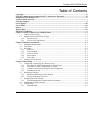
Оглавление инструкции
- Prestige 791R
- Table of Contents
- List of Figures
- List of Tables
- Preface
- What is DSL
- Part1.pdf
- Getting to Know Your G.SHDSL Router
- Hardware Installation
- Initial Setup
- WAN
- Dial Backup
- LAN
- Internet Access
- Part2.pdf
- Remote Node Configuration
- Static Route Setup
- Bridging Setup
- Network Address Translation (NAT)
- Part3.pdf
- Filter Configuration
- SNMP Configuration
- System Maintenance
- Firmware and Configuration File Maintenance
- Filename Conventions
- Backup Configuration
- Restore Configuration
- Uploading Firmware and Configuration Files
- Firmware File Upload
- Configuration File Upload
- FTP File Upload Command from the DOS Prompt Example
- FTP Session Example of Firmware File Upload
- TFTP File Upload
- TFTP Upload Command Example
- Uploading Via Console Port
- Uploading Firmware File Via Console Port
- Example Xmodem Firmware Upload Using HyperTerminal
- Uploading Configuration File Via Console Port
- Example Xmodem Configuration Upload Using HyperTerminal
- System Maintenance and Information
- IP Policy Routing
- Call Scheduling
- Remote Management
- Part4.pdf