Инструкция для Zyxel Prestige 791R EE
 1
 2
 3
 4
 5
 6
 7
 8
 9
 10
 11
 12
 13
 14
 15
 16
 17
 18
 19
 20
 21
 22
 23
 24
 25
 26
 27
 28
 29
 30
 31
 32
 33
 34
 35
 36
 37
 38
 39
 40
 41
 42
 43
 44
 45
 46
 47
 48
 49
 50
 51
 52
 53
 54
 55
 56
 57
 58
 59
 60
 61
 62
 63
 64
 65
 66
 67
 68
 69
 70
 71
 72
 73
 74
 75
 76
 77
 78
 79
 80
 81
 82
 83
 84
 85
 86
 87
 88
 89
 90
 91
 92
 93
 94
 95
 96
 97
 98
 99
 100
 101
 102
 103
 104
 105
 106
 107
 108
 109
 110
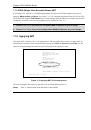 111
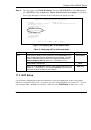 112
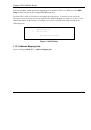 113
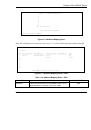 114
 115
 116
 117
 118
 119
 120
 121
 122
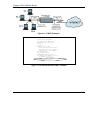 123
 124
 125
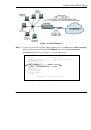 126
 127
 128
 129
 130
 131
 132
 133
 134
 135
 136
 137
 138
 139
 140
 141
 142
 143
 144
 145
 146
 147
 148
 149
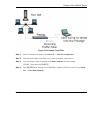 150
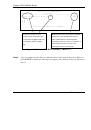 151
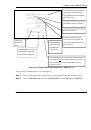 152
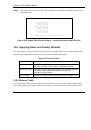 153
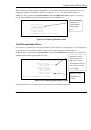 154
 155
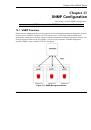 156
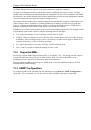 157
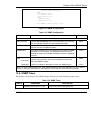 158
 159
 160
 161
 162
 163
 164
 165
 166
 167
 168
 169
 170
 171
 172
 173
 174
 175
 176
 177
 178
 179
 180
 181
 182
 183
 184
 185
 186
 187
 188
 189
 190
 191
 192
 193
 194
 195
 196
 197
 198
 199
 200
 201
 202
 203
 204
 205
 206
 207
 208
 209
 210
 211
 212
 213
 214
 215
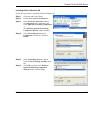 216
 217
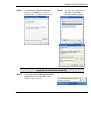 218
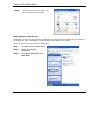 219
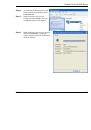 220
 221
 222
 223
 224
 225
 226
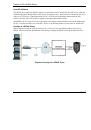 227
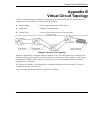 228
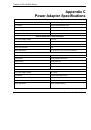 229
 230
 231
 232
 233
 234
 235
 236
 237
 238

Prestige 791R G.SHDSL Router
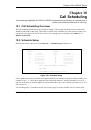
Call Scheduling
18-3
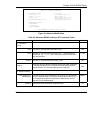
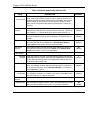
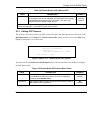
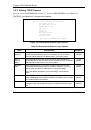
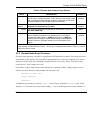
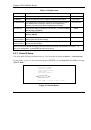
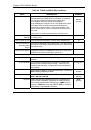
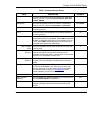
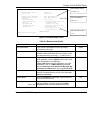
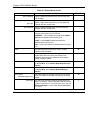
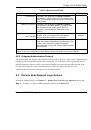
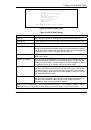
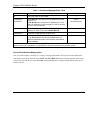
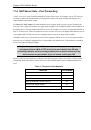
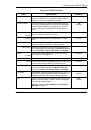
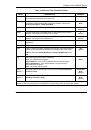
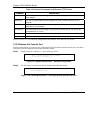
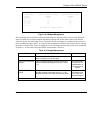
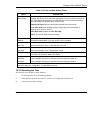
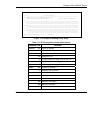
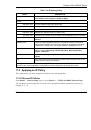
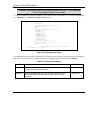
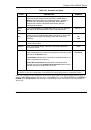
Table 18-1 Schedule Set Setup
FIELD DESCRIPTION EXAMPLE
How Often Should this schedule set recur weekly or be used just once only?
Press the [SPACE BAR] and then [ENTER] to select
Once
or
Weekly
. Both these options are mutually exclusive. If
Once
is
selected, then all weekday settings are
N/A
. When
Once
is
selected, the schedule rule deletes automatically after the
scheduled time elapses.
Once
Once:
Date
If you selected
Once
in the
How Often
field above, then enter the
date the set should activate here in year-month-date format.
2000-01-01
Weekday:
Day
If you selected
Weekly
in the
How Often
field above, then select
the day(s) when the set should activate (and recur) by going to that
day(s) and pressing [SPACE BAR] to select
Yes
, then press
[ENTER].
Yes
No
N/A
Start Time Enter the start time when you wish the schedule set to take effect
in hour-minute format.
09:00
Duration
Enter the maximum length of time this connection is allowed in
hour-minute format.
08:00
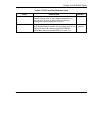
Action
Forced On
means that the connection is maintained whether or not
there is a demand call on the line and will persist for the time period
specified in the
Duration
field.
Forced Down
means that the connection is blocked whether or not
there is a demand call on the line.
Enable Dial-On-Demand
means that this schedule permits a
demand call on the line.
Disable Dial-On-Demand
means that this
schedule prevents a demand call on the line.
Forced On
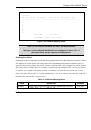
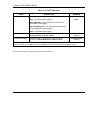
When you have completed this menu, press [ENTER] at the prompt “Press ENTER to confirm or ESC
to cancel” to save your configuration or press [ESC] to cancel and go back to the previous screen.
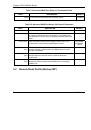
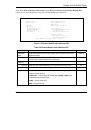
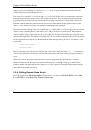
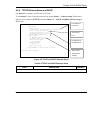
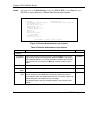
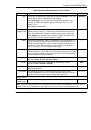
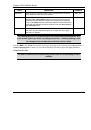
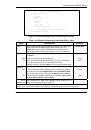
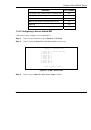
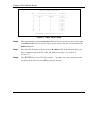
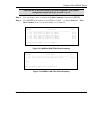
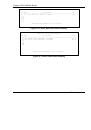
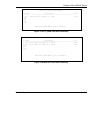
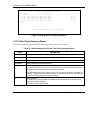
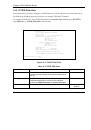
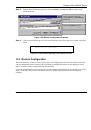
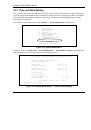
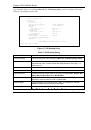
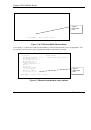
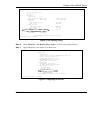
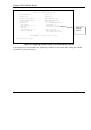
Once your schedule sets are configured, you must then apply them to the desired remote node(s). Enter 11
from the
Main Menu
and then enter the target remote node index. Using
[SPACE BAR]
, select
PPPoE
or
PPPoA
in the
Encapsulation
field and then press
[ENTER]
to make the schedule sets field available as
shown next.
Оглавление инструкции
- Prestige 791R
- Table of Contents
- List of Figures
- List of Tables
- Preface
- What is DSL
- Part1.pdf
- Getting to Know Your G.SHDSL Router
- Hardware Installation
- Initial Setup
- WAN
- Dial Backup
- LAN
- Internet Access
- Part2.pdf
- Remote Node Configuration
- Static Route Setup
- Bridging Setup
- Network Address Translation (NAT)
- Part3.pdf
- Filter Configuration
- SNMP Configuration
- System Maintenance
- Firmware and Configuration File Maintenance
- Filename Conventions
- Backup Configuration
- Restore Configuration
- Uploading Firmware and Configuration Files
- Firmware File Upload
- Configuration File Upload
- FTP File Upload Command from the DOS Prompt Example
- FTP Session Example of Firmware File Upload
- TFTP File Upload
- TFTP Upload Command Example
- Uploading Via Console Port
- Uploading Firmware File Via Console Port
- Example Xmodem Firmware Upload Using HyperTerminal
- Uploading Configuration File Via Console Port
- Example Xmodem Configuration Upload Using HyperTerminal
- System Maintenance and Information
- IP Policy Routing
- Call Scheduling
- Remote Management
- Part4.pdf