Инструкция для Samsung BD-C6900P, BD-C6900
 1
 2
 3
 4
 5
 6
 7
 8
 9
 10
 11
 12
 13
 14
 15
 16
 17
 18
 19
 20
 21
 22
 23
 24
 25
 26
 27
 28
 29
 30
 31
 32
 33
 34
 35
 36
 37
 38
 39
 40
 41
 42
 43
 44
 45
 46
 47
 48
 49
 50
 51
 52
 53
 54
 55
 56
 57
 58
 59
 60
 61
 62
 63
 64
 65
 66
 67
 68
 69
 70
 71
 72
 73
 74
 75
 76
 77
 78
 79
 80
 81
 82
 83
 84
 85
 86
 87
 88
 89
 90
 91
 92
 93
 94
 95
 96
 97
 98
 99
 100
 101
 102
 103
 104
 105
 106
 107
 108
 109
 110
 111
 112
 113
 114
 115
 116
 117
 118
 119
 120
 121
 122
 123
 124
 125
 126
 127
 128
 129
 130
 131
 132
 133
 134
 135
 136
 137
 138
 139
 140
 141
 142
 143
 144
 145
 146
 147
 148
 149
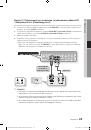 150
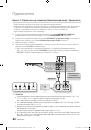 151
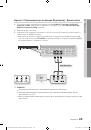 152
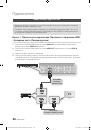 153
 154
 155
 156
 157
 158
 159
 160
 161
 162
 163
 164
 165
 166
 167
 168
 169
 170
 171
 172
 173
 174
 175
 176
 177
 178
 179
 180
 181
 182
 183
 184
 185
 186
 187
 188
 189
 190
 191
 192
 193
 194
 195
 196
 197
 198
 199
 200
 201
 202
 203
 204
 205
 206
 207
 208
 209
 210
 211
 212
 213
 214
 215
 216
 217
 218
 219
 220
 221
 222
 223
 224
 225
 226
 227
 228
 229
 230
 231
 232
 233
 234
 235
 236
 237
 238
 239
 240
 241
 242
 243
 244
 245
 246
 247
 248
 249
 250
 251
 252
 253
 254
 255
 256
 257
English
1
05
Setup
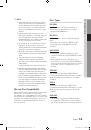
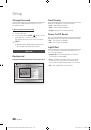
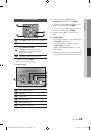
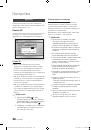
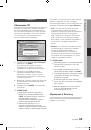
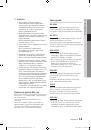
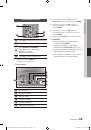
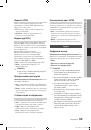
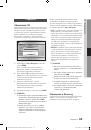
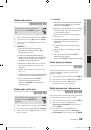
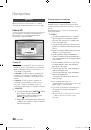
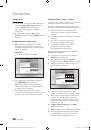
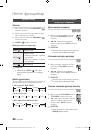
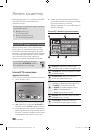
TV Aspect
Depending on the type of television you have, you
may want to adjust the screen setting.
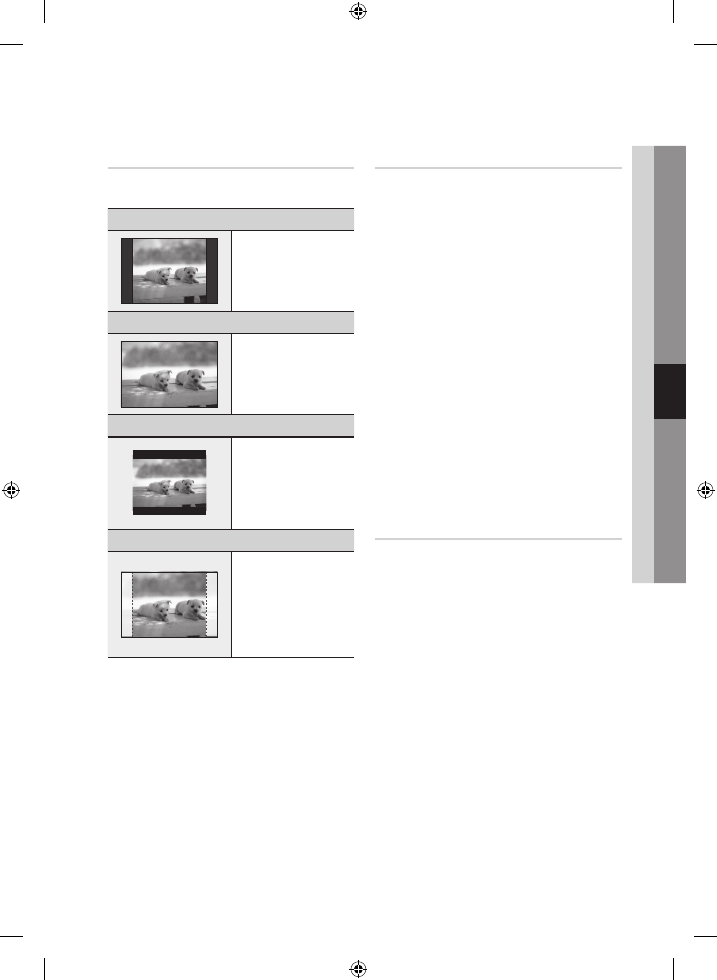
16:9 Normal
•
Certain movies (4:3 source) are
displayed in 4:3 Pillar-box (black
bars on sides of picture) if 16:9
normal is selected.
16:9 Wide
•
You can view the full 16:9 picture
on your widescreen TV.
4:3 Letter Box
•
Select when you want to see full
16:9 ratio image supplied by a
Blu-ray Disc/DVD, even though
you have a TV with a 4:3 ratio
screen. Black bars will appear at
the top and bottom of the screen.
4:3 Pan-Scan
•
Select when you want to see the
16:9 video supplied by the Blu-ray
Disc/DVD without the black bars on
top and bottom, even though you
have a TV with a 4:3 ratio screen.
The extreme left and right portion
of the movie picture will be cut off.
NOTE
Depending on the disc type, some aspect ratios may
not be available.
If you select an aspect ratio and option which is
different than the aspect ratio of your TV screen,
then the picture might appear distorted.
If you select the 4:3 Pan-Scan or 4:3 Letter Box, the
FULL SCREEN
button on your remote will not work.
If you select the 16:9 Normal, your TV may display
4:3 Pillar-box.
In this case, the
FULL SCREEN
button on the remote
control will not work.
✎
▪
▪
▪
▪
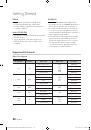
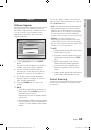
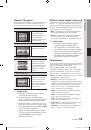
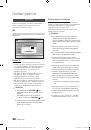
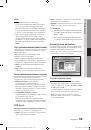
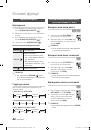
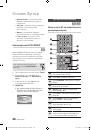
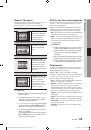
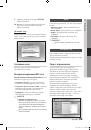
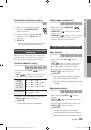
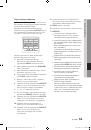
BD Wise (Samsung Products only)
BD Wise is Samsung's latest inter-connectivity
feature.
When you connect Samsung products with BD
Wise to a Samsung TV via HDMI, the optimum
resolution is set automatically.
On
: The original resolution of the BD/DVD disc
is output to the TV.
Off
: The output resolution is fixed at the
resolution previously set, regardless of the
resolution of the disc.
NOTE
If you want to change the resolution in BD Wise, you
must set BD Wise to
Off
in advance.
If you set BD Wise off, the resolution of the
connected TV is adjusted to its maximum resolution
automatically.
If the product is connected to a device that does
not support BD Wise, you can not use the BD Wise
function.
For proper operation of BD Wise, set the BD Wise
menu of both the product and the TV to
On
.
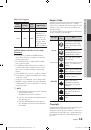
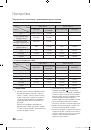
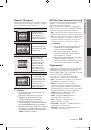
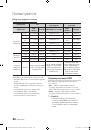
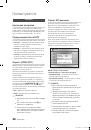
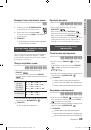
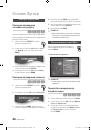
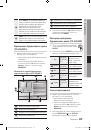
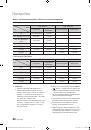
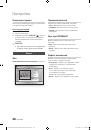
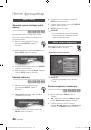
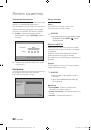
Resolution
Sets the output resolution of the Component and
HDMI video signal.
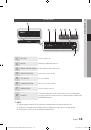
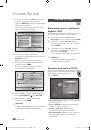
The number in 1080p, 1080i, 720p, 576p/480p,
576i/480i indicates the number of lines of video.
The i and p indicate interlace and progressive
scan, respectively.
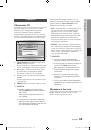
Auto
: Automatically checks and sets the
optimal resolution.
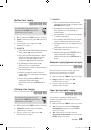
BD Wise
: Automatically sets the optimal
resolution when connected via HDMI to a TV
with the BD Wise feature. (The BD Wise menu
item appears only if BD Wise is set to On.)
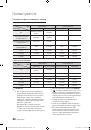
1080p
: Outputs 1080 lines of progressive
video.
1080i
: Outputs 1080 lines of interlaced video.
720p
: Outputs 720 lines of progressive video.
576p/480p
: Outputs 576/480 lines of
progressive video.
576i/480i
: Outputs 576/480 lines of interlaced
video.
•
•
✎
▪
▪
▪
▪
•
•
•
•
•
•
•
01960K-BD-C6900-XER-ENG-TSEC.ind31 31
2010-03-30 오후 4:05:16