Инструкция для Yamaha DVD-S1800
 1
 2
 3
 4
 5
 6
 7
 8
 9
 10
 11
 12
 13
 14
 15
 16
 17
 18
 19
 20
 21
 22
 23
 24
 25
 26
 27
 28
 29
 30
 31
 32
 33
 34
 35
 36
 37
 38
 39
 40
 41
 42
 43
 44
 45
 46
 47
 48
 49
 50
 51
 52
 53
 54
 55
 56
 57
 58
 59
 60
 61
 62
 63
 64
 65
 66
 67
 68
 69
 70
 71
 72
 73
 74
 75
 76
 77
 78
 79
 80
 81
 82
 83
 84
 85
 86
 87
 88
 89
 90
 91
 92
 93
 94

35
En
SETUP MENU
Eng
lish
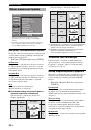
Selecting the black level
(U.S.A. and Canada models only)
If you set the [TV Type] to [NTSC] (see “Step 3: Setting a
TV type” on page 16), set this setting shift to [On] to
improve the color contrast during playback.
•
Select [Black Level] in [VIDEO] menu.
On
Select this to enhance the black level.
Off
Select this for the standard black level setting.
• This function is only available for CVBS (composite video)
and S-video output.
• This setting has no effect if the [TV Type] is set to [PAL] or
[MULTI] (see “Step 3: Setting a TV type” on page 16).
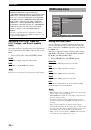
Selecting the closed caption
(U.S.A. and Canada models only)
Closed captions are data hidden in the video signals of
specific discs, and are invisible without the use of a special
decoder. The difference between subtitles and captions is
that subtitles are intended for hearing persons and captions
are for the hearing impaired. Subtitles rarely show all of
the audio. For example, captions show sound effects (e.g.,
“phone ringing” and “footsteps”), while subtitles do not.
Before you select this setting, please ensure that the disc
contains closed caption information and your TV set also
supports this function.
•
Select [Closed Caption] in [VIDEO] menu.
On
Select this to enable the closed caption function.
Off
Select this to disable the closed caption function.
This function is only available for CVBS (composite video) and
S-video output.
Setting the still mode
You can select the picture quality for pausing or frame-by-
frame playback.
•
Select [Still Mode] in [VIDEO] menu.
Frame
Select this if the picture is unstable when you select
[Field].
Field
Select this for the standard still mode setting. This setting
is suitable for playback of quick motion scenes.
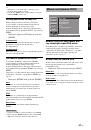
Selecting the scan function
This function is only available if you have connected this
unit to a progressive scan TV through the component
video jacks (see “Component video jacks <C>” on
page 12). This function is enable you to enjoy accurate
color reproduction and high quality images. This unit
features DCDi circuit.
•
Select [Component] in [VIDEO] menu.
Progressive
Select this to enable the progressive scan function. The
confirmation screen appears if you select this. In this case,
select [Yes] and then press
ENTER
.
Interlaced
Select this to enable the interlaced scan function.
y
The P.SCAN indicator on the front panel display lights up during
progressive playback.
Notes on activating progressive scan:
• While HDMI video signals are being output, component
video is fixed to interlaced video.
• In progressive mode, 4:3 aspect images are stretched
horizontally on the widescreen TV. Change the aspect
ratio settings of your TV if you want to watch the
original aspect ratio images without distortion. You can
also change the aspect ratio settings in [Wide Screen
Format] menu (see “Selecting the wide screen format”
on page 34).
• Ensure that your TV is equipped with progressive scan.
• Connect using a component video cable.
Notes
Note
Оглавление инструкции
- English
- CAUTION: READ THIS BEFORE OPERATING THIS UNIT.
- INTRODUCTION
- FUNCTIONAL OVERVIEW
- CONNECTIONS
- GETTING STARTED
- DISC OPERATION
- Basic operation
- Repeat playback
- Random playback (except DVD/SA-CD)
- Program playback (CD)
- Disc menu operation (DVD/VCD/SVCD)
- On-screen display (OSD) menu (DVD/VCD/SVCD/SA-CD)
- Picture Setting menu (DVD/VCD/SVCD)
- Zooming pictures (DVD-Video/VCD/SVCD/DivX®/ JPEG)
- Viewing angles (DVD-Video)
- Audio and Subtitle languages (DVD-Video/VCD)
- DivX® external subtitle files
- Changing pages (DVD-Audio)
- Group/File selection (DVD-Audio/ DivX®/MP3/WMA/Kodak picture CD)
- Bonus group playback (DVD-Audio)
- Changing the playback area and layer (SA-CD)
- Multimedia file playback (MP3/WMA/DivX®/JPEG)
- SETUP MENU
- Menu overview
- Setup menu operation
- General setup menu
- Audio setup menu
- Speaker setup menu
- Video setup menu
- Setting the TV display
- Setting the TV type
- Selecting the wide screen format
- Selecting the black level (U.S.A. and Canada models only)
- Selecting the closed caption (U.S.A. and Canada models only)
- Setting the still mode
- Selecting the scan function
- Switching the SCART video out (U.K., Europe, and Russia models only)
- HDMI setup menu
- DISC setup menu
- LANGUAGE CODE LIST
- TROUBLESHOOTING
- GLOSSARY
- SPECIFICATIONS
- Русский
- ПРЕДУПРЕЖДЕНИЕ: ВНИМАТЕЛЬНО ИЗУЧИТЕ ЭТО ПЕРЕД ИСПОЛЬЗОВАНИЕМ АППАРАТА.
- СОДЕРЖАНИЕ
- ВВЕДЕНИЕ
- ФУНКЦИОНАЛЬНЫЙ ОБЗОР
- ПОДКЛЮЧЕНИЯ
- ПОДГОТОВКА К ЭКСПЛУАТАЦИИ
- УПРАВЛЕНИЕ ДИСКОМ
- Основное управление
- Повторное воспроизведение
- Случайное воспроизведение (кроме DVD/SA-CD)
- Программное воспроизведение (CD)
- Управление дисковым меню (DVD/VCD/SVCD)
- Меню дисплея-на-экране (OSD) (DVD/VCD/SVCD/SA-CD)
- Меню Picture Setting (DVD/VCD/SVCD)
- Изменение масшатаба картинок (DVD-Video/VCD/ SVCD/DivX®/JPEG)
- Просмотр углов (DVD-Video)
- Языки звучания и субтитров (DVD-Video/VCD)
- Внешние файлы субтитров DivX®
- Переключение страниц (DVD-Audio)
- Выбор группы/файла (DVD-Audio/DivX®/MP3/WMA/Графический Kodak CD)
- Воспроизведение бонусной группы (DVD-Audio)
- Переключение зоны воспроизведения и слоя (SA-CD)
- Воспроизведение мультимедийного файла (MP3/WMA/DivX®/JPEG)
- МЕНЮ НАСТРОЙКИ
- Обзор меню
- Управление меню настройки
- Меню общей настройки
- Выбор режима DVD-Audio-диска
- Выбор режима SA-CD
- Настройка языка дисплея-на-экране
- Ограничение воспроизведения с помощью функции родительского контроля
- Изменение пароля родительского контроля
- Установка хранителя экрана
- Установка функции автоматического отключения
- Установка таймера сна
- Переустановка системы
- Отображение регистрационного кода DivX® VOD
- Меню аудионастройки
- Меню настройки колонок
- Меню видеонастройки
- Настройка телевизионного экрана
- Установка типа телевизора
- Выбор широкоэкранного формата
- Выбор уровня черного (Только модели для США и Канады)
- Выбор скрытых титров (Только модели для США и Канады)
- Установка режима снимка
- Выбор функции развертки
- Переключение видеовыхода SCART (Только модели для Соединенного Королевства Великобритании и Северной Ирландии, Европы, и России)
- Меню настройки HDMI
- Меню настройки DISC
- СПИСОК ЯЗЫКОВЫХ КОДОВ
- ВОЗМОЖНЫЕ НЕИСПРАВНОСТИ И СПОСОБЫ ИХ УСТРАНЕНИЯ
- СПРАВОЧНИК
- ТЕХНИЧЕСКИЕ ХАРАКТЕРИСТИКИ