Инструкция для Lenovo ThinkPad X131e Intel, ThinkPad X131e (AMD)
 1
 2
 3
 4
 5
 6
 7
 8
 9
 10
 11
 12
 13
 14
 15
 16
 17
 18
 19
 20
 21
 22
 23
 24
 25
 26
 27
 28
 29
 30
 31
 32
 33
 34
 35
 36
 37
 38
 39
 40
 41
 42
 43
 44
 45
 46
 47
 48
 49
 50
 51
 52
 53
 54
 55
 56
 57
 58
 59
 60
 61
 62
 63
 64
 65
 66
 67
 68
 69
 70
 71
 72
 73
 74
 75
 76
 77
 78
 79
 80
 81
 82
 83
 84
 85
 86
 87
 88
 89
 90
 91
 92
 93
 94
 95
 96
 97
 98
 99
 100
 101
 102
 103
 104
 105
 106
 107
 108
 109
 110
 111
 112
 113
 114
 115
 116
 117
 118
 119
 120
 121
 122
 123
 124
 125
 126
 127
 128
 129
 130
 131
 132
 133
 134
 135
 136
 137
 138
 139
 140
 141
 142
 143
 144
 145
 146
 147
 148
 149
 150
 151
 152
 153
 154
 155
 156
 157
 158
 159
 160
 161
 162
 163
 164
 165
 166

• If you want to use the wireless features on an airplane, check the wireless services with the airline before
boarding the airplane.
• If there are restrictions on the use of computer wireless features on an airplane, you need to disable your
computer wireless features before boarding. To disable the wireless features, see “Disabling the UltraNav
pointing device and using an external mouse” on page 26.
Using Bluetooth
Some models are equipped with a Bluetooth card that is compliant with Bluetooth Specification 4.0.
To enable the Bluetooth feature on the Windows 7 operating system, press Fn+F5 to open the wireless
radio switchboard. Then turn on the Bluetooth radio. For the Windows 8 operating system, the Bluetooth
feature is on by default.
Sending data to a Bluetooth-enabled device
To send data to a Bluetooth-enabled device, do the following:
1. Enable the Bluetooth feature.
2. Right-click the data that you want to send.
3. Select
Send To
➙
Bluetooth Devices
.
4. Select a Bluetooth device and then follow the instructions on the screen.
Note:
If you use the wireless feature (the 802.11 standard) of your computer simultaneously with a Bluetooth
option, the data transmission speed can be delayed and the performance of the wireless feature can be
degraded.
For more information about using the Bluetooth feature, refer to the Windows help information system and
the Bluetooth help information system.
Checking the wireless network connection status
You can check your computer wireless network connection status and wireless signal strength through the
wireless network connection status icon in the Windows notification area. The more bars encompassed, the
better the signal.
For the Windows 7 operating system, you also can check the Access Connections gauge, the Access
Connections status icon, or the Access Connections wireless network connection status icon in the
Windows notification area.
Access Connections gauge
On the Windows 7 operating system, the Access Connections gauge in the Windows notification area
displays the status and signal strength of your wireless connection.
You can find more detailed information about the status and signal strength of your wireless connection
by opening the Access Connections program or by right-clicking the Access Connections gauge in the
Windows notification area and selecting
View Status of Wireless Connection
.
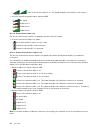
• Access Connections gauge states: wireless LAN
–
Power to the wireless radio is off or no signal.
–
Power to the wireless radio is on. The signal strength of the wireless connection is poor. To
improve the signal strength, move your computer closer to the wireless access point.
–
Power to the wireless radio is on. The signal strength of the wireless connection
is marginal.
Chapter 2
.
Using your computer
33
Оглавление инструкции
- Read this first
- Chapter 1. Product overview
- Chapter 2. Using your computer
- Chapter 3. You and your computer
- Chapter 4. Security
- Chapter 5. Recovery overview
- Chapter 6. Replacing devices
- Static electricity prevention
- Replacing the battery
- Replacing the SIM card
- Replacing the hard disk drive or solid-state drive
- Replacing a PCI Express Mini Card for wireless LAN connection
- Replacing a PCI Express Half Mini Card for wireless WAN connection
- Replacing a memory module
- Replacing the keyboard
- Replacing the backup battery
- Chapter 7. Advanced configuration
- Installing a new operating system
- Installing device drivers
- Installing the driver for the 4-in-1 media card reader
- Installing the driver for USB 3.0 on the Windows 7 operating system
- Installing the ThinkPad monitor file for Windows 2000/XP/Vista/7/8 on the Windows 7 operating system
- Installing other device drivers and software on the Windows 7 operating system
- ThinkPad Setup
- Using system management
- Chapter 8. Preventing problems
- Chapter 9. Troubleshooting computer problems
- Diagnosing problems
- Troubleshooting
- Computer stops responding
- Spills on the keyboard
- Error messages
- Errors without messages
- Beep errors
- Memory module problems
- Networking problems
- Problems with the keyboard and other pointing devices
- Problems with the display and multimedia devices
- Battery and power problems
- Problems with drives and other storage devices
- A software problem
- Problems with ports and connectors
- Chapter 10. Getting support
- Appendix A. Regulatory information
- Wireless related information
- Export classification notice
- Electronic emission notices
- Federal Communications Commission Declaration of Conformity
- Industry Canada Class B emission compliance statement
- European Union - Compliance to the Electromagnetic Compatibility Directive
- German Class B compliance statement
- Korea Class B compliance statement
- Japan VCCI Class B compliance statement
- Japan compliance statement for products which connect to the power mains with rated current less than or equal to 20 A per phase
- Lenovo product service information for Taiwan
- Appendix B. WEEE and recycling statements
- Appendix C. ENERGY STAR model information
- Appendix D. Restriction of Hazardous Substances Directive (RoHS)
- Appendix E. Notices