Инструкция для Samsung LE19B650T6W
 1
 2
 3
 4
 5
 6
 7
 8
 9
 10
 11
 12
 13
 14
 15
 16
 17
 18
 19
 20
 21
 22
 23
 24
 25
 26
 27
 28
 29
 30
 31
 32
 33
 34
 35
 36
 37
 38
 39
 40
 41
 42
 43
 44
 45
 46
 47
 48
 49
 50
 51
 52
 53
 54
 55
 56
 57
English - 26
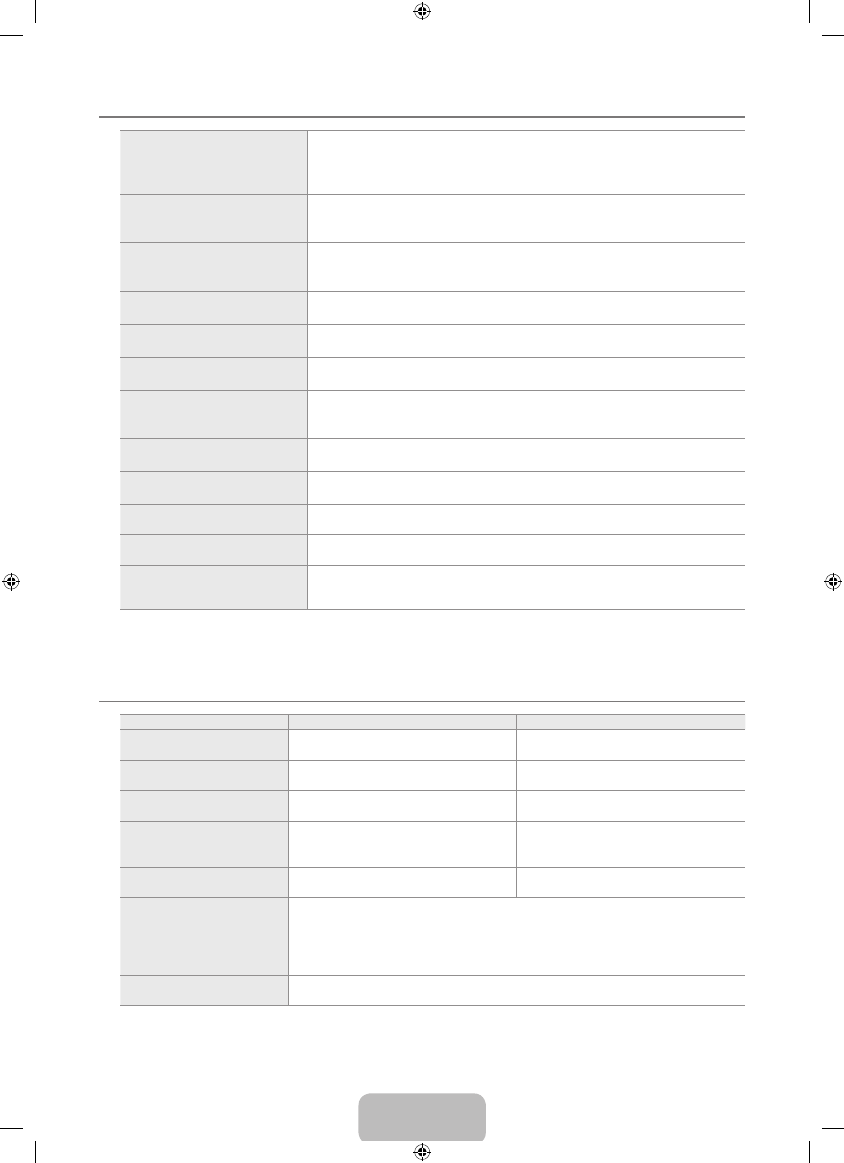
Troubleshooting: Before Contacting Service Personnel
No sound or picture
Check that the mains lead has been connected to a wall socket.
Check that you have pressed the button on your set.
Check the picture contrast and brightness settings.
Check the volume.
●
●
●
●
Normal picture but no sound
Check the volume.
Check whether the
MUTE
M
button has been pressed on the remote control.
Check the
Speaker Select
settings.
●
●
●
Screen is black and power indicator
light blinks steadily
On your computer check; Power, Signal Cable.
The TV is using its power management system.
Move the computer’s mouse or press any key on the keyboard.
●
●
●
No picture or black and white picture
Adjust the colour settings.
Check that the broadcast system selected is correct.
●
●
Sound and picture interference
Try to identify the electrical appliance that is affecting the set and move it further away.
Plug your set into a different mains socket.
●
●
Blurred or snowy picture, distorted
sound
Check the direction, location and connections of your aerial.
This interference is often due to the use of an indoor aerial.
●
●
Remote control malfunctions
Replace the remote control batteries.
Clean the upper edge of the remote control (transmission window).
Check the battery terminals.
●
●
●
‘Check signal cable.’ message is
displayed
Check that the signal cable is firmly connected to the PC or video sources.
Check that the PC or video sources are turned on.
●
●
On PC mode, ‘Not Supported Mode.’
message is displayed
Check the maximum resolution and the frequency of the video adaptor.
Compare these values with the data in the Display Modes.
●
●
The damaged picture appears in the
corner of the screen
If
Screen Fit
is selected in some external devices, the damaged picture may appear in
the corner of the screen. This symptom is caused by external devices, not TV.
The ‘Resets all settings to the default
values.’ message appears.
This appears when you press and hold the
EXIT
button for a while. The product settings
are reset to the factory defaults.
You may see small particles if you
look closely at the edge of the bezel
surrounding the TV screen.
This is part of the product’s design and is not a defect.
The TFT LCD panel uses a panel consisting of sub pixels (3 133 440) which require sophisticated technology to produce.
However, there may be few bright or dark pixels on the screen. These pixels will have no impact on the performance of the
product.
Specifications
Model Name
LE19B650T
LE22B650T
Screen Size
(Diagonal)
19 inches
22 inches
PC Resolution
(Optimum)
1360 x 768 @ 60Hz
1360 x 768 @ 60Hz
Sound
(Output)
3W x 2
3W x 2
Dimensions (WxDxH)
Body
With stand
472 x 63 x 311 mm
472 x 190 x 363 mm
540 x 63 x 351 mm
540 x 1890 x 403 mm
Weight
With Stand
4 kg
5 kg
Environmental Considerations
Operating Temperature
Operating Humidity
Storage Temperature
Storage Humidity
10°C to 40°C (50°F to 104°F)
10% to 80%, non-condensing
-20°C to 45°C (-4°F to 113°F)
5% to 95%, non-condensing
Stand Swivel
Left / Right
0˚
Design and specifications are subject to change without prior notice.
This device is a Class B digital apparatus.
For the power supply and Power Consumption, refer to the label attached to the product.
¦
N
¦
N
N
N
Book_650_BN68-01899F_00L02.indb 26
2009-03-19 �� 8:32:55
Оглавление инструкции
- Страница 1 из 58
Связывайтесь с SAMSUNG по всему миру Если у вас есть предложения или вопросы по продуктам Samsung, связывайтесь с информационным центром Samsung. Страна Центр поддержки покупателей Веб-узел ESTONIA LATVIA LITHUANIA KAZAHSTAN KYRGYZSTAN RUSSIA TADJIKISTAN UKRAINE UZBEKISTAN 800-7267 8000-7267
- Страница 2 из 58
❑ Digital TV Notice 1. Functionalities related to Digital TV(DVB) are only available in countries/areas where DVB-T (MPEG2 and MPEG4 AVC) digital terrestrial signals are broadcasted or where you are able to access to a compatible DVB-C(MPEG2 and MPEG4 AAC) cableTV service. Please check with your
- Страница 3 из 58
English Contents GENERAL INFORMATION ■ Viewing the Control Panel.................................................................. 2 ■ Accessories........................................................................................ 3 ■ Viewing the Connection
- Страница 4 из 58
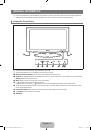
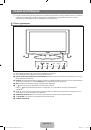
GENERAL INFORMATION N Figures and illustrations in this User Manual are provided for reference only and may differ from actual product appearance. Product design and specifications may be changed without notice in order to enhance product performance. ¦ Viewing the Control Panel 8 8 1 N N 1 2 3 4 5
- Страница 5 из 58
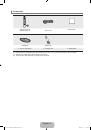
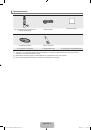
¦ Accessories Remote Control & Batteries (AAA x 2) Power Cord Stand Base Stand Body ● Owner’s Instructions ● Warranty card Cleaning Cloth ● Safety Guide N Please make sure the following items are included with your LCD TV. If any items are missing, contact your dealer. N Warranty card / Safety
- Страница 6 из 58
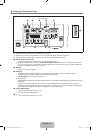
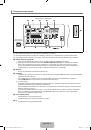
¦ Viewing the Connection Panel [TV Rear Panel] 1 2 3 4 5 6 Power Input @ N N N 1 2 3 4 5 ! 0 9 8 7 The product colour and shape may vary depending on the model. Whenever you connect an external device to your TV, make sure that power on the unit is turned off. When connecting an external device,
- Страница 7 из 58
6 COMMON INTERFACE Slot – When not inserting ‘CI CARD’ in some channels, ‘Scrambled Signal’ is displayed on the screen. – The pairing information containing a telephone number, CI CARD ID, Host ID and other information will be displayed in about 2~3 minutes. If an error message is displayed, please
- Страница 8 из 58
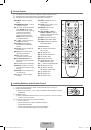
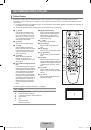
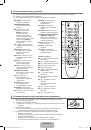
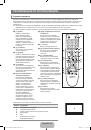
¦ Remote Control N You can use the remote control up to a distance of about 23 feet from the TV. N The performance of the remote control may be affected by bright light. N The product colour and shape may vary depending on the model. 1 POWER : Television Standby button. 2 NUMERIC BUTTONS : Press to
- Страница 9 из 58
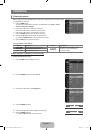
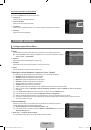
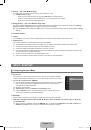
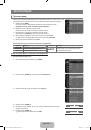
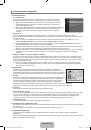
OPERATION ¦ Viewing the menus Picture Before using the TV, follow the steps below to learn how to navigate the menu in order to select and adjust different functions. 1. Press the MENU button. The main menu is displayed on the screen. Its left side has icons: Picture, Sound, Channel , Setup, Input,
- Страница 10 из 58
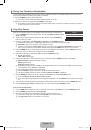
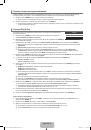
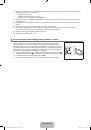
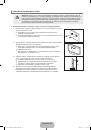
¦ Placing Your Television in Standby Mode Your set can be placed in standby mode in order to reduce the power consumption. The standby mode can be useful when you wish to interrupt viewing temporarily (during a meal, for example). 1. Press the POWERP button on the remote control. N The screen is
- Страница 11 из 58
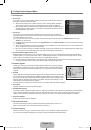
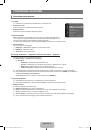
CHANNEL CONTROL ¦ Configuring the Channel Menu ❑ Country N The PIN number input screen appears. Enter your 4 digit PIN number. Channel Analogue Channel You can change the country for analogue channels. Digital Channel Country ► Auto Store Manual Store Cable Search Optiona You can change the
- Страница 12 из 58
Analogue Channel Manual store for analogue channel. ● Programme (Programme number to be assigned to a channel): Sets the programme number using the ▲, ▼ or number (0~9) buttons. ● Colour System → Auto / PAL / SECAM / NTSC4.43: Sets the colour system value using the ▲ or ▼ button. ● Sound System →
- Страница 13 из 58
Using the Now & Next Guide / Full Guide Now & Next Guide DTV Cable 900 f tn Freshmen On Campus 2:00 - 2:30 2:10 Tue 1 Jun Full Guide No Detailed Information 1 2 3 4 5 ▼6 f tn ITV Play Kerrang! Kiss oneword Smash Hits! Now Freshmen O.. Street Hypn.. Mint Extra Loaded Fresh 40 with Dynamite MC The
- Страница 14 из 58
N Channel Status Display Icons ● A : An analogue channel. ● c: A channel selected by pressing the yellow button. ● *: A channel set as a Favourite. ● (: A programme currently being broadcast. ● \: A locked channel. ● ): A reserved programme Channel List Option Menu (in All Channels / Added Channels
- Страница 15 из 58
Channel List Option Menu (in Programmed ) You can view, modify or delete a reservation. N Press the TOOLS button to use the option menu. Change Info Select to change a viewing reservation. 1 / 1 / 2009 Programmed Cancel Schedules Select to cancel a viewing reservation. Information 13:59 5 TV1
- Страница 16 из 58
Dynamic Contrast → Off / Low / Medium / High You can adjust the screen contrast so that the optimal contrast is provided. Gamma You can adjust the Primary Colour (Red, Green, Blue) Intensity. Colour Space Colour Space is a colour matrix composed of red, green and blue colours. Select your
- Страница 17 из 58
Screen Mode → 16:9 / Wide Zoom / Zoom / 4:3 When setting the picture size to Auto Wide in a 16:9 wide TV, you can determine the picture size you want to see the 4:3 WSS (Wide Screen Service) image or nothing. Each individual European country requires different picture size so this function is
- Страница 18 из 58
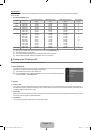
Display Modes Both screen position and size will vary depending on the type of PC monitor and its resolution. The resolutions in the table are recommended. D-Sub and HDMI/DVI Input Mode Resolution IBM 640 x 350 720 x 400 640 x 480 832 x 624 720 x 576 1280 x 720 1280 x 720 640 x 480 640 x 480 640
- Страница 19 из 58
SOUND CONTROL ¦ Configuring the Sound Menu ❑ Mode → Standard / Music / Movie / Clear Voice / Custom Sound You can select a sound mode to suit your personal preferences. T Press the TOOLS button to display the Tools menu. You can also configure the sound mode by selecting Tools → Sound Mode. Mode :
- Страница 20 из 58
❑ Audio Description (digital channels only) This is an auxiliary audio function that provides an additional audio track for visually challenged persons. This function handles the Audio Stream for the AD (Audio Description), when it is sent along with the Main audio from the broadcaster. Users can
- Страница 21 из 58
SETUP ¦ Configuring the Setup Menu ❑ Language You can set the menu language. Plug & Play Setup ❑ Time Language : English ► Time Clock Game Mode : off Child Lock : On Change PIN Parental Lock Subtitle Subtitle Teletext Language Setup Setting the clock is necessary in order to use the various timer
- Страница 22 из 58
❑ Child Lock → Off / On This feature allows you to prevent unauthorized users, such as children, from watching unsuitable programme by muting out video and audio. N Before the setup screen appears, the PIN number input screen appears. Enter your 4 digit PIN number. N The default PIN number of a new
- Страница 23 из 58
❑ Melody → Off / Low / Medium / High A melody sound can be set to come on when the TV is powered On or Off. N The Melody does not play – When no sound is output from the TV because the MUTE button has been pressed. – When no sound is output from the TV because the (–) Volume button has been
- Страница 24 из 58
¦ Configuring the Support Menu ❑ Self Diagnosis Picture Test Support If you think you have a picture problem, perform the picture test. Check the colour pattern on the screen to see if the problem still exists. ● Yes: If the test pattern does not appear or there is noise in the test pattern,
- Страница 25 из 58
RECOMMENDATIONS FOR USE ¦ Teletext Feature Most television stations provide written information services via Teletext. The index page of the teletext service gives you information on how to use the service. In addition, you can select various options to suit your requirements by using the remote
- Страница 26 из 58
N Teletext information is often divided between several pages displayed in sequence, which can be accessed by: – Entering the page number – Selecting a title in a list – Selecting a coloured heading (FASTEXT system) N Teletext level supported by the TV is version 2.5 which is capable of displaying
- Страница 27 из 58
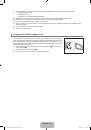
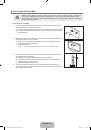
¦ Securing the TV to the Wall Caution: Pulling, pushing, or climbing on the TV may cause the TV to fall. In particular, ensure your children do not hang over or destabilize the TV; doing so may cause the TV to tip over, causing serious injuries or death. Follow all safety precautions provided on
- Страница 28 из 58
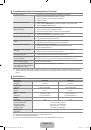
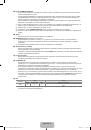
¦ Troubleshooting: Before Contacting Service Personnel No sound or picture ● Check that the mains lead has been connected to a wall socket. ● Check that you have pressed the button on your set. ● Check the picture contrast and brightness settings. ● Check the volume. Normal picture but no sound ●
- Страница 29 из 58
This page is intentionally left blank. Book_650_BN68-01899F_00L02.indb 27 2009-03-19 �� 8:32:55
- Страница 30 из 58
❑ Цифровое телевещание (DVB-T). Примечание 1. Функции цифрового телевидения (DVB) доступны только в тех странах и регионах, где передаются цифровые наземные сигналы DVB-T (MPEG2 и MPEG4 AVC) или где имеется доступ к совместимой услуге кабельного телевидения DVB-C (MPEG2 и MPEG4 AAC). Узнайте у
- Страница 31 из 58
Содержание ОБЩАЯ ИНФОРМАЦИЯ ■ Панель управления........................................................................... 2 ■ Принадлежности............................................................................... 3 ■ Соединительная
- Страница 32 из 58
ОБЩАЯ ИНФОРМАЦИЯ N Рисунки и иллюстрации в данном руководстве пользователя представлены только для справки. Они могут отличаться от реального внешнего вида устройства. Конструкция и характеристики устройства могут изменяться с целью повышения его производительности без предварительного уведомления.
- Страница 33 из 58
¦ Принадлежности Пульт дистанционного управления и 2 батареи (размер AAA) Кабель питания Основание подставки Корпус подставки ● Руководство пользователя ● Гарантийный талон Ткань для очистки ● Инструкция по технике безопасности N Убедитесь, что следующие принадлежности прилагаются к телевизору с
- Страница 34 из 58
¦ Соединительная панель [Задняя панель телевизора] 1 2 3 4 5 6 Разъем для шнура питания @ N N N 1 2 3 4 5 ! 0 9 8 7 Цвет и форма устройства могут различаться в зависимости от модели. При подключении внешнего устройства к телевизору убедитесь, что питание данного устройства выключено. Подключая
- Страница 35 из 58
6 Гнездо COMMON INTERFACE – Если в гнездо стандартного интерфейса не вставлена карта, при приёме некоторых каналов может появиться надпись 'Зашифрованный сигнал'. – Сопровождающая информация, содержащая телефонный номер, идентификационный номер карты CI CARD, идентификационный номер хоста будет
- Страница 36 из 58
¦ Пульт дистанционного управления N Пульт дистанционного управления можно использовать на расстоянии не более 7 метров от телевизора. N На работу пульта ДУ может влиять яркий свет. N Цвет и форма устройства могут различаться в зависимости от модели. 1 POWER : Кнопка режима ожидания телевизора. 2
- Страница 37 из 58
ЭКСПЛУАТАЦИЯ ¦ Просмотр меню Изображение Перед использованием телевизора выполните описанные ниже шаги, чтобы узнать о том, как осуществляется навигация по меню для выбора и настройки различных функций. 1. Нажмите кнопку MENU. На экране появится главное меню. В левой части меню имеются значки:
- Страница 38 из 58
¦ Перевод телевизора в режим ожидания Чтобы уменьшить количество энергии, потребляемой телевизором, можно перевести его в режим ожидания. Режим ожидания удобно использовать, если необходимо временно прервать просмотр (например на время обеда). 1. Нажмите кнопку POWERP на пульте дистанционного
- Страница 39 из 58
УПРАВЛЕНИЕ КАНАЛАМИ ¦ Настройка меню каналов ❑ Страна N Отобразится окно ввода PIN-кода. Введите 4-значный PIN-код. Изменение страны для приема аналоговых каналов. Канал Аналоговый канал Цифровой канал Страна ► Автонастройка Ручная настройка Параметр поиска в кабельной сети Изменение страны для
- Страница 40 из 58
Аналоговый канал Сохранение аналоговых каналов вручную. ● Программа (номер программы, присвоенный каналу): установка номера программы с помощью кнопок ▲, ▼ или цифровых кнопок (0~9). ● Система цвета → Авто / PAL / SECAM / NTSC4.43: установка значений цветовой системы помощью кнопки ▲ или ▼. ●
- Страница 41 из 58
Использование полного руководства/мини-руководства Текущие и следующие DTV Cable 900 f tn Freshmen On Campus 2:00 - 2:30 2:10 Tue 1 Jun Полн. руков. No Detailed Information 1 2 3 4 5 ▼6 f tn ITV Play Kerrang! Kiss oneword Smash Hits! DTV Cable 900 f tn Freshmen On Campus 2:00 - 2:30 2:10 Tue 1 Jun
- Страница 42 из 58
N Отображаемые значки состояния каналов ● A: аналоговый канал. ● c: канал, выбранный с помощью нажатия желтой кнопки. ● *: избранный канал. ● (: принимаемая в текущий момент программа. ● \: заблокированный канал. ● ): сохраненная программа. Меню параметров списка каналов (в меню Все каналы /
- Страница 43 из 58
Меню параметров списка каналов (в меню “Запрограммированный”) Можно просматривать, изменять или удалять сохраненные программы. N Нажмите кнопку TOOLS, чтобы открыть меню параметров. Изменение информации 1 / 1 / 2009 Запрограммированный Изменение сохраненных для просмотра программ. Отмена
- Страница 44 из 58
Автоконтраст → Выкл. / Низкий / Средний / Высокий Можно настроить оптимальную контрастность экрана. Гамма Можно отрегулировать интенсивность главных цветов (красный, зеленый, синий). Цвет. интревал Цветовое пространство – это цветовая матрица, состоящая из красного, зеленого и синего цветов.
- Страница 45 из 58
Режим экрана → 16:9 / Ш/экр.увл / Увел. / 4:3 При установке для размера изображения значения Широкий aвто в широкоэкранном режиме 16:9 можно задать размер изображения, если необходим просмотр широкоформатного изображения 4:3, или не задавать его. Во всех странах Европы требуются различные размеры
- Страница 46 из 58
Режимы экрана Положение изображения и его размер могут изменяться в зависимости от выбранного типа монитора компьютера и его разрешения. Рекомендуются разрешения, указанные в таблице. Вход D-Sub и HDMI/DVI Режим Разрешение Частота горизонтальной развертки (кГц) IBM 640 x 350 720 x 400 640 x 480
- Страница 47 из 58
УПРАВЛЕНИЕ ЗВУКОМ ¦ Настройка меню звука ❑ Режим → Стандартный / Музыка / Кино / Четкий голос / Польз. Стандартный выбор обычного режима звука. Звук Можно выбрать режим звука в соответствии со своими предпочтениями. T Нажмите кнопку TOOLS для отображения меню Инструменты. Можно также выполнить
- Страница 48 из 58
❑ Описание аудио (только для цифровых каналов) Это вспомогательная функция аудио, которая обеспечивает дополнительную аудиодорожку для людей с ослабленным зрением. Эта функция обрабатывает аудиопоток для AD (описание аудио), когда он отправляется вещательной компанией вместе с основным аудио.
- Страница 49 из 58
УСТАНОВКА ¦ Меню настройки ❑ Язык Plug & Play Установка Можно установить язык меню. ❑ Время Часы Язык : Русский ► Время Игровой режим : Выкл. Замок : Вкл. Установка Изменение PIN Для использования различных функций таймера в телевизоре необходима установка Родит. блокировка часов. Субтитры N
- Страница 50 из 58
❑ Замок → Выкл. / Вкл. С помощью этой функции можно ограничить доступ определенных пользователей (например, детей) к неподходящим программам посредством отключение звука и изображения. N Перед отображением экрана настройки появится экран для ввода PIN-кода. Введите 4-значный PIN-код. N По умолчанию
- Страница 51 из 58
❑ Мелодия → Выкл. / Низкий / Средний / Высокий Можно установить мелодию, которая будет воспроизводиться при включении или выключении телевизора. N Мелодия не воспроизводится – Когда звук не воспроизводится на телевизоре, поскольку нажата кнопка MUTE. – Когда звук не воспроизводится на телевизоре,
- Страница 52 из 58
¦ Настройка меню поддержки ❑ Самодиагностика Тест изображения Поддержка В случае возникновения проблемы с изображением выполните его тестирование. Проверьте цветовую схему на экране, чтобы посмотреть, устранена ли неполадка. Самодиагностика ► ● Да: Если тестовое изображение не отображается, или
- Страница 53 из 58
РЕКОМЕНДАЦИИ ПО ИСПОЛЬЗОВАНИЮ ¦ Функция телетекста Большинство телевизионных станций предлагают для просмотра текстовую информацию через услугу телетекста. Информацию об использовании услуги телетекста можно найти на главной странице службы телетекста. К тому же, при помощи кнопок пульта
- Страница 54 из 58
N Информация телетекста часто распределяется на несколько страниц, которые отображаются в последовательном порядке. Чтобы открыть эти страницы: – введите номер страницы – выберите название страницы из списка – выберите цветное заглавие (система FASTEXT). N Уровень телетекста, поддерживаемый
- Страница 55 из 58
¦ Крепление телевизора на стене Внимание: Нельзя тянуть, толкать или приподнимать телевизор, поскольку телевизор может упасть. В особенности убедитесь в том, что дети не повисают на телевизоре или не нарушают его равновесие; это может привести к опрокидыванию телевизора, что может повлечь за собой
- Страница 56 из 58
¦ Поиск и устранение неисправностей: перед обращением в службу технической поддержки Отсутствуют звук или изображение ● ● ● ● Изображение нормальное, но звук ● отсутствует ● ● Экран остается черным, а ● индикатор питания мигает ● ● Нет изображения или изображение ● черно-белое ● Помехи в звуке и
- Страница 57 из 58
Эта страница намеренно оставлена пустой. Book_650_BN68-01899F_00L02.indb 27 2009-03-19 �� 8:33:02
- Страница 58 из 58