Инструкция для ViewSonic VA703m
 1
 2
 3
 4
 5
 6
 7
 8
 9
 10
 11
 12
 13
 14
 15
 16
 17
 18
 19
 20
 21
 22
 23
 24
 25

ViewSonic
VA703m/VA703b/VA703mb
5
Getting Started
Congratulations on your purchase of a ViewSonic
®
LCD display.
Important!
Save the original box and all packing material for future shipping needs.
NOTE:
The word “Windows” in this user guide refers to the following Microsoft operating
systems: Windows ‘95, Windows NT, Windows ‘98, Windows 2000, Windows Me
(Millennium), Windows XP, and Windows Vista.
Package Contents
Your LCD display package includes:
• LCD display
• Power cord
• Audio cable (stereo mini jack, for VA703m/VA703mb only)
• D-Sub cable
• ViewSonic Wizard CD-ROM
• Quick Start Guide
NOTE:
The CD includes the User Guide PDF files and INF/ICM display optimization files.
The INF file ensures compatibility with Windows operating systems, and the ICM file (Image
Color Matching) ensures accurate on-screen colors. ViewSonic recommends that you install
both the INF and ICM files.
Precautions
• Sit at least 18” from the LCD display.
•
Avoid touching the screen.
Skin oils are
difficult to remove.
•
Never remove the rear cover.
This LCD
display contains high-voltage parts. You
may be seriously injured if you touch
them.
• Avoid exposing the LCD display to direct
sunlight or another heat source. Orient the
LCD display away from direct sunlight to
reduce glare.
• Always handle the LCD display with care
when moving it.
• Place the LCD display in a well ventilated
area. Do not place anything on the LCD
display that prevents heat dissipation.
• Ensure the area around the LCD display is
clean and free of moisture.
• Do not place heavy objects on the LCD
display, video cable, or power cord.
• If smoke, an abnormal noise, or a strange
odor is present, immediately switch the
LCD display off and call your dealer or
ViewSonic. It is dangerous to continue
using the LCD display.
• Do not rub or apply pressure to the LCD
panel, as it may permanently damage the
screen.
Оглавление инструкции
- Страница 1 из 26
® ViewSonic VA703m/VA703b/VA703mb LCD Display IMPORTANT: Please read this User Guide to obtain important information on installing and using your product in a safe manner, as well as registering your product for future service. Warranty information contained in this User Guide will describe your
- Страница 2 из 26
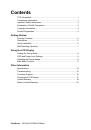
Contents TCO Information .......................................................................................... i Compliance Information.............................................................................. 1 Important Safety
- Страница 3 из 26
TCO Information Congratulations! The display you have just purchased carries the TCO’03 Displays label. This means that your display is designed, manufactured and tested according to some of the strictest quality and environmental requirements in the world. This makes for a high performance
- Страница 4 из 26
Compliance Information For U.S.A. This device complies with part 15 of FCC Rules. Operation is subject to the following two conditions: (1) this device may not cause harmful interference, and (2) this device must accept any interference received, including interference that may cause undesired
- Страница 5 из 26
Important Safety Instructions 1. Read these instructions completely before using the equipment. 2. Keep these instructions in a safe place. 3. Heed all warnings. 4. Follow all instructions. 5. Do not use this equipment near water. Warning: To reduce the risk of fire or electric shock, do not expose
- Страница 6 из 26
Declaration of RoHS Compliance This product has been designed and manufactured in compliance with Directive 2002/95/EC of the European Parliament and the Council on restriction of the use of certain hazardous substances in electrical and electronic equipment (RoHS Directive) and is deemed to comply
- Страница 7 из 26
Copyright Information Copyright © ViewSonic® Corporation, 2007. All rights reserved. Macintosh and Power Macintosh are registered trademarks of Apple Computer, Inc. Microsoft, Windows, Windows NT, and the Windows logo are registered trademarks of Microsoft Corporation in the United States and other
- Страница 8 из 26
Getting Started Congratulations on your purchase of a ViewSonic® LCD display. Important! Save the original box and all packing material for future shipping needs. NOTE: The word “Windows” in this user guide refers to the following Microsoft operating systems: Windows ‘95, Windows NT, Windows ‘98,
- Страница 9 из 26
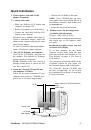
Quick Installation 1. Connect power cord (and AC/DC adapter if required) 2. Connect video cable • Make sure both the LCD display and computer are turned OFF • Remove rear panel covers if necessary • Connect the video cable from the LCD display to the computer Macintosh users: Models older than G3
- Страница 10 из 26
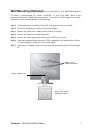
Wall Mounting (Optional) For use only with UL Listed Wall Mount Bracket To obtain a wall-mounting kit, contact ViewSonic® or your local dealer. Refer to the instructions that come with the base mounting kit. To convert your LCD display from a deskmounted to a wall-mounted display, do the following:
- Страница 11 из 26
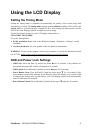
Using the LCD Display Setting the Timing Mode Setting the timing mode is important for maximizing the quality of the screen image and minimizing eye strain. The timing mode consists of the resolution (example 1280 x 1024) and refresh rate (or vertical frequency; example 60 Hz). After setting the
- Страница 12 из 26
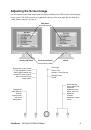
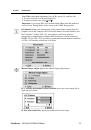
Adjusting the Screen Image Use the buttons on the front control panel to display and adjust the OSD controls which display on the screen. The OSD controls are explained at the top of the next page and are defined in “Main Menu Controls” on page 11. Main Menu with OSD controls VA703m/VA703mb Front
- Страница 13 из 26
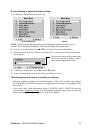
Do the following to adjust the display setting: 1. To display the Main Menu, press button [1]. VA703m/VA703mb VA703b NOTE: All OSD menus and adjustment screens disappear automatically after about 15 seconds. This is adjustable through the OSD timeout setting in the setup menu. 2. To select a
- Страница 14 из 26
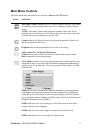
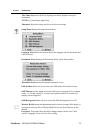
Main Menu Controls Adjust the menu items shown below by using the up S and down T buttons. Control Explanation Auto Image Adjust automatically sizes, centers, and fine tunes the video signal to eliminate waviness and distortion. Press the [2] button to obtain a sharper image. NOTE: Auto Image
- Страница 15 из 26
Control Explanation User Color Individual adjustments for red (R), green (G), and blue (B). 1. To select color (R, G or B) press button [2]. 2. To adjust selected color, pressSandT. Important: If you select RECALL from the Main Menu when the product is set to a Preset Timing Mode, colors return to
- Страница 16 из 26
Control Explanation Fine Tune sharpens the focus by aligning text and/or graphics with pixel boundaries. NOTE: Try Auto Image Adjust first. Sharpness adjusts the clarity and focus of the screen image. Setup Menu displays the menu shown below: Language Select allows the user to choose the language
- Страница 17 из 26
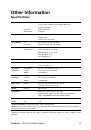
Other Information Specifications LCD Type 17” (full 17" viewable diagonal area), TFT (Thin Film Transistor), Active Matrix SXGA LCD, 0.264 mm pixel pitch Input Signal Color Filter RGB vertical stripe Glass Surface Anti-Glare Video Sync RGB analog (0.7/1.0 Vp-p, 75 ohms) Separate Sync, fh:24-82 kHz,
- Страница 18 из 26
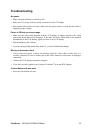
Troubleshooting No power • Make sure power button (or switch) is ON. • Make sure A/C power cord is securely connected to the LCD display. • Plug another electrical device (like a radio) into the power outlet to verify that the outlet is supplying proper voltage. Power is ON but no screen image •
- Страница 19 из 26
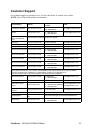
Customer Support For technical support or product service, see the table below or contact your reseller. NOTE: You will need the product serial number. Country/Region Website T = Telephone F = FAX Email Australia/New Zealand www.viewsonic.com.au AUS= 1800 880 818 NZ= 0800 008 822
- Страница 20 из 26
Cleaning the LCD Display • MAKE SURE THE LCD DISPLAY IS TURNED OFF. • NEVER SPRAY OR POUR ANY LIQUID DIRECTLY ONTO THE SCREEN OR CASE. To clean the screen: 1. Wipe the screen with a clean, soft, lint-free cloth. This removes dust and other particles. 2. If the screen still not clean, apply a small
- Страница 21 из 26
Limited Warranty VIEWSONIC® LCD DISPLAY What the warranty covers: ViewSonic warrants its products to be free from defects in material and workmanship, under normal use, during the warranty period. If a product proves to be defective in material or workmanship during the warranty period, ViewSonic
- Страница 22 из 26
Exclusion of damages: ViewSonic's liability is limited to the cost of repair or replacement of the product. ViewSonic shall not be liable for: 1. Damage to other property caused by any defects in the product, damages based upon inconvenience, loss of use of the product, loss of time, loss of
- Страница 23 из 26
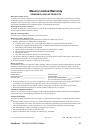
Mexico Limited Warranty VIEWSONIC® DISPLAY PRODUCTS What the warranty covers: ViewSonic warrants its products to be free from defects in material and workmanship, under normal use, during the warranty period. If a product proves to be defective in material or workmanship during the warranty period,
- Страница 24 из 26
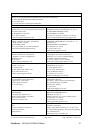
Contact Information for Sales & Authorized Service (Centro Autorizado de Servicio) within Mexico: Name, address, of manufacturer and importers: México, Av. de la Palma #8 Piso 2 Despacho 203, Corporativo Interpalmas, Col. San Fernando Huixquilucan, Estado de México Tel: (55) 3605-1099
- Страница 25 из 26
- Страница 26 из 26