Инструкция для LG G Pad 10.1 (V700)
 1
 2
 3
 4
 5
 6
 7
 8
 9
 10
 11
 12
 13
 14
 15
 16
 17
 18
 19
 20
 21
 22
 23
 24
 25
 26
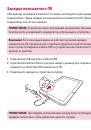 27
 28
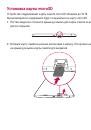 29
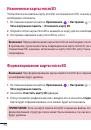 30
 31
 32
 33
 34
 35
 36
 37
 38
 39
 40
 41
 42
 43
 44
 45
 46
 47
 48
 49
 50
 51
 52
 53
 54
 55
 56
 57
 58
 59
 60
 61
 62
 63
 64
 65
 66
 67
 68
 69
 70
 71
 72
 73
 74
 75
 76
 77
 78
 79
 80
 81
 82
 83
 84
 85
 86
 87
 88
 89
 90
 91
 92
 93
 94
 95
 96
 97
 98
 99
 100
 101
 102
 103
 104
 105
 106
 107
 108
 109
 110
 111
 112
 113
 114
 115
 116
 117
 118
 119
 120
 121
 122
 123
 124
 125
 126
 127
 128
 129
 130
 131
 132
 133
 134
 135
 136
 137
 138
 139
 140
 141
 142
 143
 144
 145
 146
 147
 148
 149
 150
 151
 152
 153
 154
 155
 156
 157
 158
 159
 160
 161
 162
 163
 164
 165
 166
 167
 168
 169
 170
 171
 172
 173
 174
 175
 176
 177
 178
 179
 180
 181
 182
 183
 184
 185
 186
 187
 188
 189
 190
 191
 192
 193
 194
 195
 196
 197
 198
 199
 200
 201
 202
 203
 204
 205
 206
 207
 208
 209
 210
 211
 212
 213
 214
 215
 216
 217
 218
 219
 220
 221
 222
 223
 224
 225
 226
 227
 228
 229
 230
 231
 232
 233
 234
 235
 236
 237
 238
 239
 240
 241
 242
 243
 244
 245
 246
 247
 248
 249
 250
 251
 252
 253
 254
 255
 256
 257
 258
 259
 260
 261
 262
 263
 264
 265
 266
 267
 268
 269
 270
 271
 272
 273
 274
 275
 276
 277
 278
 279
 280
 281
 282
 283
 284
 285
 286
 287
 288
 289
 290
 291
 292
 293
 294
 295
 296
 297
 298
 299
 300
 301
 302
 303
 304
 305
 306
 307
 308
 309
 310
 311
 312
 313
 314
 315
 316
 317
 318
 319
 320
 321
 322
 323
 324
 325
 326
 327
 328
 329
 330
 331
 332
 333
 334
 335
 336
 337
 338
 339
 340
 341
 342
 343
 344
 345
 346
 347
 348
 349
 350
 351
 352
 353
 354
 355
 356
 357
 358
 359
 360
 361
 362
 363
 364
 365
 366
 367
 368
 369
 370
 371
 372
 373
 374
 375
 376
 377
 378
 379
 380
 381
 382
 383
 384
 385
 386
 387
 388
 389
 390
 391
 392
 393
 394
 395
 396
 397
 398
 399
 400
 401
 402
 403
 404
 405
 406
 407
 408
 409
 410
 411
 412
 413
 414
 415
 416
 417
 418
 419
 420
 421
 422
 423
 424
 425
 426
 427
 428
 429
 430
 431
 432
 433
 434
 435
 436
 437
 438
 439
 440
 441
 442
 443
 444
 445
 446
 447
 448
 449
 450
 451
 452
 453
 454
 455
 456
 457
 458
 459
 460
 461
 462
 463
 464
 465
 466
38
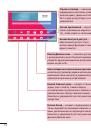
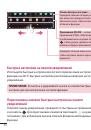
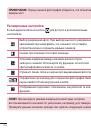
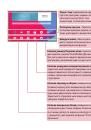
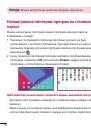
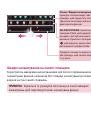
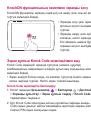
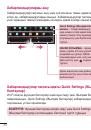
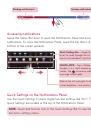
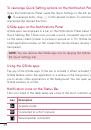
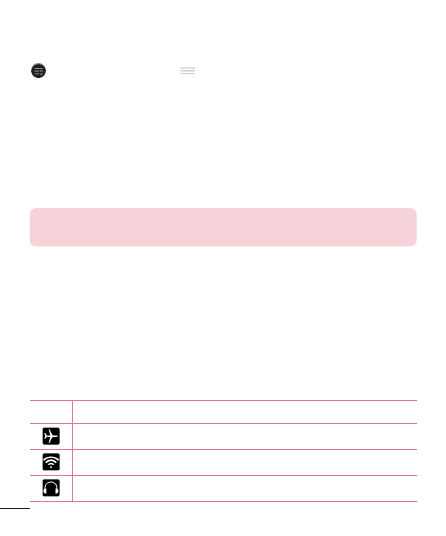
To rearrange Quick Setting options on the Notification Panel
Open the Notifications Panel, swipe the Quick Settings to the left, and tap
. To rearrange items, drag
to the desired location. To add more icons,
checkmark the desired functions.
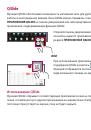
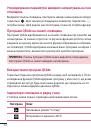
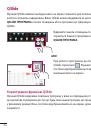
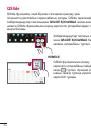
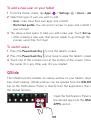
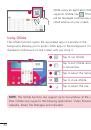
QSlide apps on the Notifications Panel
QSlide apps are displayed in a bar on the Notifications Panel below the
Quick Settings Bar. These icons provide a quick, convenient way to multi-task
on the same screen (similar to picture-in-picture on a TV). QSlide displays a
small application window on the screen that can be moved, resized, or made
transparent.
NOTE:
You can remove the QSlide apps bar by tapping the QSlide icon in
the Quick Settings bar.
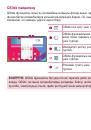
Using the QSlide apps
Tap any of the QSlide apps in the bar to activate it. When activated, the
QSlide feature opens the application in a window in the foreground, allowing
you to access other applications in the background. You can open up to two
QSlide windows at a time.
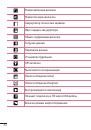
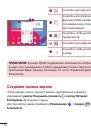
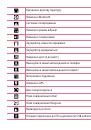
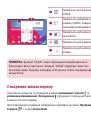
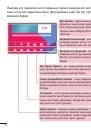
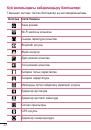
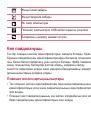
Notification icons on the Status Bar
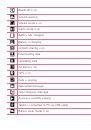
The icons listed in the table below are some of the most common ones.
Icon Description
Airplane mode
Connected to a Wi-Fi network
Wired headset connected
Оглавление инструкции
- Сведения о данном руководстве пользователя
- Сведения о данном руководстве пользователя
- Рекомендации по безопасной и эффективной эксплуатации
- Важное примечание
- Знакомство с устройством
- Главный экран
- Советы по работе с сенсорным экраном.
- Главный экран
- Запуск, переключение и остановка приложений
- Использование функции Двойное окно
- Настройка значков приложений на главном экране
- Скрытие элементов на главном экране
- Быстрый доступ
- Уведомления
- Несколько пользователей
- QSlide
- Создание снимка экрана
- Способы ввода текста
- Жест для использования разделенной клавиатуры
- Настройка аккаунта Google
- Подключение к сетям и устройствам
- Контакты
- Электронная почта
- Развлечения
- Инструменты
- Интернет
- Настройки
- LG Backup
- Обновление ПО планшетного ПК
- Аксессуары
- Устранение неисправностей
- Про цей посібник користувача
- Про цей посібник користувача
- Рекомендації щодо безпеки та ефективного використання
- Важливе повідомлення
- Ознайомлення з пристроєм
- Головний екран
- Поради щодо використання сенсорного екрана
- Домашній екран
- Відкривання, перемикання та призупинення програм
- Використання функції Подвійне вікно
- Налаштування піктограм програм на головному екрані
- Прибирання елементів з головного екрану
- Швидкий доступ
- Сповіщення
- Декілька користувачів
- QSlide
- Створення знімка екрану
- Способи введення тексту
- Поділ клавіатури за допомогою жесту
- Налаштування облікового запису Google
- Під'єднання до мереж і пристроїв
- Контакти
- Ел. пошта
- Розваги
- Інструменти
- Веб
- Налаштув.
- LG Backup
- Оновлення ПЗ планшету
- Аксесуари
- Усунення несправностей
- Осы пайдаланушы нұсқаулығы туралы
- Осы пайдаланушы нұсқаулығы туралы
- Қауіпсіз және тиімді пайдалану туралы нұсқаулар
- Маңызды ескерту
- Құрылғымен танысу
- Негізгі экраныңыз
- Сенсорлы экран кеңестері
- Өзіндік бет экраны
- Қолданбаларды ашу, қосу және тоқтату
- Қос терезе пайдалану
- Негізгі экранда қосымшалар белгішелерін реттеу
- Элементтерді негізгі экранда жасыру
- Жылдам ашу
- Хабарландырулар
- Көп пайдаланушы
- QSlide
- Скриншот түсіру
- Мәтін енгізу әдістері
- Пернетақтаны қимылды пайдаланып бөлу
- Google тіркелгісін орнату
- Желілерге және құрылғыларға қосылу
- Контактілер
- Эл. пошта
- Көңіл көтеру
- Құралдар
- Веб
- Баптаулар
- LG Backup
- Планшеттің бағдарламалық құралын жаңарту
- Қосалқы құралдар
- Ақауларды жою
- About this user guide
- About this user guide
- Guidelines for safe and efficient use
- Important notice
- Getting to know your device
- Your Home screen
- Google account setup
- Connecting to Networks and Devices
- Contacts
- Entertainment
- Tools
- The Web
- Settings
- LG Backup
- Tablet software update
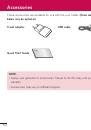
- Accessories
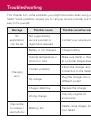
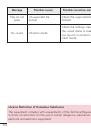
- Troubleshooting